How to Reduce Screen Time: A 4-Week Plan That Sticks
Updated 16 November 2026 · for iOS 27.
Most attempts to reduce screen time fail the same way: a big resolution, a strict limit on Monday, everything switched off by Thursday. What works is slower and more boring: find out where the time actually goes, cut the biggest piece first, and give it a few weeks. This guide is a four-week plan for exactly that, with the iPhone settings for each step.
In this guide
- How much screen time is too much?
- Week 1: Measure, change nothing
- Set a target you can keep
- Week 2: The biggest app first
- Week 3: Fewer pickups
- Week 4: Fill the gap
- Every week: a five-minute check-in
- Four mistakes that undo the plan
- When the time keeps going back: NoCrast
How much screen time is too much?
There is no single right number. Two hours of messaging family, reading and navigating is a different thing from two hours of feeds you don't remember afterwards. A more useful question than "how many hours" is: how much of my screen time went to things I would choose again? The goal of this plan is to shrink the part you wouldn't, not to hit an arbitrary total.
Week 1: Measure, change nothing
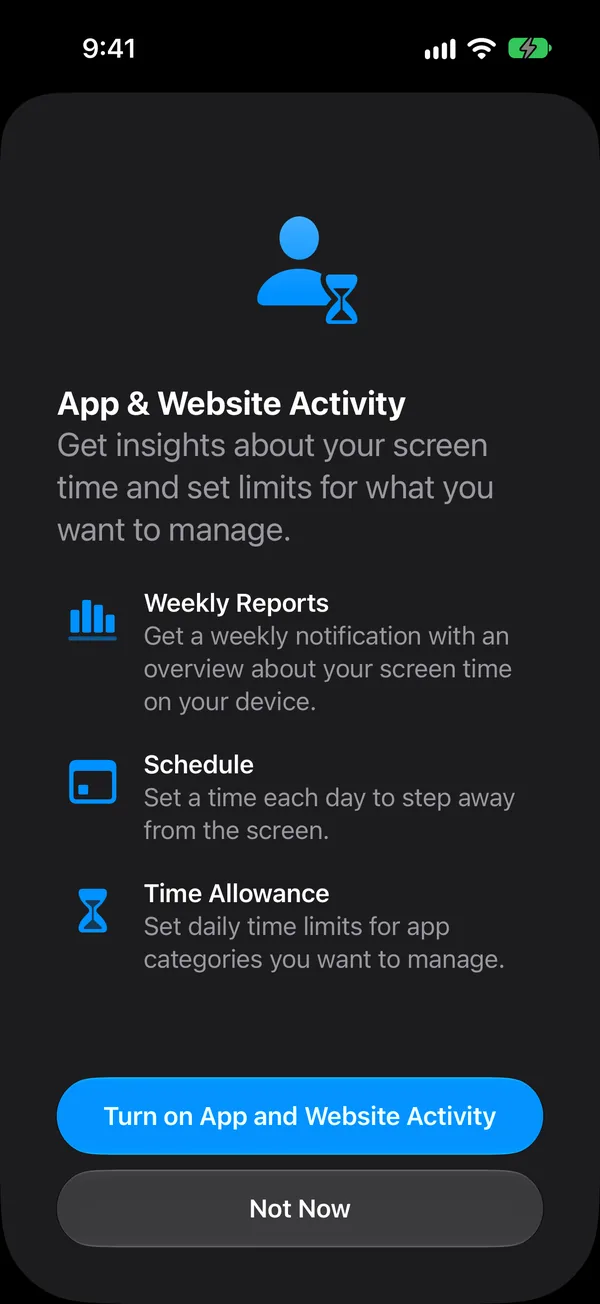
Turn on App & Website Activity if it isn't on yet: open Settings › Screen Time and tap Time Allowances, and your iPhone offers it. Then, for one week, change nothing. You want an honest picture, not a good week.
At the end of the week, Screen Time's report shows your daily average, the apps that took the most time, how often you picked up the phone, and which apps sent the most notifications. Write down four numbers:
- Your daily average.
- Your top three apps, and their time.
- How many pickups a day.
- The time of day your use peaks.
That list is the whole plan. Often the top three apps are most of the problem, and they are where the next weeks go.
Set a target you can keep
Aim to cut your daily average by about a quarter over the four weeks, not to halve it. If you average four hours, three is a real change you will feel, and you are far more likely to still be there in a month than if you aim for one. You can always set a new target once this one holds.
Put the target in hours you want back, not hours you give up: "an hour a day for the course I keep postponing" is easier to defend at eleven at night than "one hour less phone".
Week 2: The biggest app first
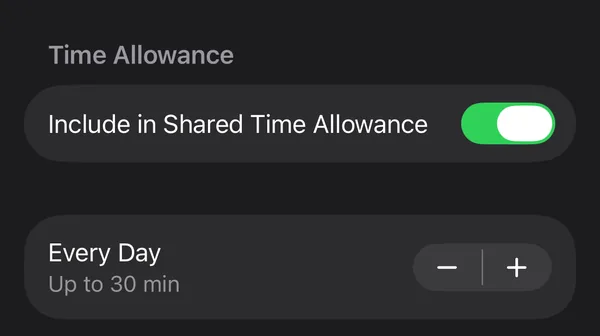
Take app number one from your list, only that one, and give it a daily allowance of about half its current time. In Settings › Screen Time › Time Allowances, add a Custom category with Manage Categories and +, put the app in it with Add, and set the time.
One app at a time sounds slow, but it is the step that makes the rest possible. A limit on everything at once feels like a punishment; a limit on one app feels like a decision. If the time simply moves to app number two, that is useful information: add it to the same category next week. The full how-to for categories is in How to Block Apps on iPhone, and for the usual suspects there are dedicated guides for TikTok, Instagram and YouTube.
Week 3: Fewer pickups
Total time is made of many small visits. If you pick up your phone a hundred times a day, even short visits add up, and each one is a chance to get pulled in. This week is about the visits, not the apps.
- Fewer reasons to look. Turn off notifications for everything that isn't a person talking to you. Each one is an invitation to pick up the phone.
- Further away. Phone in a bag or another room while you work, and charging outside the bedroom at night.
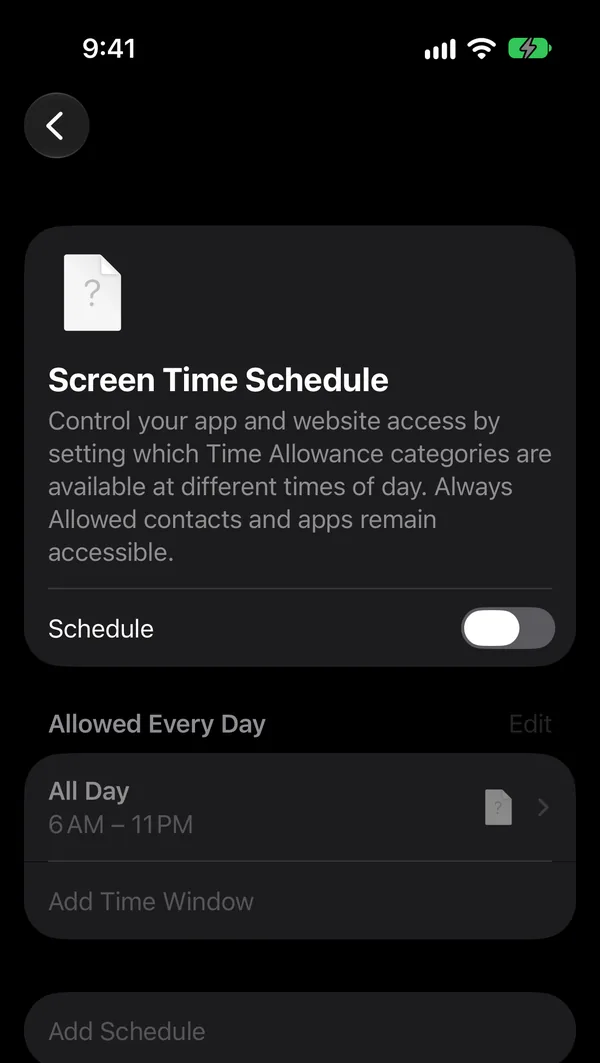
- Closing hours. A Screen Time Schedule that ends an hour before bed takes away the longest pickups of the day, the ones in bed.
Your iPhone's Focus modes help too: according to Apple, a Focus such as Work or Sleep silences notifications and can show only the Home Screen pages you choose. More habits along these lines are in How to Stop Doomscrolling.
Week 4: Fill the gap
By now you have won back some time, and this is the week the plan usually fails: the freed-up minutes feel empty, and the phone is the easiest way to fill them. Decide in advance what goes there. Not "be productive", but something specific and small enough to start without thinking:
- Ten minutes on the thing you keep putting off, with a concrete first step written down.
- A book on the bedside table, where the phone used to be.
- A walk after lunch instead of the scroll after lunch.
The more specific the replacement, the less the phone has to offer by comparison.
Every week: a five-minute check-in
Once a week, look at the report again and compare it to your four numbers from week 1. Then adjust one thing: lower an allowance that was easy, raise one you kept fighting, add the app the time moved to. Small, steady corrections are how a quarter less becomes a habit rather than a phase.
| Week | Focus | Setting |
|---|---|---|
| 1 | Measure | App & Website Activity on, nothing else |
| 2 | The biggest app | One Custom Time Allowance at half its time |
| 3 | Pickups | Notifications off, a schedule that ends before bed |
| 4 | The freed-up time | A specific replacement, decided in advance |
Four mistakes that undo the plan
- Everything at once. Strict limits on every app in week one feel like a diet, and they end like one.
- No passcode. Limits you can dismiss with a tap get dismissed. A Screen Time passcode that a friend picks and keeps closes that easy way out; see Screen Time Passcode on iPhone.
- Only the app, not the website. Many apps work almost as well in Safari.
- Nothing in the gap. Time you don't plan for goes back to the phone.
When the time keeps going back: NoCrast
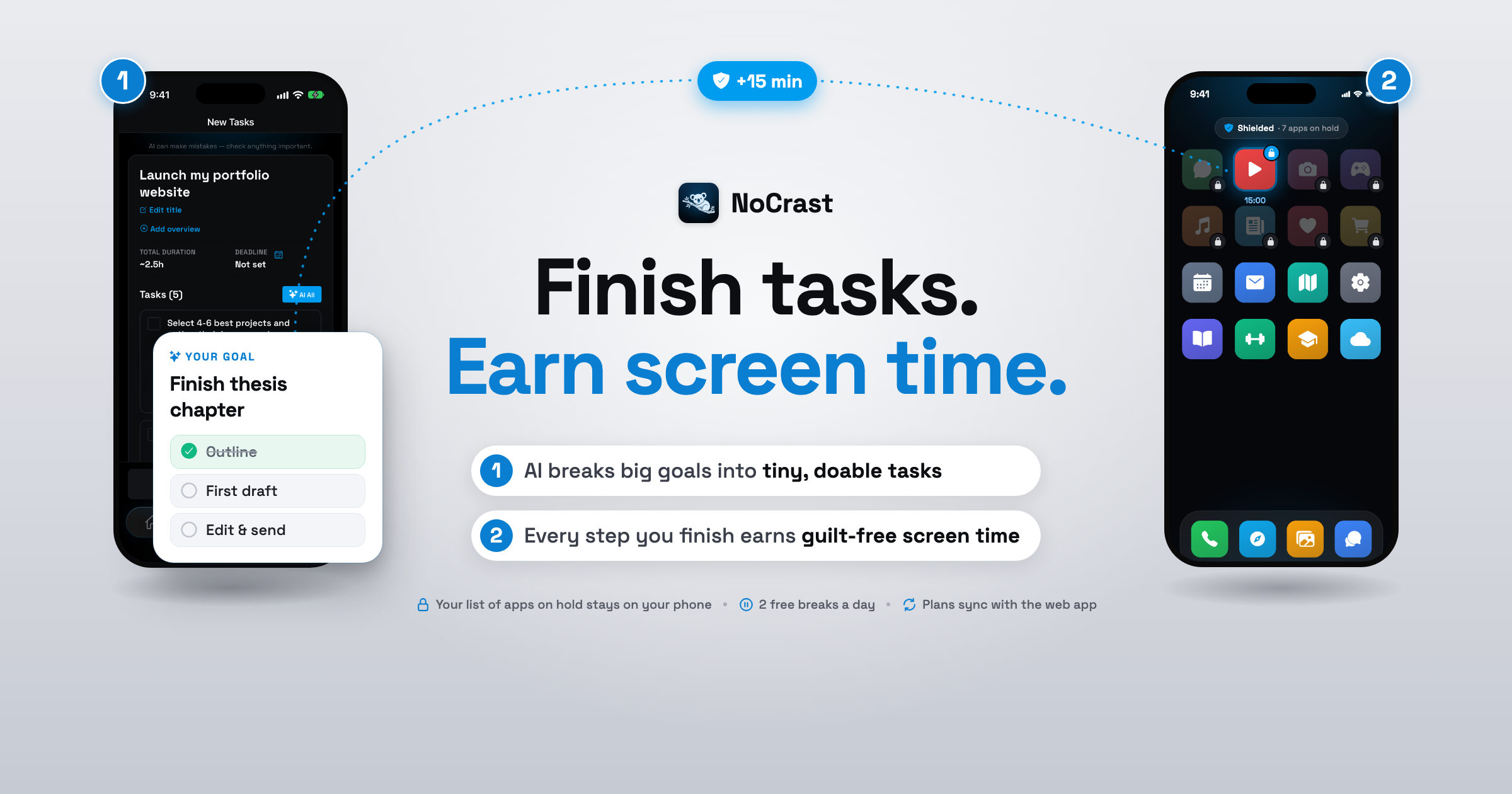
If week 4 is where you get stuck, the problem is usually not the phone but the thing it helps you avoid. NoCrast works on that. You put the apps from your top-three list on hold, and they stay on hold until today's tasks are done. NoCrast's AI turns what you keep postponing into small steps, so there is always something concrete to do instead, and reaching for a held app shows you that step rather than the feed.
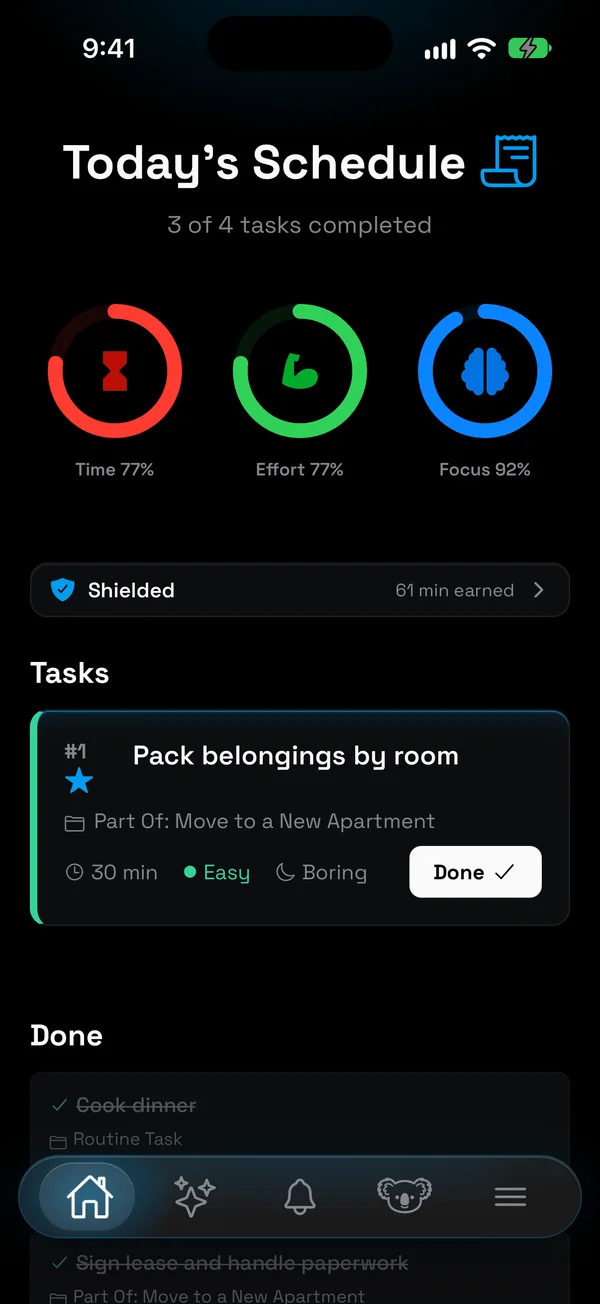
Finished tasks earn screen time, about a third of their length and more for hard or boring ones, so the apps come back as a reward rather than a relapse. For anything urgent there are two free 10-minute breaks each day. It is week 4 of this plan, built into your phone.
Get NoCrast on the App Store or Google Play.


Found this helpful? Share it with others!