
How to Block Websites on Android (Chrome, Android 16)
Updated 17 November 2026 · for Android 16 and Chrome, shown on a Pixel.
On a computer you might install an extension to keep a site away. On Android, Chrome has no setting of its own for that, and for adults there is no list in Chrome where you type a site and it stops loading. Android itself still gives you four ways to get the same result, each good for something different. This guide shows them on Android 16, from the gentlest to the strictest.
In this guide
- Way 1: A daily timer for a single website
- Way 2: Pause Chrome during your focus hours
- Way 3: A timer on Chrome itself
- Way 4: Private DNS, for whole categories of sites
- Don't forget the other browsers
- On a child's phone
- NoCrast: Chrome on hold until the work is done
Way 1: A daily timer for a single website
This is the one that comes closest to "this site, less of it". Digital Wellbeing can track the sites you visit in Chrome and give each one its own daily timer.
- Open Settings › Digital Wellbeing & parental controls › App timers.
- Under Chrome, tap Show sites you visit.
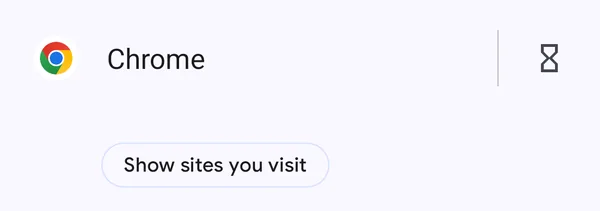
According to Google, once that is on, the sites you open in Chrome appear in the list, each with its own hourglass, and you set a timer the same way as for an app. When a site's time is up, it won't load in Chrome for the rest of the day. It suits the one site that eats your evenings, a news site or a forum, while the rest of the web stays open.
Way 2: Pause Chrome during your focus hours
If the problem is not one site but the browser as a whole, at certain hours, use Focus. Open Digital Wellbeing › Focus, tick Chrome under Select distracting apps, and either Set a schedule or Turn on now.
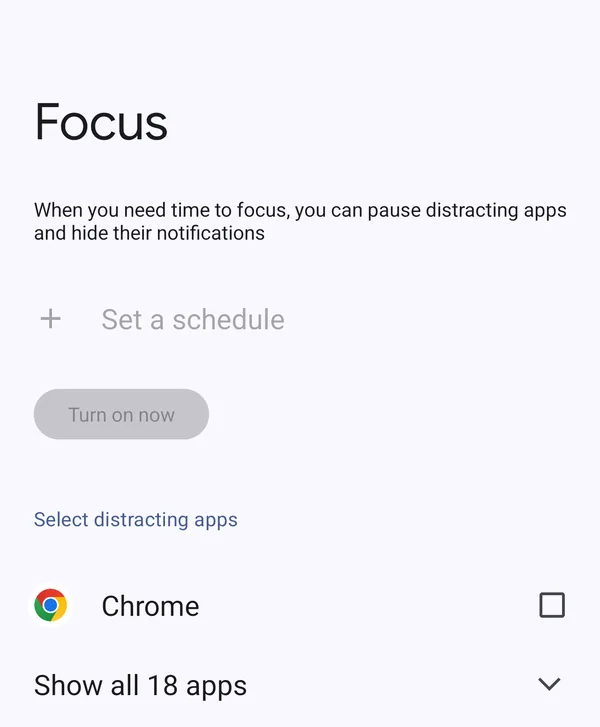
During Focus the whole browser is paused, so no site loads, not even the useful ones. That makes it right for the hours you have set aside for work away from the phone, and wrong for work that happens in the browser.
Way 3: A timer on Chrome itself
Between the two: give Chrome as a whole a daily allowance in App timers, by tapping the hourglass next to Chrome. Every site counts toward the same time, so it limits browsing in general rather than one site. Our guide How to Block Apps on Android shows the timer dialog step by step.
Way 4: Private DNS, for whole categories of sites
The three ways above all depend on Chrome. Private DNS works one level lower, for the whole phone: every app and every browser looks up websites through it. With a filtering DNS service, whole categories of sites, like adult content or gambling, simply don't load anywhere on the phone.
- Open Settings › Network & internet › Private DNS.
- Under Select Private DNS Mode, choose Private DNS provider hostname and type the hostname your filtering service gives you. The setting starts at Automatic.
- Tap Save.
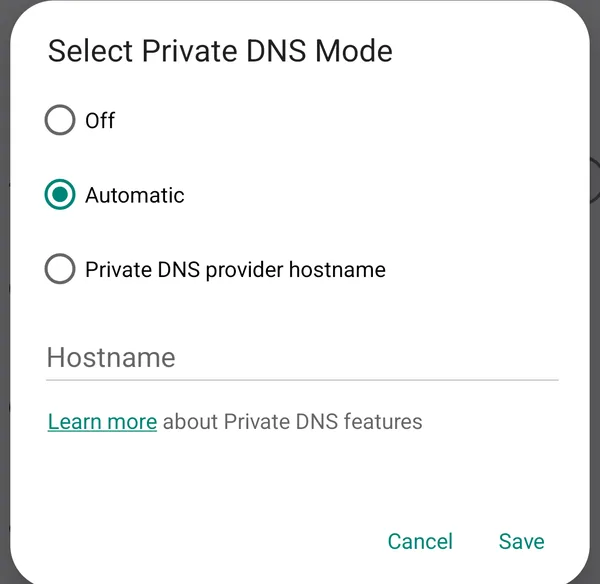
Two things to know. It works by category, not by single site, unless the service you choose lets you build your own list. And every website your phone looks up goes through that service, so pick one you trust, and read what it does with the data. To undo it, set the mode back to Automatic.
Don't forget the other browsers
Ways 1 to 3 cover Chrome only. If your phone also has Samsung Internet, Firefox or another browser, the time simply moves there. Add those browsers to Focus and give them app timers too, or remove the ones you don't use. Private DNS is the exception: it covers every browser at once.
And if the site also has an app, like YouTube or Instagram, limit the app as well, or closing the website only moves you back to the app.
On a child's phone
For a child, Android's parental controls are the better tool. The Parental controls entry, last in the Digital Wellbeing list, sets up Google's Family Link, where, according to Google, a parent can choose which sites Chrome allows on the child's phone and change it from their own. That is managed from the parent's side, so the child can't simply switch it off.
NoCrast: Chrome on hold until the work is done
Timers decide how much. NoCrast decides when: after your tasks. Hand Chrome, and any other browser you drift to, to NoCrast, and the browser waits until you have worked through today's plan. Open it too early and you get NoCrast's own hold screen with the step you are on, rather than the site you were heading to.
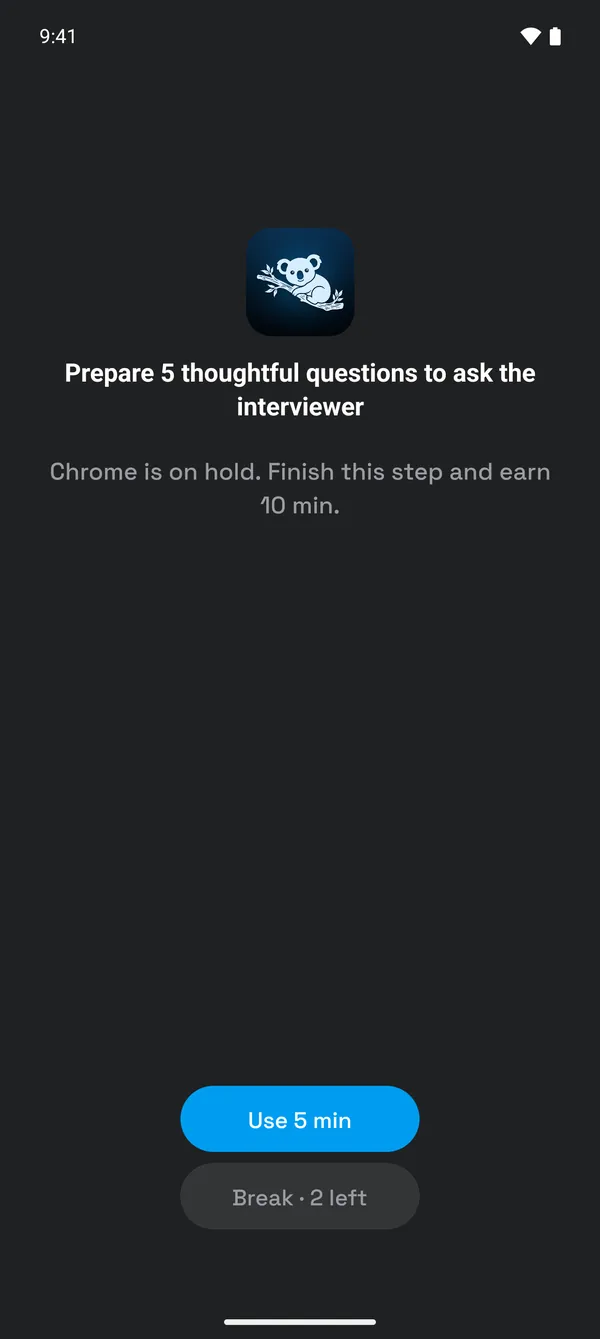
Finishing the step earns minutes for the browser, and you choose when to spend them: Use 5 min right there, or later. Two free breaks a day cover the moment you need to look something up now. Where do the steps come from? NoCrast's AI splits whatever you have been postponing into bite-sized tasks, so instead of the tab you were about to open, you have a concrete next move.
| You want | Use |
|---|---|
| Less of one site | A site timer (Way 1) |
| No browsing during work hours | Focus with Chrome (Way 2) |
| Less browsing in general | A timer on Chrome (Way 3) |
| Whole categories gone, in every app | Private DNS with a filtering service (Way 4) |
| The work first, then the web | NoCrast: Chrome on hold until today's tasks are done |
Get NoCrast on Google Play or the App Store.


Found this helpful? Share it with others!