How to Lock Apps on Android (Pixel, Samsung and More)
Updated 20 November 2026 · for Android 15 and 16, with Samsung, OnePlus and OPPO.
"Lock an app" means one of two things. Sometimes it's about privacy: a friend borrows your phone and you'd rather your chats, photos and banking stayed behind a PIN. Sometimes it's about you: an app takes more of your day than you want, and you'd like it out of reach. Android can do both, in different places, and the first one depends on who made your phone. This guide covers both: Android's own Private Space, Samsung's Secure Folder, the app locks of OnePlus and OPPO, and then the settings that keep you out of an app.
In this guide
- Private Space: Android's own way to lock apps (Android 15+)
- Samsung: Secure Folder
- OnePlus and OPPO: App lock
- Other phones
- Lock yourself out of an app
- The catch: you know your own PIN
- NoCrast on Android: tasks first, then the app
Private Space: Android's own way to lock apps (Android 15+)
Since Android 15, Android has a built-in place for private apps: Private Space. Apps inside it are kept behind a separate lock and can be hidden from your app list altogether. It's on Pixel phones and, depending on the maker, on other phones with Android 15 or later.
Step 1: Find Private Space
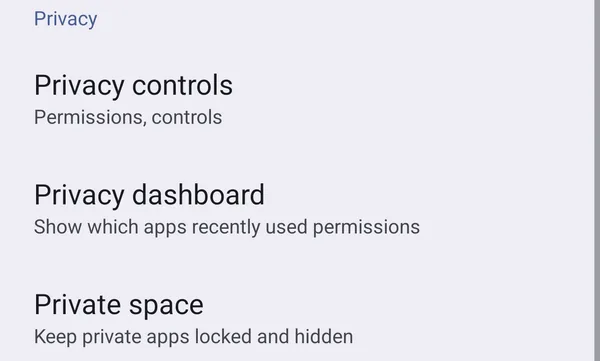
Open Settings, tap Security & privacy, and under Privacy tap Private space.
Step 2: Set a screen lock first, if you have none
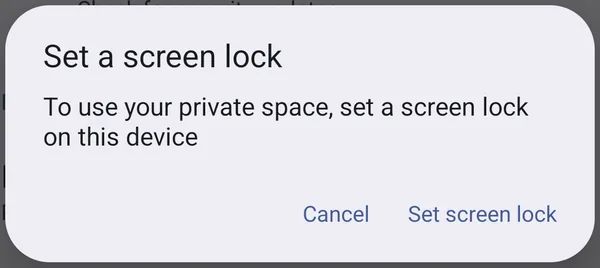
Private Space needs your phone to have a screen lock. Without one, Android asks you to set it first: "To use your private space, set a screen lock on this device." Tap Set screen lock and choose a PIN, pattern or password.
Step 3: Set up the space
The next steps come from Google's help page, as we didn't set up a space on our test phone. Confirm with your screen lock, tap Set up and then Got it. Android offers to sign in to a Google Account inside the space; Google recommends a separate account that you don't use elsewhere, so nothing from the space shows up in your other apps. Then choose the space's own lock: Use device screen lock, or Choose new lock for a different pattern, PIN or password. Tap Done.
Step 4: Put apps in it
According to Google, there are two ways. In your app list, touch and hold an app and tap Install app in Private space. Or open the space and tap + Install. Either way it installs a new copy of the app: the one outside stays as it is, and your data isn't moved across, so you sign in to the app again inside the space.
Step 5: Decide when it closes, and whether it's hidden
In the space's settings, Google describes Lock private space automatically with three choices: every time the phone locks, five minutes after the screen times out, or only after a restart. There's also an option to hide the space entirely whenever it's closed, so it doesn't appear in your app list at all. While the space is closed, its apps are stopped and can't send notifications.
Worth knowing before you use it
Google is clear about the limits. If you forget the space's lock, you can't get back in: the only way out is deleting the space, under Settings › System › Reset Options, and the apps' data goes with it. The space's app data isn't in your phone's backup. And it isn't invisible to everything: someone with technical access to the phone can still find it. For keeping a borrowed phone's user out of your chats, it does the job well.
Samsung: Secure Folder
Samsung phones have their own version, Secure Folder. Samsung's help page describes it like this:
- Go to Settings › Security and privacy › More security settings › Secure Folder. If your phone doesn't support it, it won't be in that menu.
- Tap Continue, sign in to your Samsung account if asked, and set a PIN, password or pattern. When it offers Reset with Samsung account, Samsung's advice is to turn it on: without it you can't get back in if you forget the code.
- To add an app, tap Add apps (the plus sign), choose the app and tap Add. As with Private Space, you get a separate copy of the app inside the folder.
To close it, open Secure Folder's More options (three dots) and tap Lock and exit; under Auto lock Secure Folder in its settings, Samsung says the default is to close it when the screen turns off. You can hide the folder from your apps screen with a Quick Settings tile, and fingerprint works on supported phones.
OnePlus and OPPO: App lock
OnePlus and OPPO phones lock single apps where they are, without a separate space. Both use a privacy password that is separate from your screen lock.
- OnePlus, from its Android 12 system manual: go to Settings - Privacy - App lock, enter your privacy password, then select the app and turn on App lock. Opening the app then asks for that password.
- OPPO, from its ColorOS 11 user guide: go to Settings › Privacy › App Lock, enter the privacy password, select the apps and tap Encrypt. In App Lock's settings you can turn on Use Fingerprint for App Lock or Use Face for App Lock, and the same page can hide an app's icon from the home screen.
These manuals are for older versions of each system, and the menu names move between updates. If the path doesn't match, search Settings for "app lock".
Other phones
Other makers often build in an app lock of their own, under names like App lock or Privacy. The quickest way to find out is to search your phone's Settings for "app lock". If nothing comes up and your phone runs Android 15 or later, Private Space may be there instead. We don't recommend separate lock apps from the Play Store: the built-in options come from your phone's maker and need no extra app with access to what you open.
Lock yourself out of an app
When the trouble is how often you open an app, a PIN won't stop you: you're the one who knows it. What you want is an app that stays closed, or only opens for so long each day. On Android, that lives in Digital Wellbeing (Settings › Digital Wellbeing & parental controls).
Give the app a daily timer
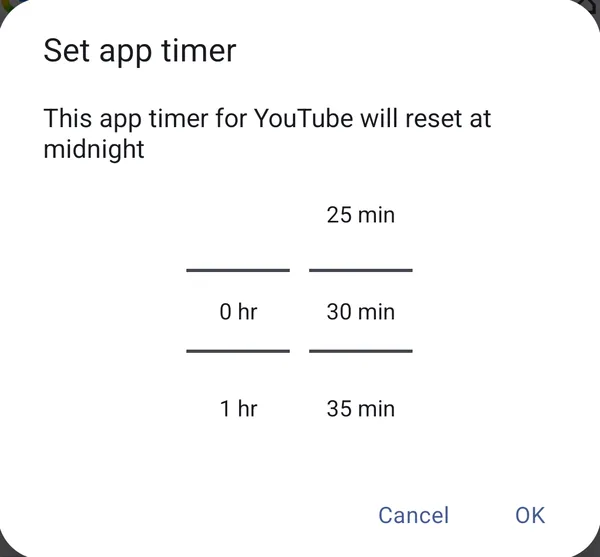
Tap App timers, then the hourglass next to the app, and set the time. The timer starts again at midnight.
Pause it right now
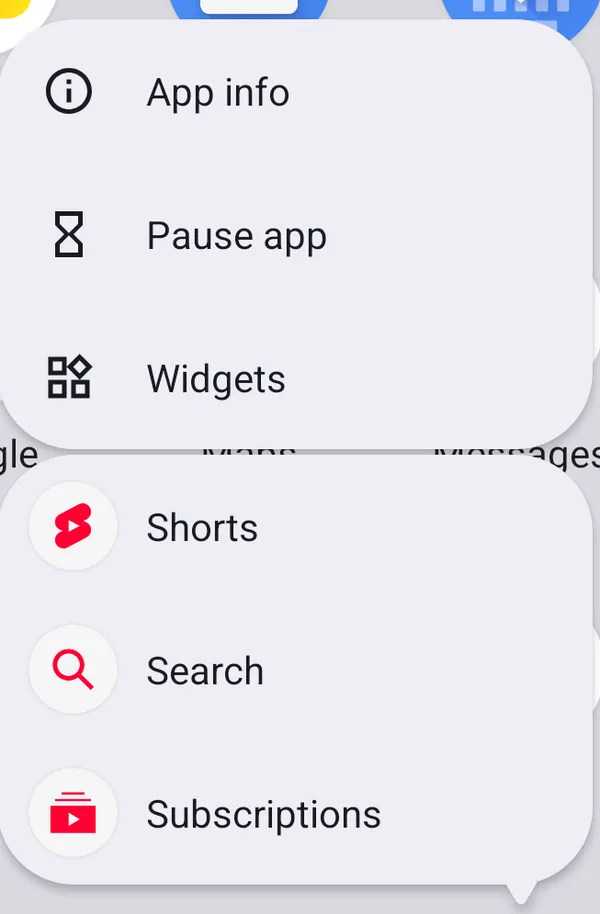
Touch and hold the app's icon and tap Pause app.
Close several apps during your work hours
Tap Focus, tick the apps under Select distracting apps, and set a schedule or turn it on now. The full walkthrough of all three is in How to Block Apps on Android.
On a child's phone
At the bottom of Digital Wellbeing, Parental controls sets up Google's Family Link, where a parent manages the limits from their own phone, so the child can't simply change them.
The catch: you know your own PIN
Every lock in the first half of this guide is built to stop someone else. Against yourself it's a speed bump: the PIN is in your fingers, and the app is open before you have really decided to open it. Digital Wellbeing holds out a little longer, but on your own phone it asks for no code, so a timer that feels annoying at eleven at night is easy to move. Neither of them gives the moment anything else to do, and that's usually why the next app gets opened instead.
NoCrast on Android: tasks first, then the app
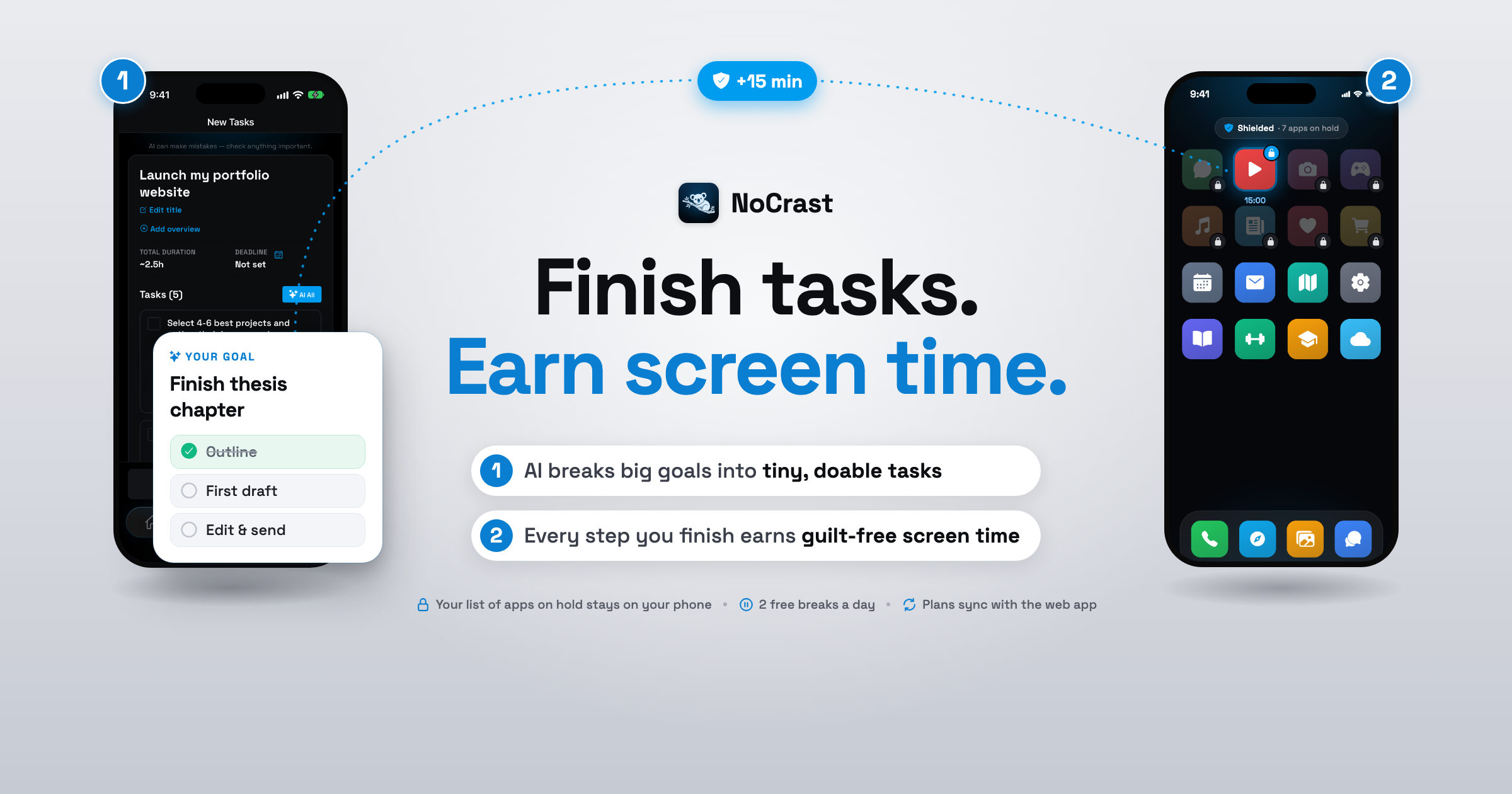
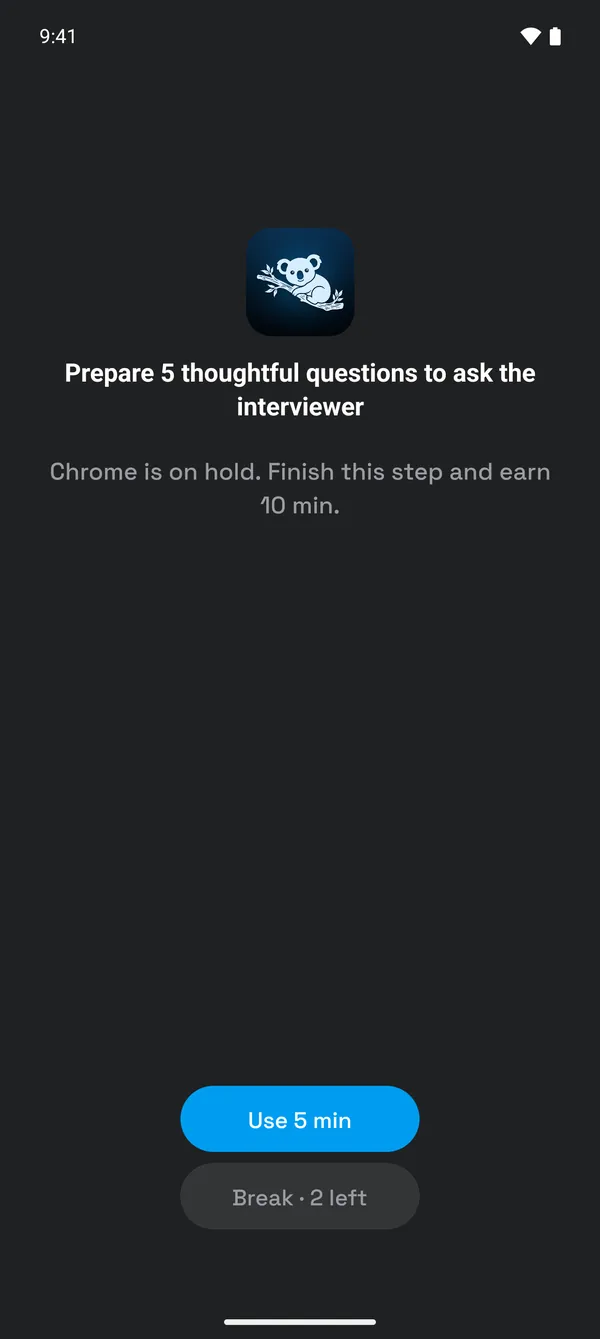
NoCrast is a lock that knows when to open. On the days you choose, the apps you hand it wait on hold while today's plan is open. Open one early and, instead of the feed, NoCrast's hold screen names the task in front of you and how many minutes completing it adds.
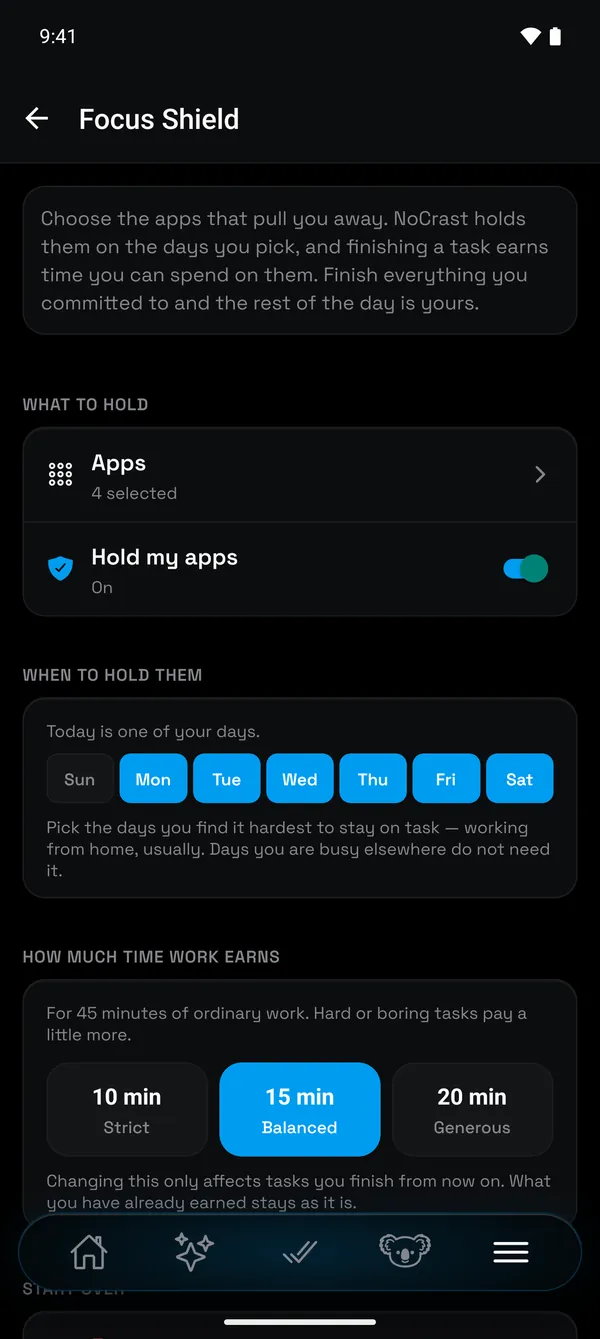
In Focus Shield you choose the apps, turn on Hold my apps, pick the days, and set how much time work earns: Strict, Balanced or Generous, 10, 15 or 20 minutes for every 45 minutes of work. NoCrast's AI turns what you have been postponing into short tasks, so reaching for the phone always meets something concrete to do; for a real emergency, every day comes with two free 10-minute breaks. On Android it asks for usage access and permission to show over other apps, and which apps you hold never leaves the phone.
Which lock for which job?
| Private Space, Secure Folder, App lock | Digital Wellbeing | NoCrast | |
|---|---|---|---|
| Good for | Keeping other people out of private apps | Capping how long and when | Getting today's tasks done before the apps |
| Who gets in | Whoever knows the PIN or has the fingerprint | Anyone who changes the timer | Anyone, once today's tasks are done or minutes are earned |
| When you open the app | A PIN or fingerprint check | The app is paused | The task in front of you |
They work well together: a private space for what's private, Digital Wellbeing for hard limits, NoCrast so the work comes before the scrolling. On an iPhone? See How to Lock Apps on iPhone.
Get NoCrast on Google Play or the App Store.

Found this helpful? Share it with others!