How to Block Apps on Android (Android 16)
Updated 17 November 2026 · for Android 16, shown on a Pixel.
Android can limit or pause any app without installing anything. It is all in Digital Wellbeing, the part of Settings that tracks how you use your phone. This guide shows the three tools that matter, step by step on Android 16, then short sections for the apps people most often want to cut back on: TikTok, Instagram and YouTube. On phones from other makers, like Samsung, the same tools exist with similar names, sometimes in a slightly different place.
In this guide
- Find Digital Wellbeing
- Way 1: Give an app a daily timer
- Way 2: Pause an app right now
- Way 3: Focus, for the hours you want to work
- How to keep the limits in place
- TikTok
- YouTube
- NoCrast on Android: apps on hold, a next step instead
Find Digital Wellbeing
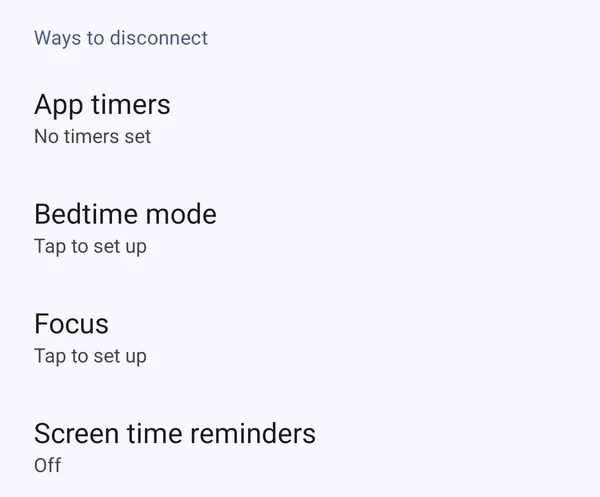
Open Settings and tap Digital Wellbeing & parental controls. At the top you see today's screen time, how often you picked the phone up, and how many notifications came in. Below, under Ways to disconnect, are the tools this guide uses: App timers, Bedtime mode, Focus and Screen time reminders.
Tap View app activity details first if you are not sure which apps to limit: it shows where your time went today and over the week.
Way 1: Give an app a daily timer
An app timer gives one app a daily amount of time. When it is used up, according to Google, the app is paused for the rest of the day.
Step 1: Open App timers
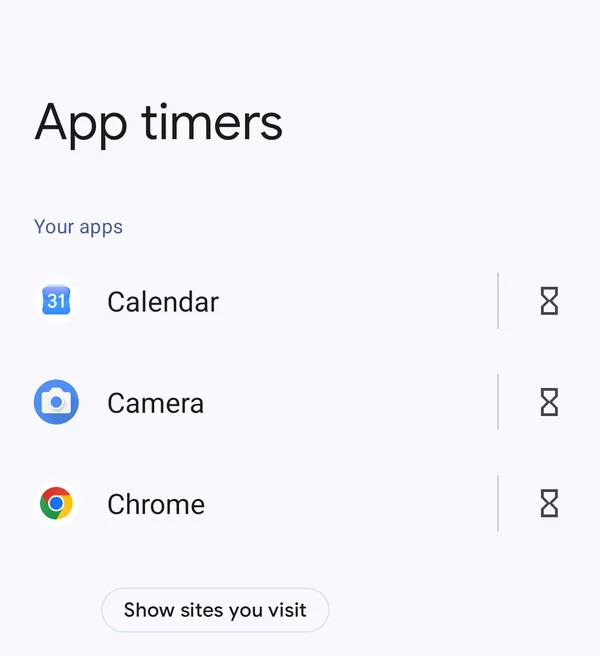
In Digital Wellbeing, tap App timers. You see Your apps, each with an hourglass next to it.
Step 2: Set the time
Tap the hourglass next to the app. A dialog called Set app timer opens; choose hours and minutes and tap OK. As the dialog says, the timer "will reset at midnight", so the app gets its full time again each day.
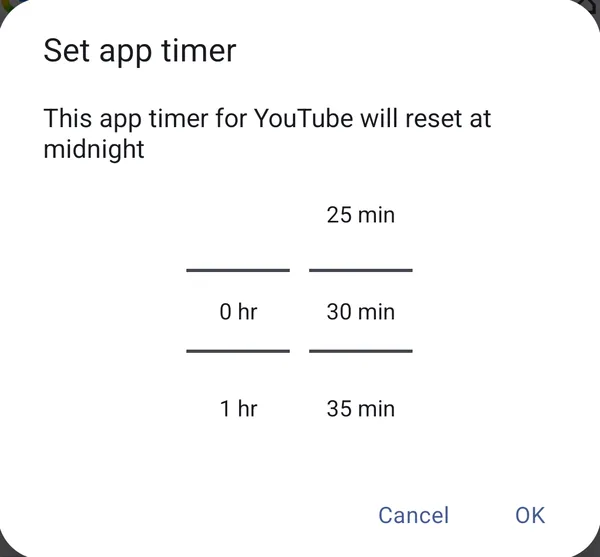
Pick a time that still feels fair. An hour you stick to beats fifteen minutes you delete on the second day.
Way 2: Pause an app right now
Sometimes you don't want a daily limit, just the app out of reach for now. Press and hold the app's icon until its menu opens, and tap Pause app.
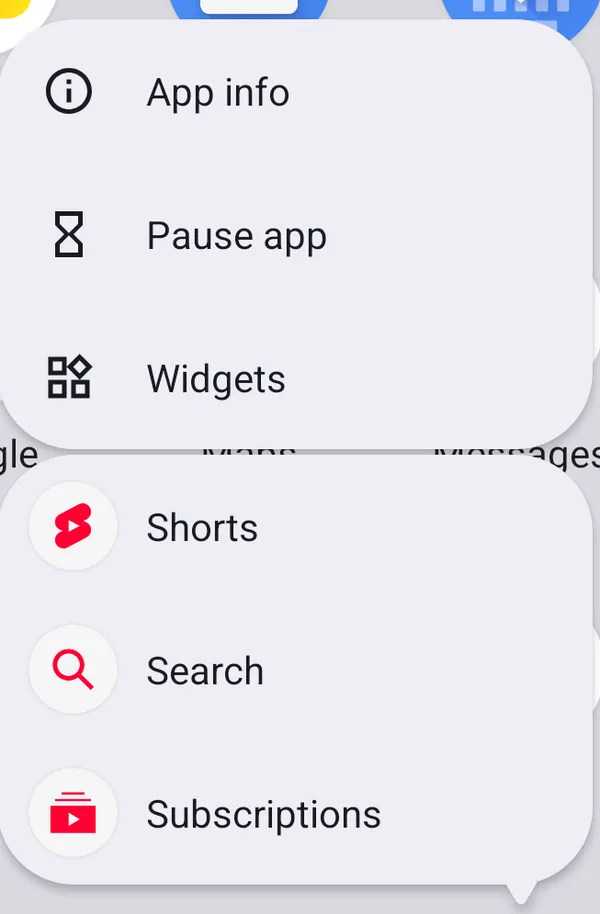
According to Google, a paused app turns grey, its notifications stop, and it won't open until you unpause it. Unpausing is as easy as pausing, so this works best as a quick decision in a strong moment, not as a lock against a weak one.
Way 3: Focus, for the hours you want to work
Focus pauses a whole group of apps at once. In Android's words: "When you need time to focus, you can pause distracting apps and hide their notifications."
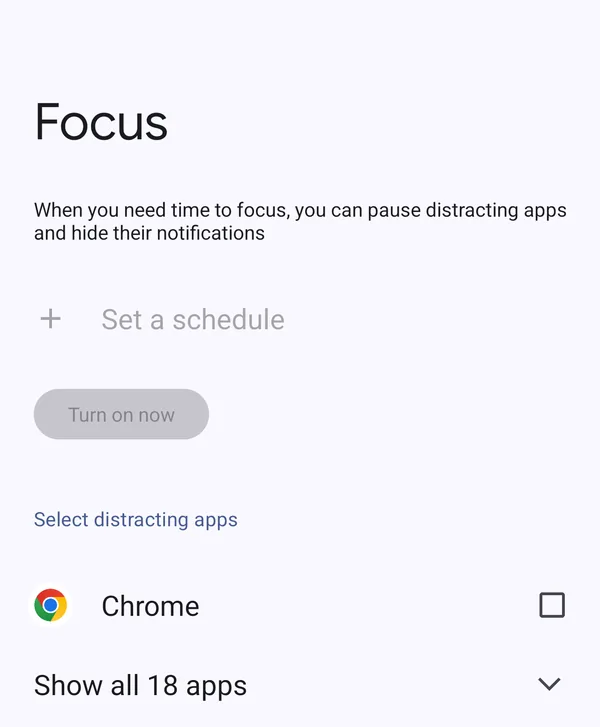
- In Digital Wellbeing, tap Focus.
- Under Select distracting apps, tick the apps you want out of the way. Tap Show all to see every app.
- Tap Set a schedule for regular hours, like weekdays from nine to five, or Turn on now for a session right away.
Focus is the closest Android gets to "keep these apps away while I work": a timer limits how long, Focus limits when. Bedtime mode, in the same list, does the same job for the night.
How to keep the limits in place
For your own phone, Digital Wellbeing doesn't ask for a PIN: whoever holds the phone can change a timer or end Focus early, including you at eleven at night. That is the main difference from an iPhone, where a Screen Time passcode can lock the settings. Three things help:
- Use Focus with a schedule rather than turning it on by hand, so it starts without a decision.
- Take the apps off your home screen, so reaching for them takes a deliberate search.
- For a child's phone, use Parental controls at the bottom of Digital Wellbeing, which sets up Google's Family Link: there, limits are managed from the parent's phone.
TikTok
An app timer on TikTok is the simplest single setting: thirty minutes a day is enough to see what friends sent and not enough for an evening of the For You feed. If you want a break, not a limit, put TikTok in Focus with a schedule for your working or study hours. TikTok also has a daily limit of its own in its settings, according to TikTok's help center, but its passcode is one you pick yourself, inside TikTok itself. Use it as a reminder, and the Android timer as the actual limit. And close the browser door too: see How to Block Websites on Android.
If friends reach you in Instagram messages, a timer is better than pausing: twenty minutes covers messages and friends' posts, not hours of Reels. Instagram's own Quiet Mode, according to Instagram's help center, mutes its notifications for the hours you set and can answer messages automatically; pair it with Focus on the same hours. When the minutes just move to the browser, instagram.com needs the same treatment as the app.
YouTube
YouTube earns its place on many phones, with lectures, tutorials and how-to videos, so a schedule usually works better than a hard stop: Focus during the evening, a generous timer during the day. YouTube's own settings help too, according to YouTube's help center: a reminder to take a break, a bedtime reminder, and Autoplay off, so the next video doesn't start by itself. Press and hold the YouTube icon and you will see Pause app next to its shortcut to Shorts, the endless feed that usually swallows the time.
NoCrast on Android: apps on hold, a next step instead
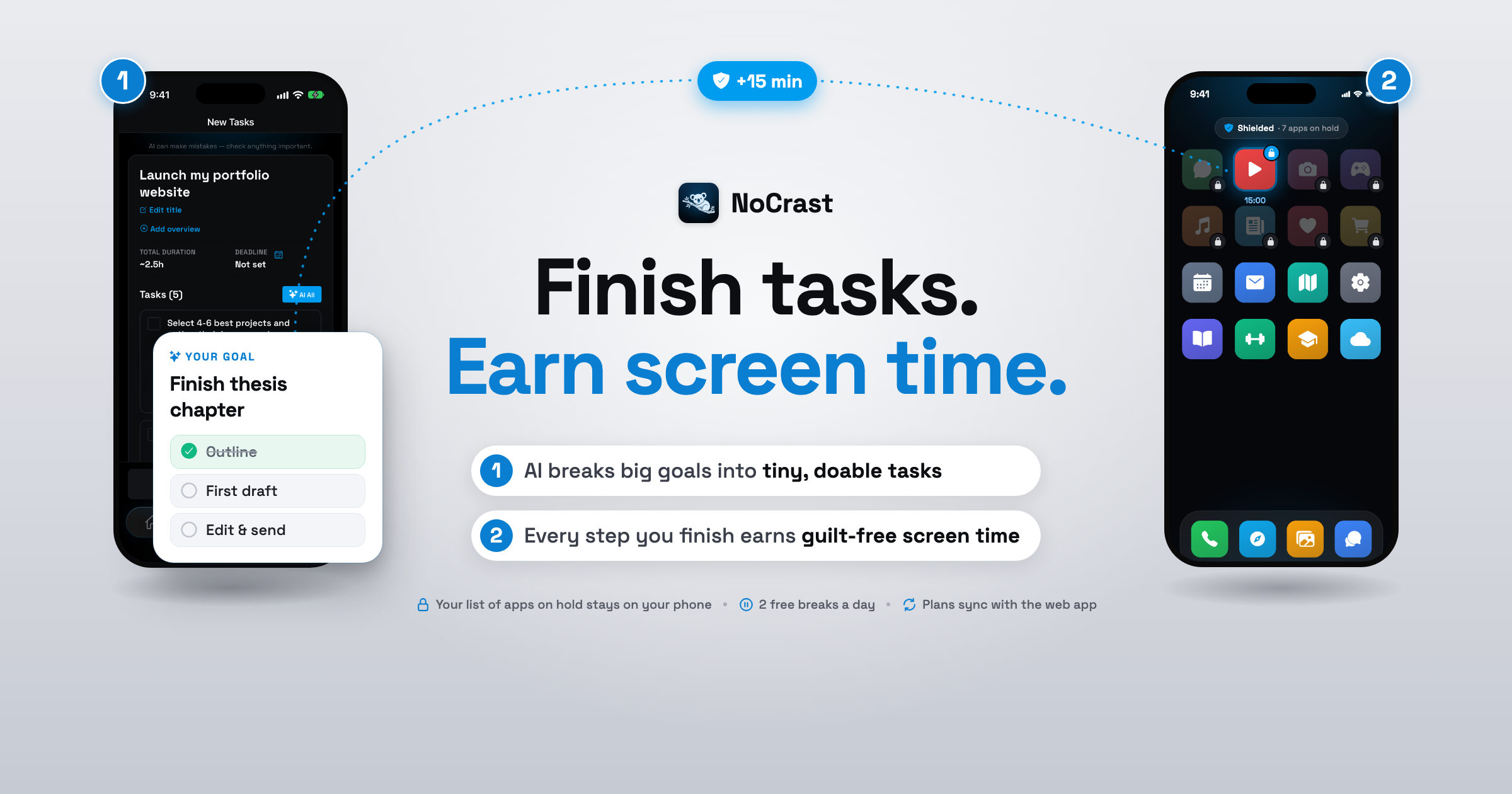
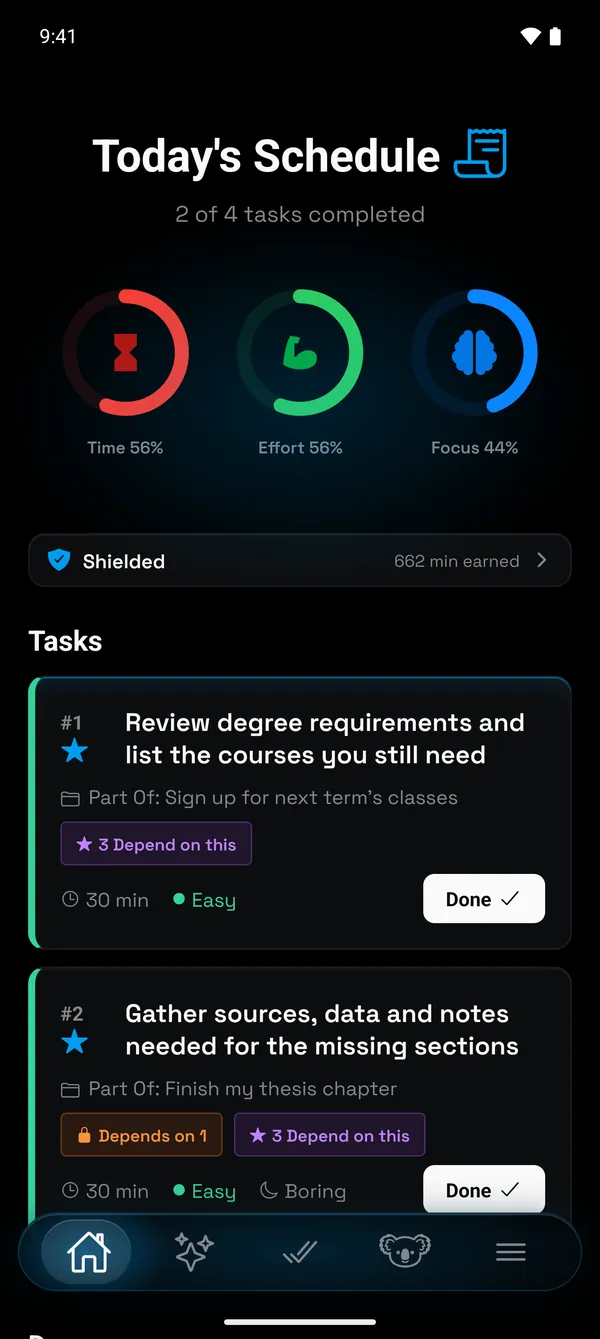
Digital Wellbeing decides how long and when. NoCrast decides what comes first. Whatever you hand to NoCrast waits on hold while today's plan is open. Opening one too soon brings up NoCrast's own hold screen, which names your current task instead of loading the feed, and completing that task adds minutes you can spend there.
Choose the apps and the days
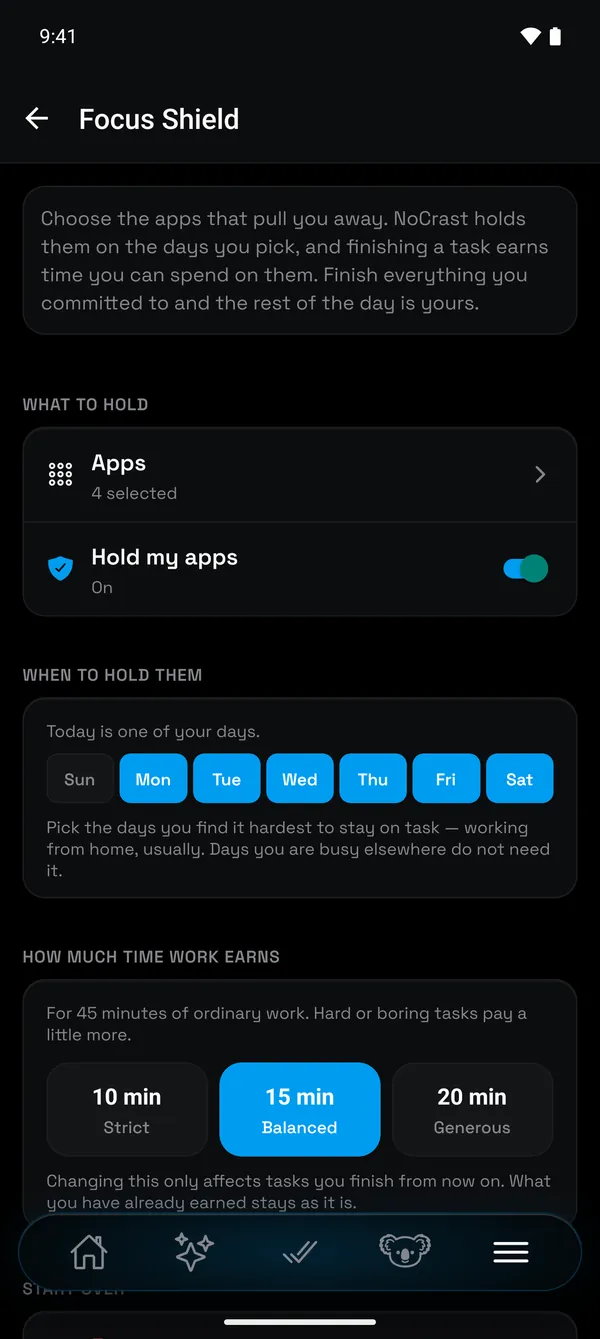
In Focus Shield, pick the apps that pull you away, turn on Hold my apps, and choose the days you find it hardest to stay on task. You also choose how much time work earns: Strict, Balanced or Generous, 10, 15 or 20 minutes for every 45 minutes of work, a little more for hard or boring tasks. On Android NoCrast needs usage access and permission to show over other apps, and the list of apps you hold stays on your phone.
Work through the plan
NoCrast's AI turns the goal you are avoiding into a handful of tasks, each one with an estimated time, effort and focus. Plan today with a swipe, tick tasks off as you go, and when the day's list is empty, the hold ends until tomorrow. If you really need an app right now, two free 10-minute breaks come with every day.
Digital Wellbeing or NoCrast?
| Digital Wellbeing | NoCrast | |
|---|---|---|
| Decides | How long (App timers) and when (Focus) | That today's tasks come first |
| An app opened too soon | Says it is paused | Shows your current task and what it pays |
| Getting it back | Change the timer or end Focus | Complete a task, or use a free break |
Get NoCrast on Google Play or the App Store.

Found this helpful? Share it with others!