How to Block Instagram on iPhone (iOS 27)
Updated 16 November 2026 · for iOS 27.
Instagram is harder to cut back on than most apps, because it is two things at once: the feed and Reels you want less of, and the messages from friends you don't want to miss. This guide starts with that choice, then shows Instagram's own tools for cutting back, and finally the iPhone settings that hold when Instagram's own ones don't. Everything is for iOS 27.
In this guide
- First decide: do you need Instagram for messages?
- Instagram's own tools: daily limit and Quiet Mode
- A daily limit that holds: Screen Time
- Close Instagram completely
- Don't forget instagram.com
- Keep the limit from being undone
- Why Reels are the hard part
- How NoCrast handles Instagram
First decide: do you need Instagram for messages?
If friends or family mainly reach you in Instagram DMs, closing the app completely closes those conversations too. Then a daily limit or Quiet Mode is the better fit: you keep the messages and lose most of the scrolling. If your messages live elsewhere, in WhatsApp, iMessage or Signal, you can be stricter and close Instagram entirely, or give it a short daily allowance.
A good rule: limit what you want less of, close what you want none of.
Instagram's own tools: daily limit and Quiet Mode
Instagram has two settings worth turning on before anything else. According to Instagram's help center, both are under Settings and activity in your profile's menu, in the section on time management; Instagram renames and moves these from time to time, so search the settings if you don't see them.
Daily limit
Choose how much time you want to spend on Instagram per day. When you reach it, Instagram tells you so. It doesn't close the app: you can carry on with a tap, so treat it as a nudge, not a lock on the door.
Quiet Mode
Quiet Mode is made for exactly the hours you want to be left alone: evenings, study time, the night. While it is on, Instagram mutes its notifications, shows your status as in Quiet Mode, and can answer messages automatically so nobody wonders why you are slow. You set the hours once and it switches on by itself.
Both live inside Instagram, which is their weakness: the app that wants your attention is the one keeping the limit. For a limit that holds, use your iPhone's.
A daily limit that holds: Screen Time
Screen Time's Time Allowances sit outside Instagram, and with a passcode someone else chooses, they can't be waved away. iOS 27 applies them per category, which is why Instagram gets one of its own here.
Step 1: Make a category for Instagram
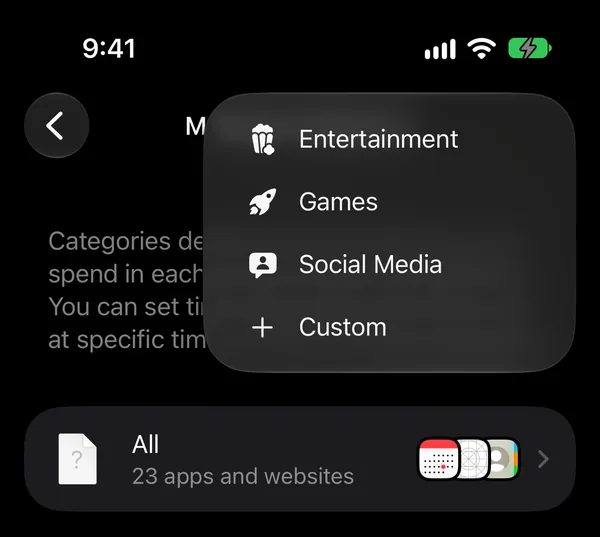
Go to Settings › Screen Time › Time Allowances, tap Manage Categories, then +, and choose Custom. A category just for Instagram means it gets its own time, not a share with every other social app.
Step 2: Add Instagram to it
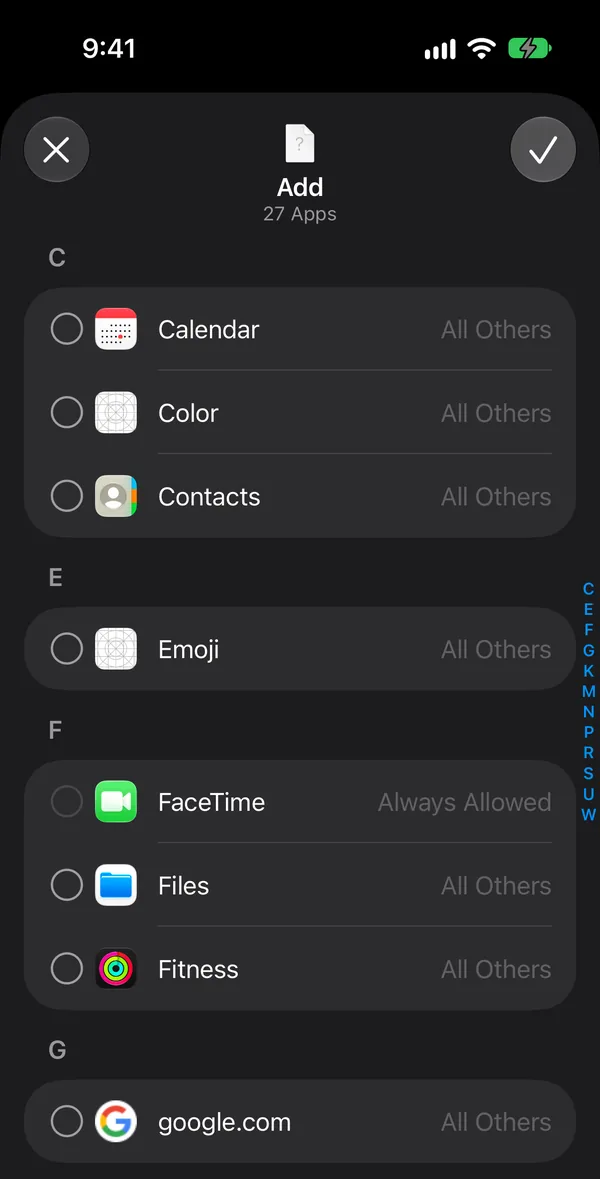
Open the category, tap Add, and tick Instagram in the list of apps and websites. Tick instagram.com as well if it appears, so the browser counts toward the same time.
Step 3: Give it a daily time
Set Every Day with − and + and tap Done. Twenty or thirty minutes is enough to answer messages and look at what friends posted; it is not enough for an evening of Reels, which is the point.
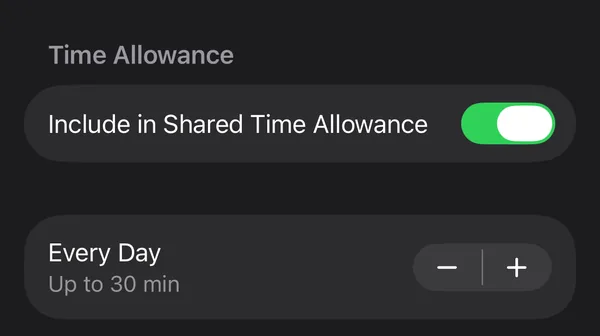
To keep Instagram closed at certain hours, like after 10 PM, add a Screen Time Schedule too. The schedule is explained in How to Block Apps on iPhone.
Close Instagram completely
If you want a real break, go to Settings › Screen Time › Apps & Websites, tap Instagram in the Allowed list, then Block App, and confirm. Instagram then sits in the Blocked list and stays shut until you move it back. Your account, posts and messages stay exactly where they are.
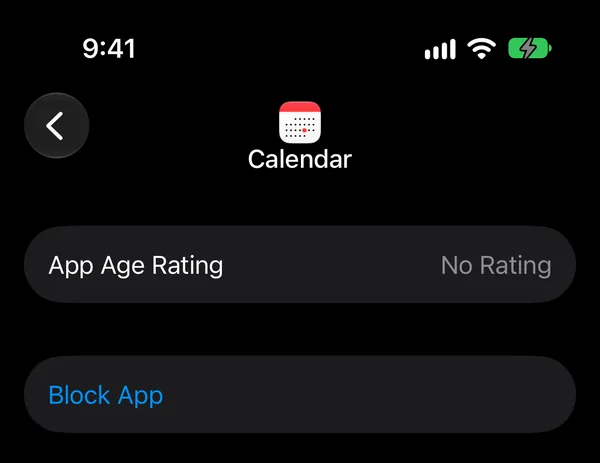
It works well for a set stretch of time, a week of exams or a month without social media, followed by a daily limit afterwards.
Don't forget instagram.com
Instagram works in Safari too, Reels included. Whichever way you chose above, close the website as well: in Apps & Websites, tap Blocked, then +, type instagram.com in the Block Website sheet, and tap ✓.
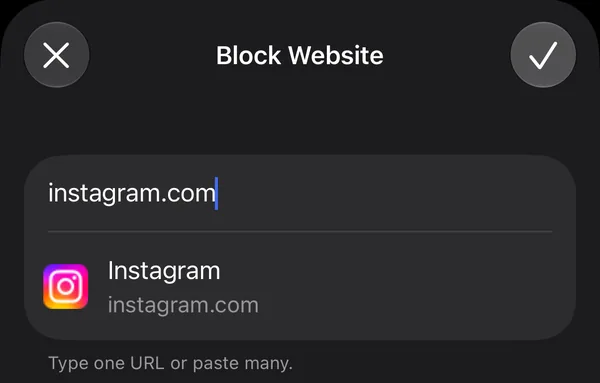
If you went for a daily limit and still want messages in the browser now and then, skip this step and add instagram.com to Instagram's category instead (Step 2 above), so both share one allowance.
Keep the limit from being undone
Every setting in this guide can be switched off in a few taps. A Screen Time passcode, chosen and kept by someone you trust, takes that option away: Settings › Screen Time › Manage Screen Time › Lock Screen Time Settings. Our guide Screen Time Passcode on iPhone covers setting, changing and resetting it.
Why Reels are the hard part
Most of the time people want back is not spent on friends' photos. It goes to Reels: short videos picked for you, one after the other, with no natural place to stop. Instagram has no switch to turn Reels off, so the settings above have to work on the whole app.
That is why a short daily allowance works better for Instagram than for many apps. Messages and friends' posts fit easily into twenty minutes; an endless stream of Reels doesn't. When the allowance runs out, you have usually done what you opened Instagram for. And if the minutes simply move to TikTok or YouTube Shorts, put those apps in the same category, or see How to Block TikTok on iPhone.
How NoCrast handles Instagram
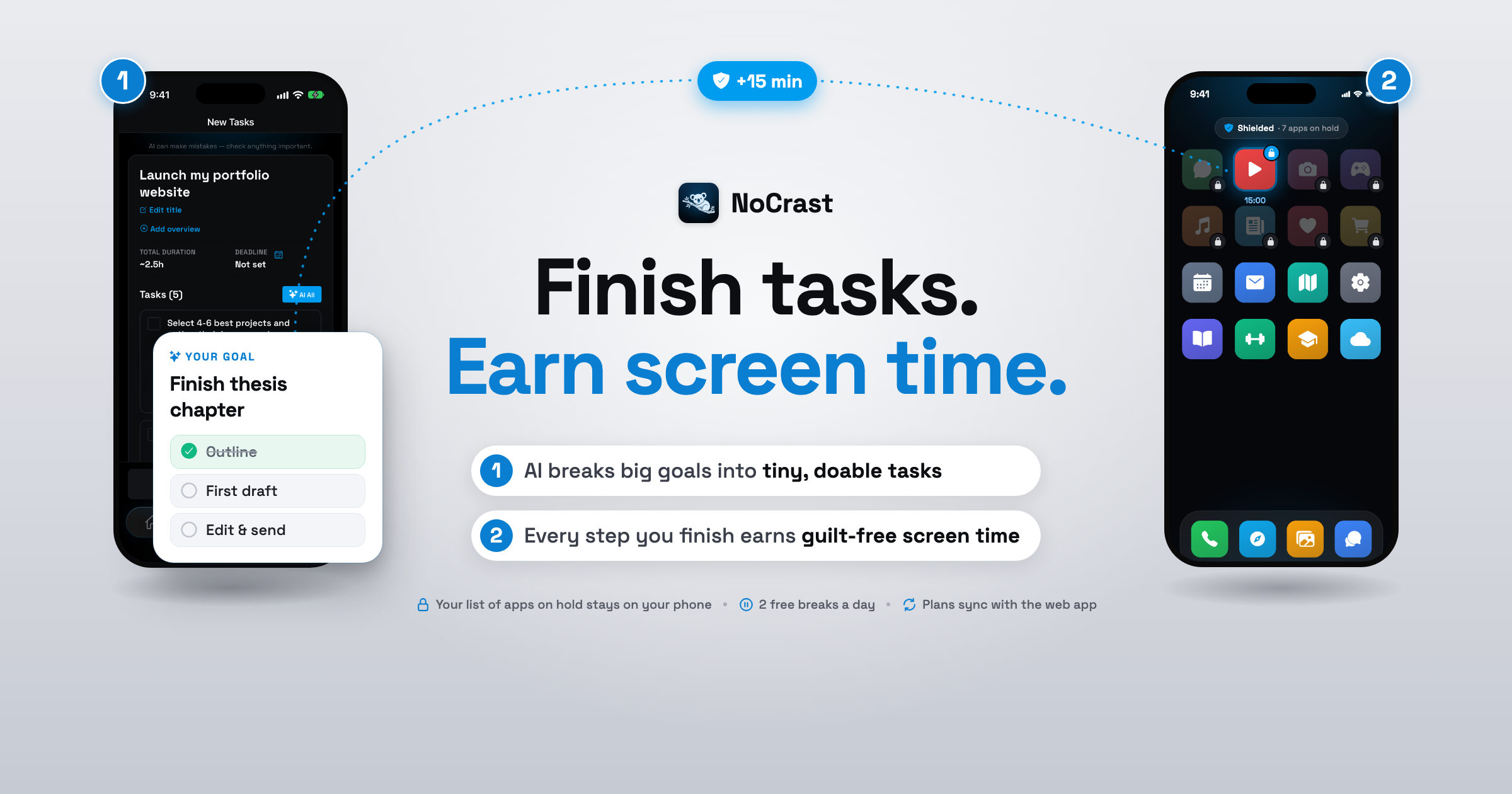
Limits decide how long. NoCrast decides what comes first. You put Instagram on hold in NoCrast, and it stays on hold until the tasks you planned for today are done. Reach for it before then and you see your next small step instead of the feed. Every task you finish earns minutes you can spend on Instagram, so messages are never more than one finished task away.
Instagram waits for your plan
Pick Instagram and the other apps you open without thinking, then pick your days. On iPhone, NoCrast uses Apple's Screen Time to keep them waiting, and your choice of apps is never sent anywhere.
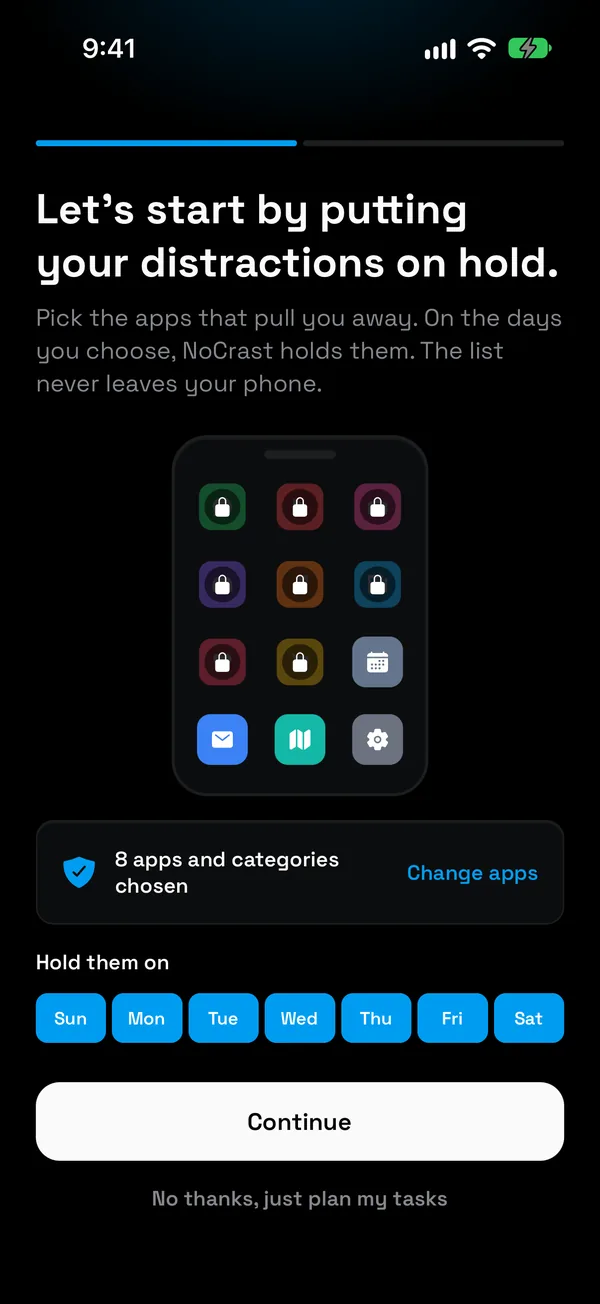
The thing you are avoiding, in small steps
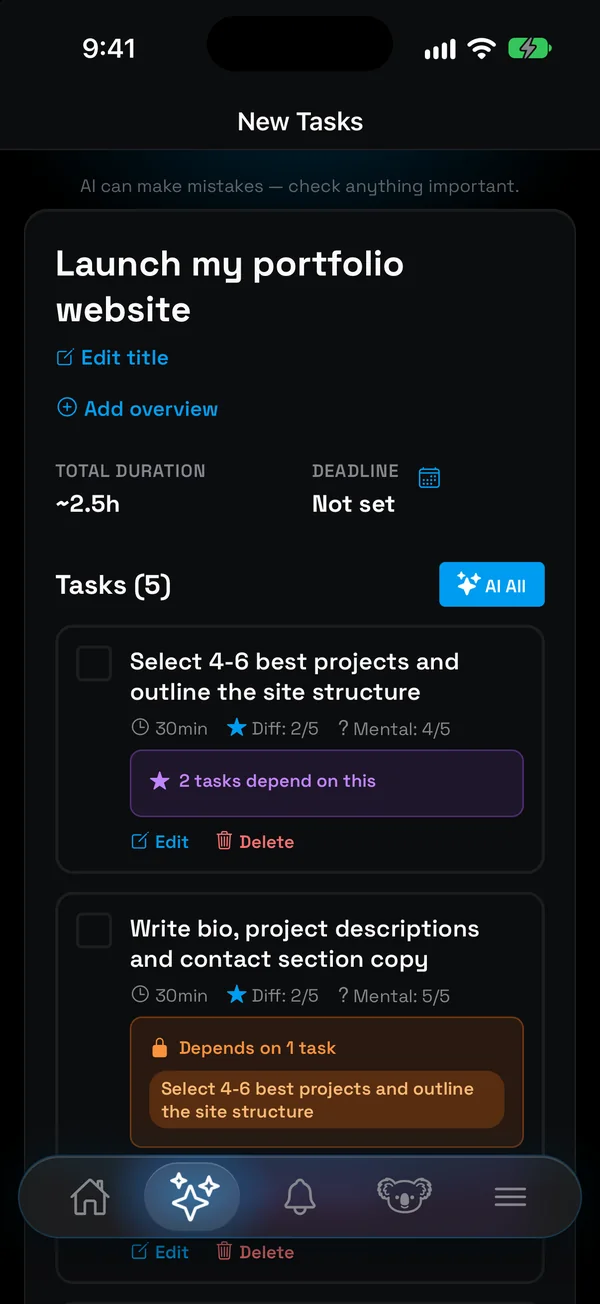
Tell NoCrast what you keep putting off. Its AI splits it into a few tasks with their time, effort and focus, so the first one is small enough to start before the urge to scroll wins.
Earned minutes for Instagram
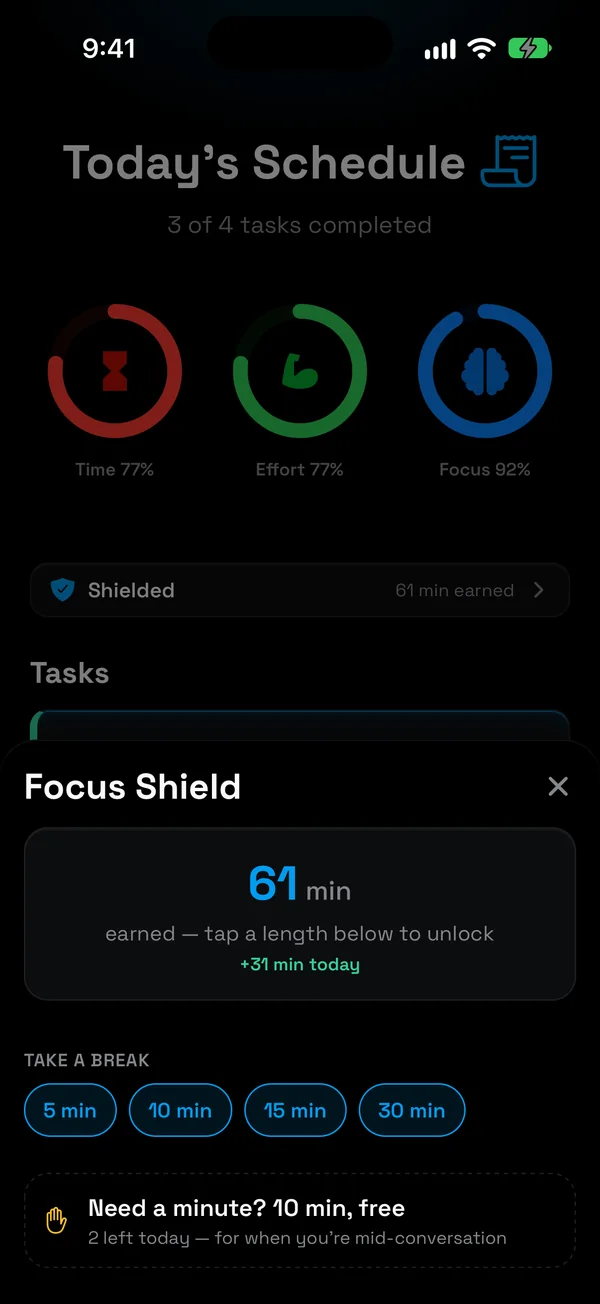
Each finished task adds about a third of its time to your balance, with a bonus when the task was hard or boring. You take that time on Instagram as a break you choose: 5, 10, 15 or 30 minutes. If a friend needs an answer right now, two free 10-minute breaks a day cover it. Once today's plan is done, Instagram is free until tomorrow.
Which way for which goal?
| You want | Use |
|---|---|
| Fewer interruptions in the evening | Instagram's Quiet Mode, notifications off |
| Messages yes, an evening of Reels no | A Screen Time allowance of 20 to 30 minutes, with a passcode |
| A real break for a week or a month | Block App, and instagram.com in Block Website |
| Your work first, then Instagram | NoCrast: Instagram on hold until your tasks are done |
Get NoCrast on the App Store or Google Play.

Found this helpful? Share it with others!