
Screen Time Passcode on iPhone: Set, Change or Reset It (iOS 27)
Updated 16 November 2026 · for iOS 27.
The Screen Time passcode is the small four-digit code that keeps your Screen Time settings the way you set them. It is what turns a daily limit from a suggestion into a limit, and it is also the code people most often forget. This guide explains what it does, how to set it in iOS 27, how to change or turn it off, and what to do if you can't remember it.
In this guide
- What the Screen Time passcode is
- Screen Time passcode or iPhone passcode?
- How to set a Screen Time passcode
- How to change or turn off the passcode
- Forgot your Screen Time passcode?
- On a child's iPhone
- Who should choose the passcode
- Quick answers
- When a passcode isn't enough: NoCrast
What the Screen Time passcode is
Screen Time is where your iPhone limits apps: daily allowances, the hours apps are available, single apps kept closed. Without a passcode, all of that can be changed or switched off by anyone holding the phone, including you, in a weak moment. In Apple's words, the passcode is there to "secure Screen Time settings".
Once it is set, two things change. Your Screen Time settings can only be changed with the code. And when an app reaches its limit, getting more time asks for the code too, where before a tap was enough. Without the passcode, Apple notes, a limit can simply be ignored once it is reached.
Screen Time passcode or iPhone passcode?
They are two different codes. Your iPhone passcode opens the phone. The Screen Time passcode only guards the Screen Time settings and the extra time when a limit is reached. Use a different code for each: if they are the same, anyone who can open your phone can also change your limits, and that includes you.
How to set a Screen Time passcode
Step 1: Open Manage Screen Time
Go to Settings › Screen Time and tap Manage Screen Time. In Apple's words, this is where you "manage your Screen Time passcode settings".
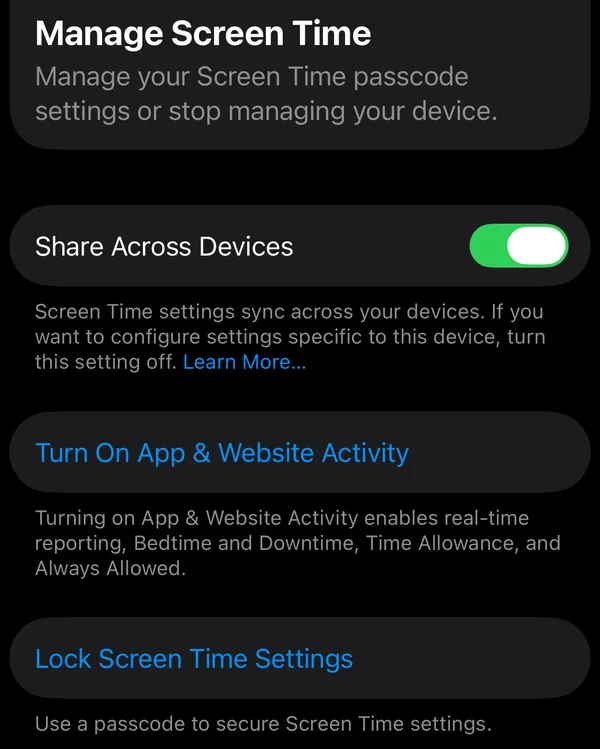
If you haven't set any limits yet, turn on App & Website Activity here too: it is what lets Screen Time report your use and run the limits, Time Allowances and Always Allowed included.
Step 2: Tap Lock Screen Time Settings
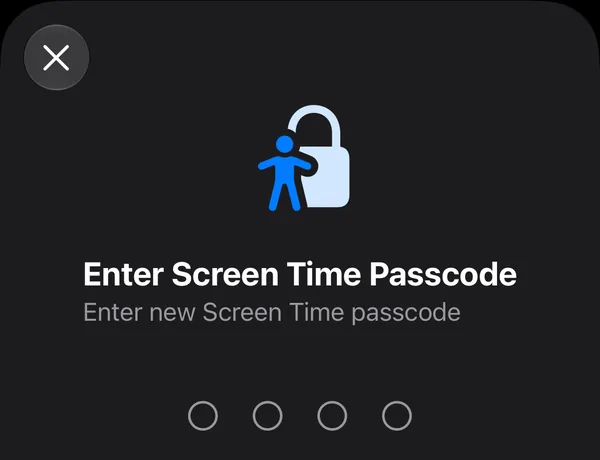
Tap Lock Screen Time Settings. Your iPhone asks you to Enter Screen Time Passcode: four digits.
Step 3: Enter it twice, then add a recovery account
Type the code, then type it again to confirm. According to Apple, your iPhone then offers Screen Time Passcode Recovery: you enter your Apple Account, and if the passcode is ever forgotten, that account can reset it. Set it up. It costs ten seconds now and saves a lot of trouble later.
How to change or turn off the passcode
Once a passcode is set, Screen Time offers to change it instead of setting one. Following Apple's support pages:
- Change it: in Settings › Screen Time, tap Change Screen Time Passcode, then Change Screen Time Passcode again. Enter the current code, then the new one twice.
- Turn it off: tap Change Screen Time Passcode, then Turn Off Screen Time Passcode, and enter the current code. Your limits stay, but anyone can change them again.
If you don't see Change Screen Time Passcode on the main Screen Time page, look in Manage Screen Time, where you set the passcode in the first place.
Forgot your Screen Time passcode?
It happens a lot: you set a code months ago, it worked, and you never needed it. Apple offers one way to reset it from the phone itself:
- Go to Settings › Screen Time and tap Change Screen Time Passcode, then Change Screen Time Passcode again.
- Tap Forgot Passcode?
- Enter the Apple Account and password you used for Screen Time Passcode Recovery.
- Enter a new Screen Time passcode, and enter it again to confirm.
This only works if recovery was set up with an Apple Account (Step 3 above). Without it, Apple's support pages describe one remaining way: erasing the iPhone and setting it up as new, since a backup brings the old passcode back with it. That is a lot of work for a four-digit code, which is the best reason to add the recovery account today.
On a child's iPhone
If you manage a child's iPhone with Family Sharing, you don't need their phone to change their passcode. According to Apple, on your own iPhone go to Settings › Screen Time, tap your child's name, and you will find Change Screen Time Passcode there. Choose a code your child doesn't know, and different from the one for your own phone.
Who should choose the passcode
If you set limits for yourself, the weak point is obvious: you know the code. At eleven at night, with the limit reached and the feed one tap away, typing four digits you know is not much of an obstacle.
It works much better if someone you trust chooses the code: a partner, a flatmate, a friend. They type it in, you don't watch, and they keep it. Ask them to set up recovery with your Apple Account, so you can still reset it yourself if it really matters. For the limits themselves, our guide How to Block Apps on iPhone walks through Time Allowances and the Screen Time Schedule step by step.
Quick answers
How many digits is the Screen Time passcode?
Four. In iOS 27 the passcode screen shows four digits to fill in.
Can I look up my Screen Time passcode?
No. iOS doesn't show the code anywhere, not even in Settings. If it is gone, the way back is to reset it with the Apple Account you set up for recovery, as described above.
Does the passcode work on my other devices?
With Share Across Devices on in Manage Screen Time, your Screen Time settings sync to your other devices signed in with the same Apple Account. In Apple's words: "Screen Time settings sync across your devices." Turn it off if one device should have its own settings.
Is it the same as my Apple Account password?
No. The Screen Time passcode is its own four-digit code. Your Apple Account only comes in as the recovery account, to reset the passcode if it is forgotten.
When a passcode isn't enough: NoCrast
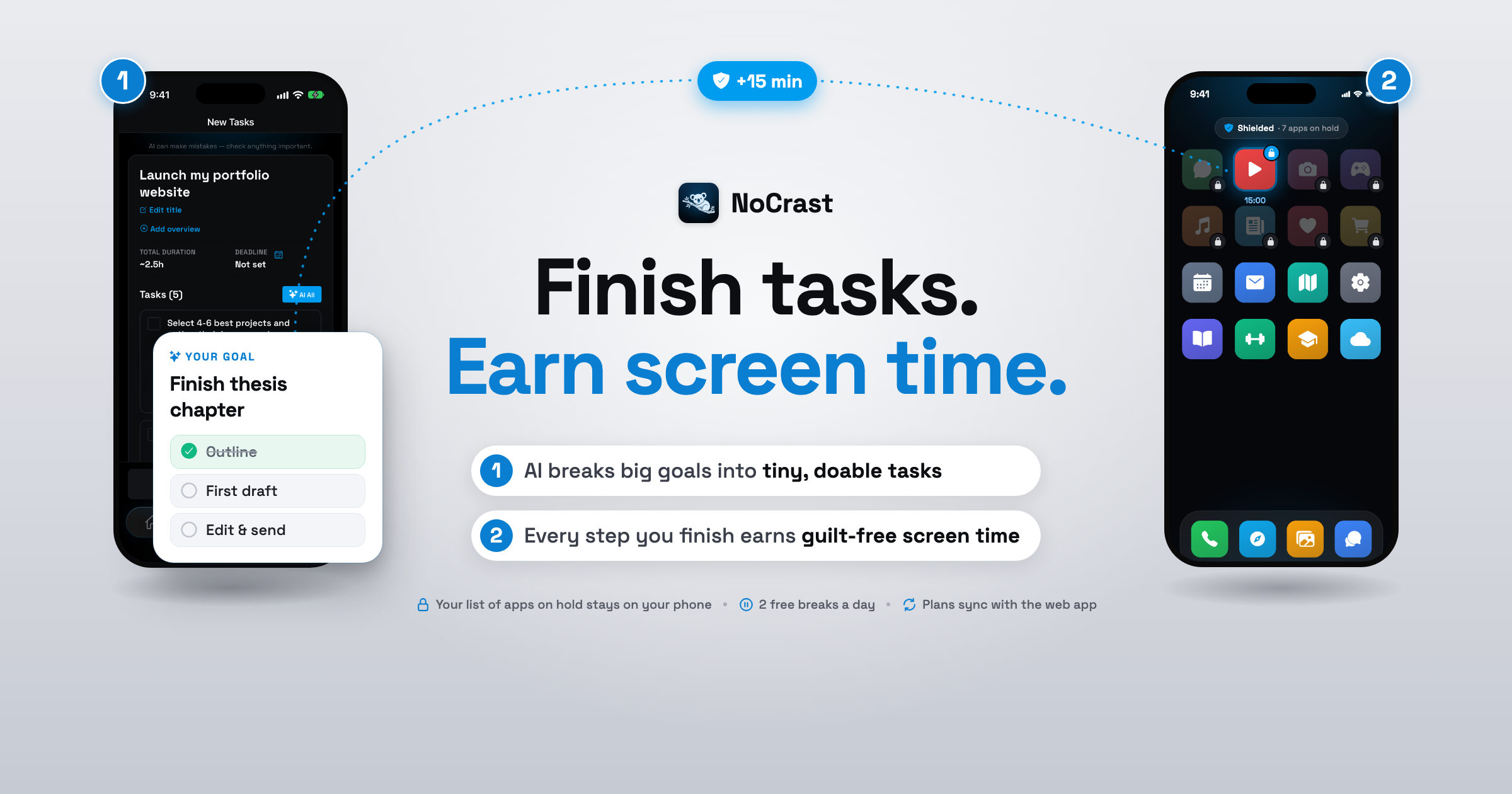
A passcode keeps the limit in place, but it can't tell you what to do once you are stuck behind it. That is where most evenings go wrong: the limit is reached, the urge is still there, and the next app or the browser fills the gap. NoCrast works on that moment. The apps you choose stay on hold until your tasks are done, and when you reach for one, you see your next small step instead of the feed. Finish it, and you earn the minutes back yourself, no code needed.
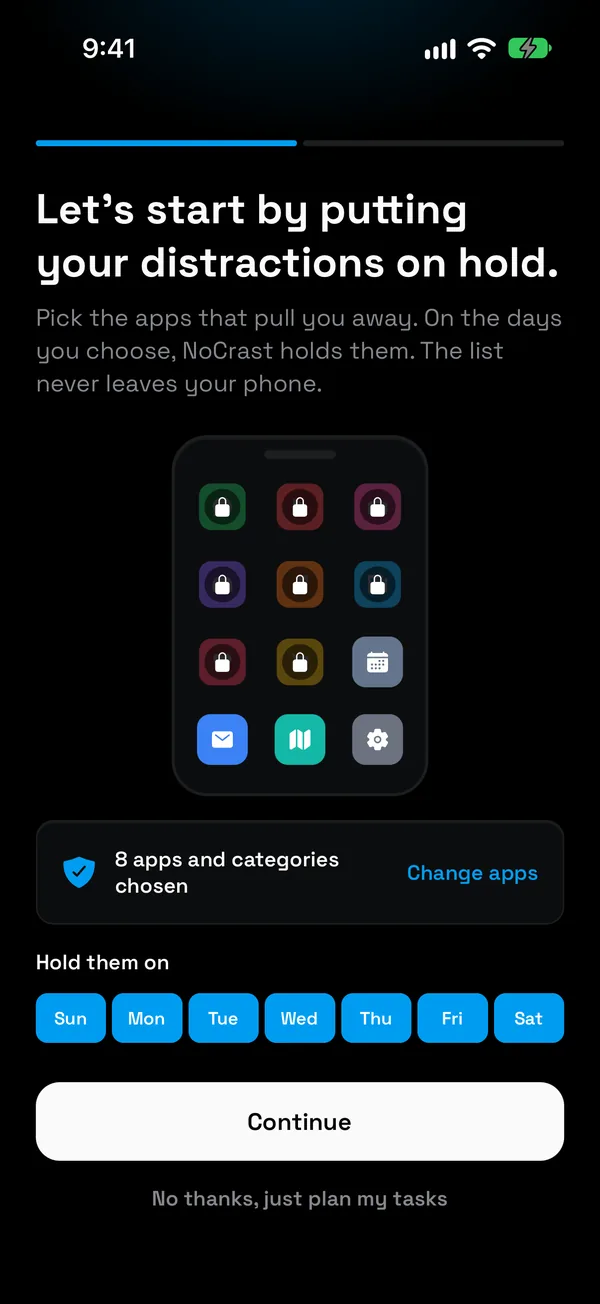
Step 1: Choose the apps to put on hold
Pick single apps or whole categories, and the days you want help. On iPhone NoCrast uses Apple's Screen Time to hold them, and the list of apps stays on your phone.
Step 2: Give NoCrast the thing you keep avoiding
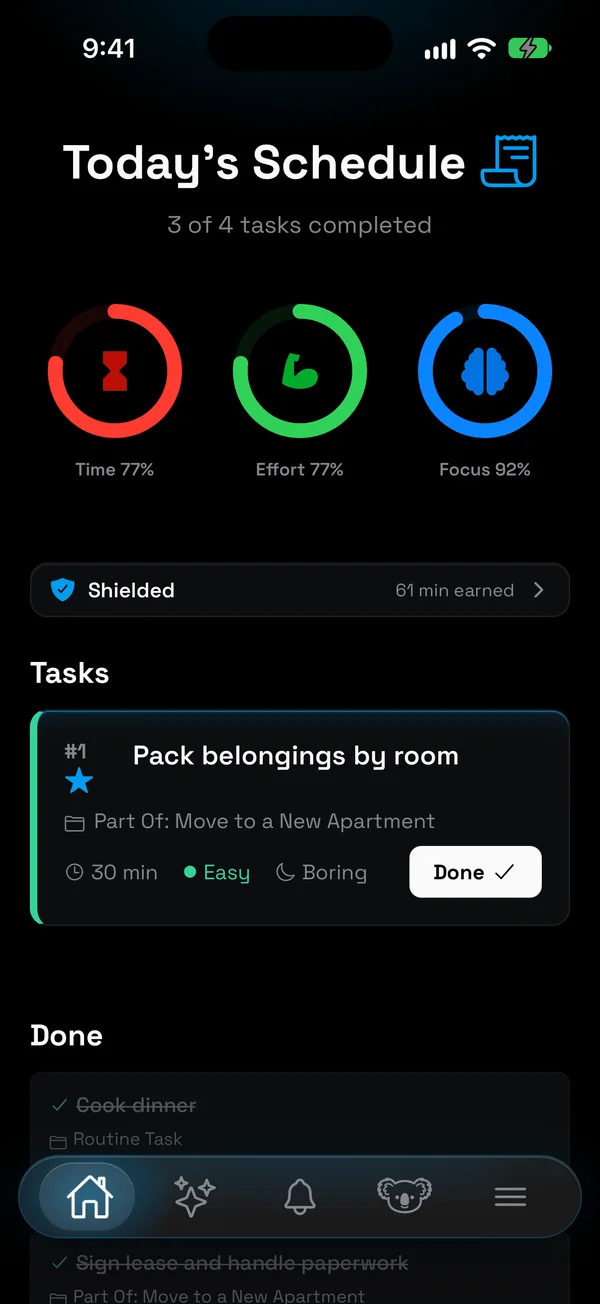
Say it in a sentence. NoCrast's AI splits it into a handful of tasks with their time, effort and focus, and marks the first one for today.
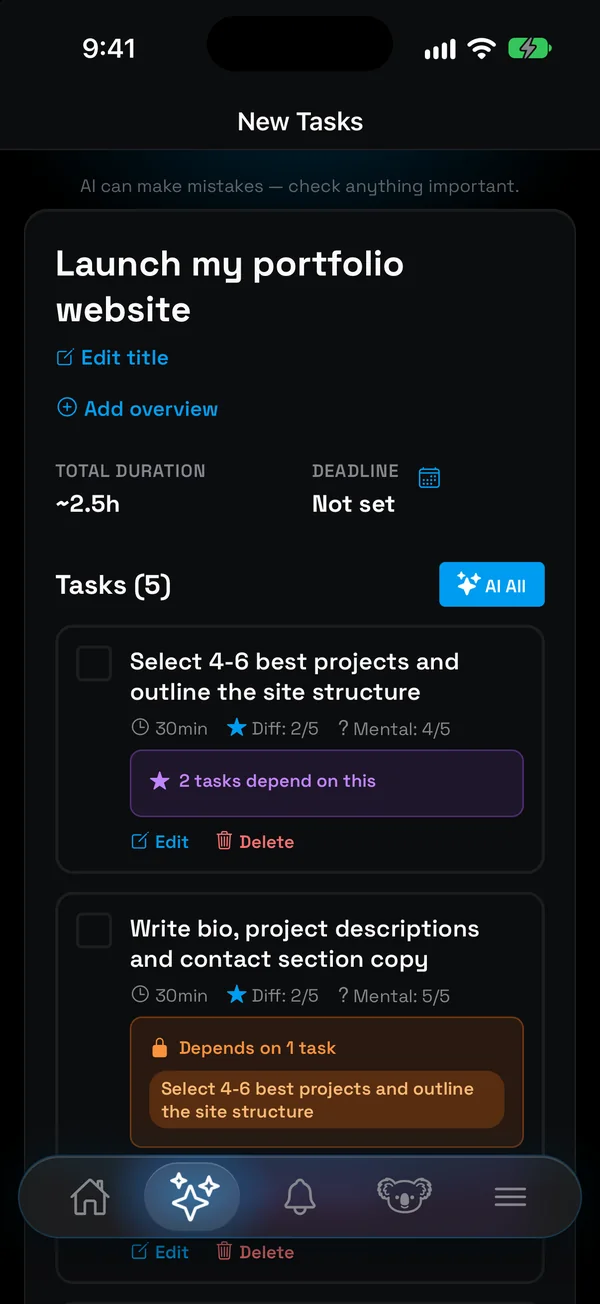
Step 3: Commit to a few tasks each morning
Swipe right to take a task on today, left to save it for later. The rings for time, effort and focus show when the day is full.
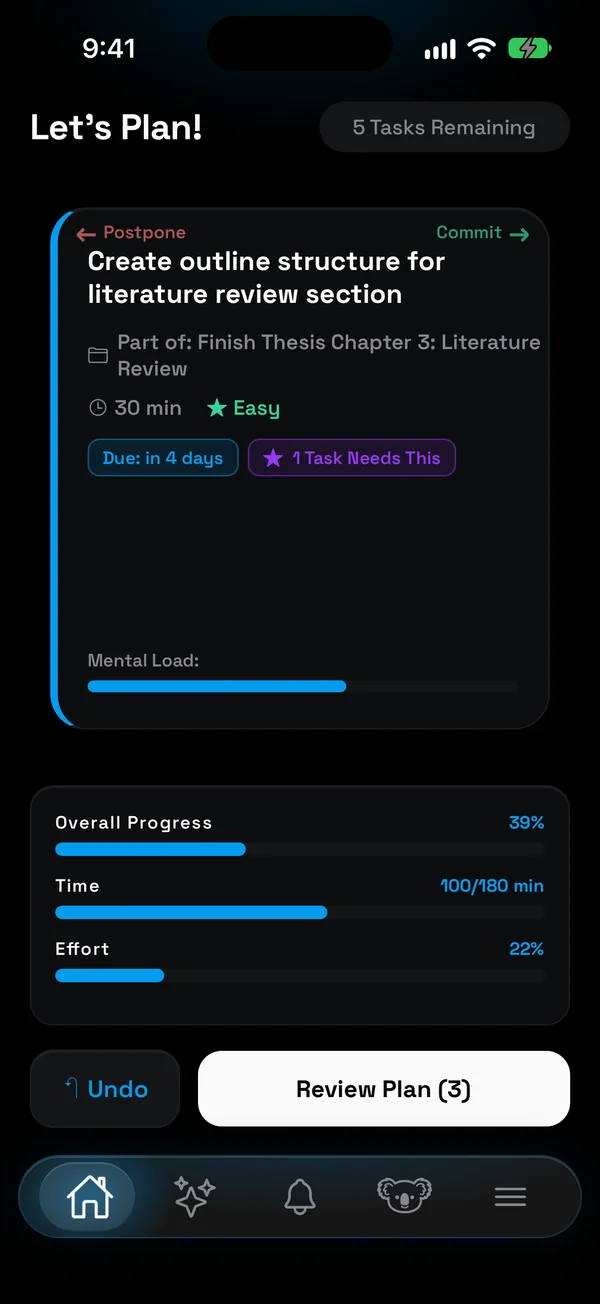
Step 4: Open a held app, meet your next step
Instead of a limit screen that asks for a code, you see the task you are on and the minutes it will earn. The habit of reaching for the phone turns into a reminder of what comes next.
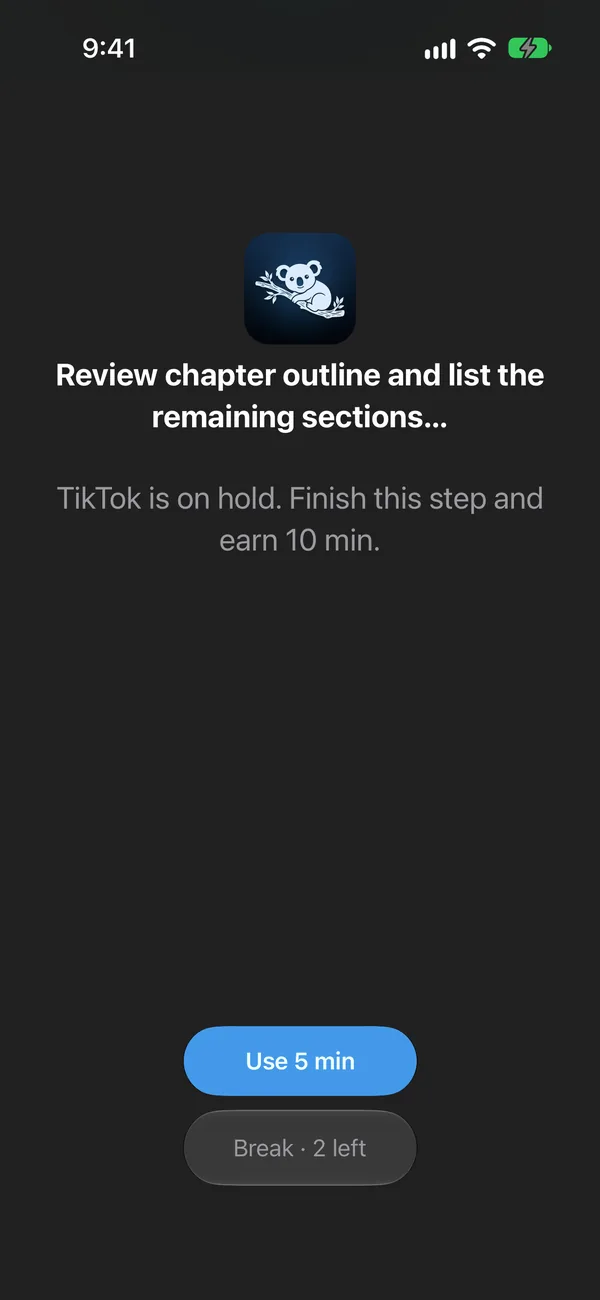
Step 5: Earn your time instead of asking for it
Every finished task adds about a third of its time to your balance, a little more for hard or boring ones. Spend it in breaks of 5, 10, 15 or 30 minutes. Two free 10-minute breaks a day cover the moments you really need an app.
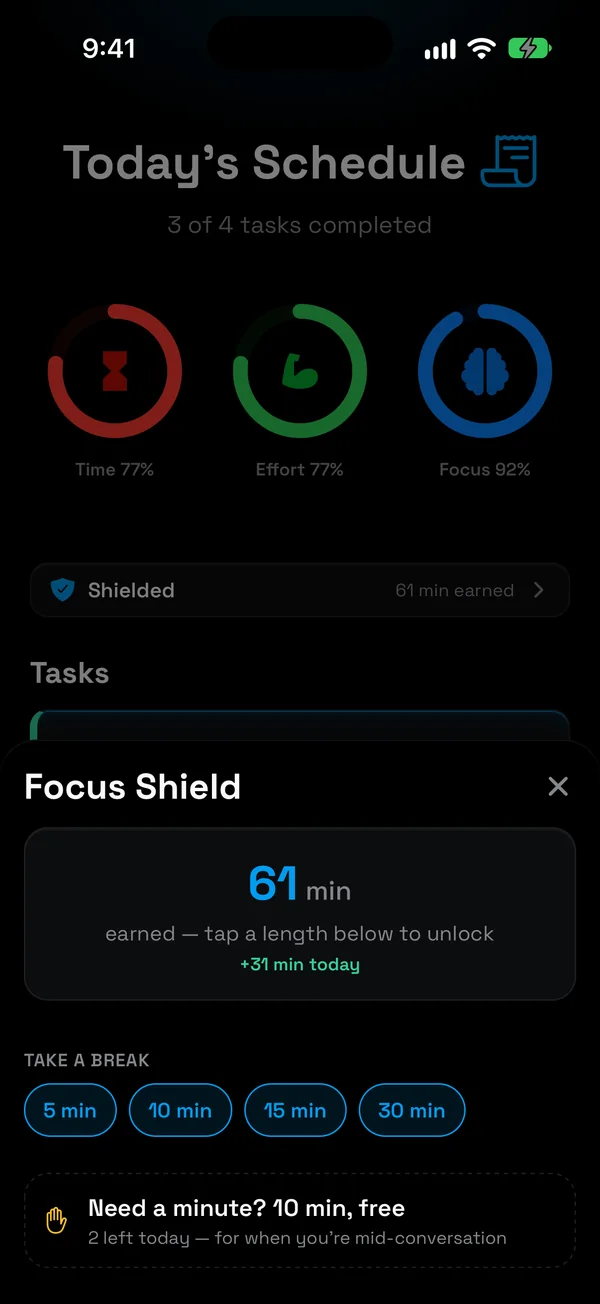
Step 6: Finish the plan, and the hold lifts
When everything you committed to is done, your apps are free until tomorrow.
Screen Time passcode or NoCrast?
| Screen Time passcode | NoCrast | |
|---|---|---|
| What it guards | Your Screen Time settings and limits | Your apps, until your tasks are done |
| Getting more time | Whoever knows the code | Finish a task, earn minutes |
| When you reach for an app | The limit, and a code | Your next step and what it earns |
| If you forget | Recovery with your Apple Account | Nothing to remember |
They work well together: a Screen Time passcode chosen by someone else for the hard limits, NoCrast for the apps that stand between you and your work.
Get NoCrast on the App Store or Google Play.


Found this helpful? Share it with others!