How to Block TikTok on iPhone (iOS 27)
Updated 16 November 2026 · for iOS 27.
TikTok is built so that one more video is always the obvious next step. If it eats more of your day than you want, your iPhone can keep it closed completely, give it a daily limit, or close the website as well, all without installing anything. This guide shows each way with Screen Time in iOS 27, how to make it stick, and what TikTok's own limit does and doesn't do.
In this guide
- Which way is right for you
- Way 1: Keep TikTok closed completely
- Way 2: Give TikTok a daily limit
- Way 3: Close tiktok.com in Safari too
- Make it stick with a Screen Time passcode
- TikTok's own screen time limit
- Why TikTok keeps coming back
- How to block TikTok with NoCrast, and get something done instead
Which way is right for you
- You want a break from TikTok altogether: Way 1 keeps the app from opening at all.
- You like TikTok, just not three hours of it: Way 2 gives it a daily allowance, say 30 minutes.
- Either way: add Way 3, or the scrolling simply moves to tiktok.com in Safari.
All three live in Settings › Screen Time, and all three are easy to undo unless you add a Screen Time passcode at the end.
Way 1: Keep TikTok closed completely
Step 1: Open Apps & Websites
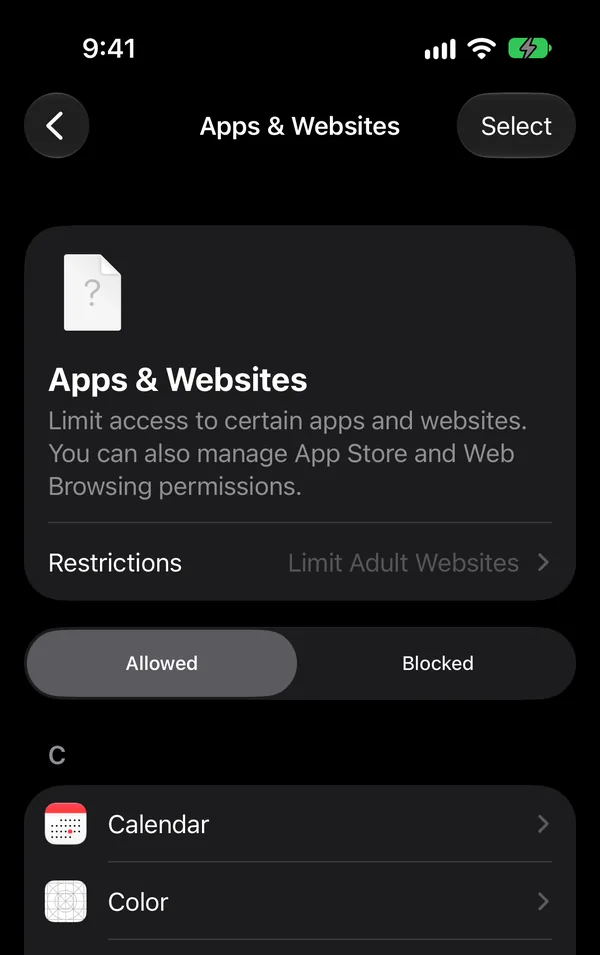
Go to Settings › Screen Time › Apps & Websites. The page has two lists, Allowed and Blocked. Your apps start under Allowed, TikTok included if it is installed.
Step 2: Tap TikTok, then Block App
Find TikTok in the Allowed list and tap it. On its page, tap Block App and confirm. TikTok moves to the Blocked list and won't open until you allow it again there.
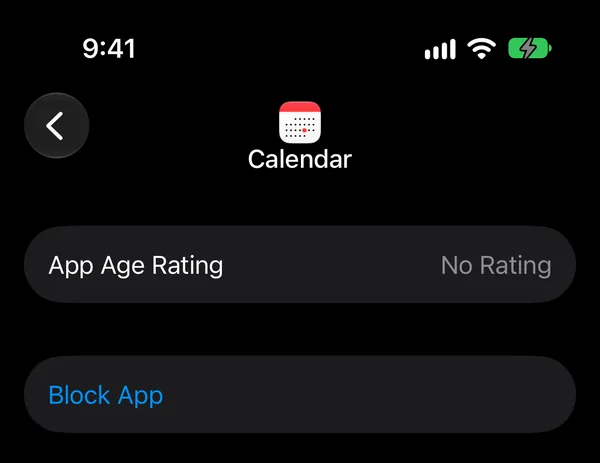
The app stays installed with all your account data, so nothing is lost. To get it back, open the Blocked list and allow it again.
Way 2: Give TikTok a daily limit
If you want TikTok, just less of it, Screen Time's Time Allowances give it a daily amount. In iOS 27 they work on categories, so you put TikTok in one and give that category its time.
Step 1: Add a category
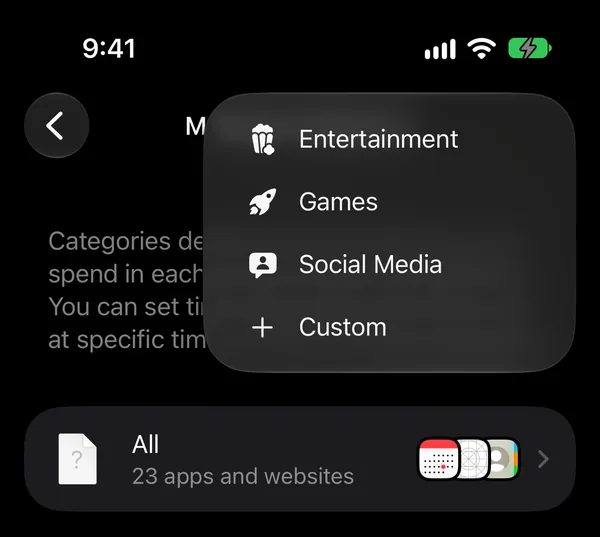
Go to Settings › Screen Time › Time Allowances and tap Manage Categories, then +. Choose Social Media, or Custom if you want TikTok to have a limit of its own.
Step 2: Put TikTok in it
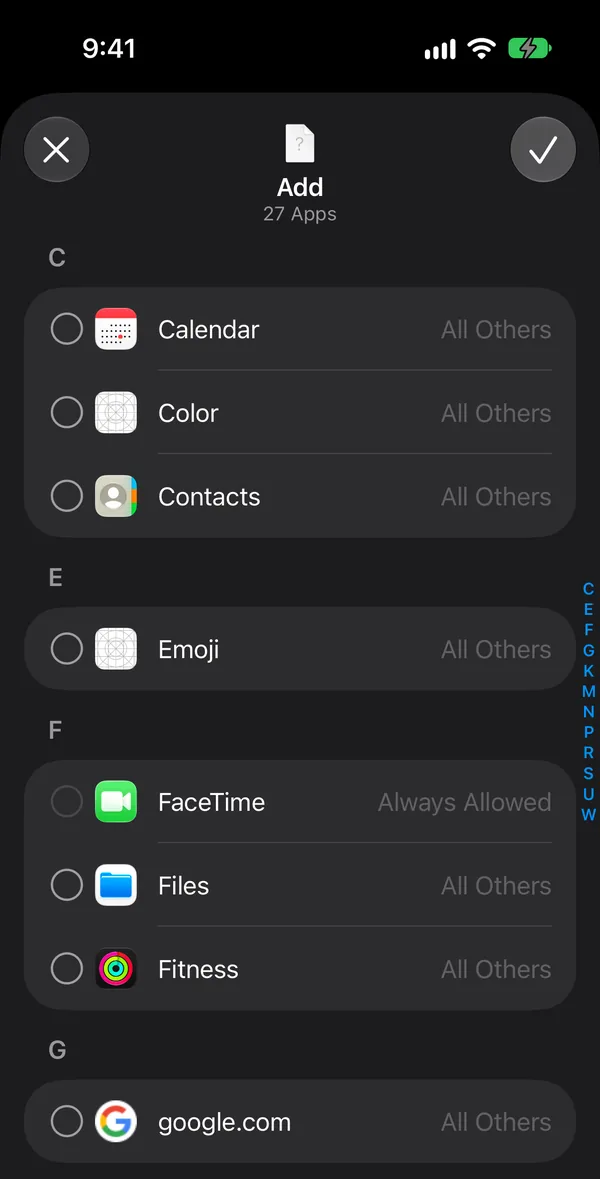
Open the category and tap Add. You get a list of every app and website on your phone with the category it is in now. Tick TikTok and confirm. Making sure it is there yourself is the safe way: you don't have to guess which category your iPhone filed it under.
Step 3: Set the daily time
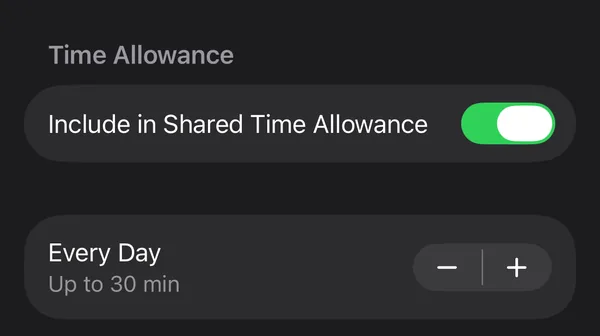
Set Every Day with − and +; it starts at Up to 30 min. Tap Done. Start with an amount you can live with: if you watch two hours a day now, an hour holds better than fifteen minutes you will talk yourself past by Thursday.
Our guide How to Block Apps on iPhone covers the rest of Time Allowances, including the hours an app is available at all.
Way 3: Close tiktok.com in Safari too
With the app closed, the next tap is often tiktok.com in Safari. Close that door as well: in Settings › Screen Time › Apps & Websites, tap Blocked, then + at the bottom right. A sheet called Block Website opens; type tiktok.com and tap ✓.
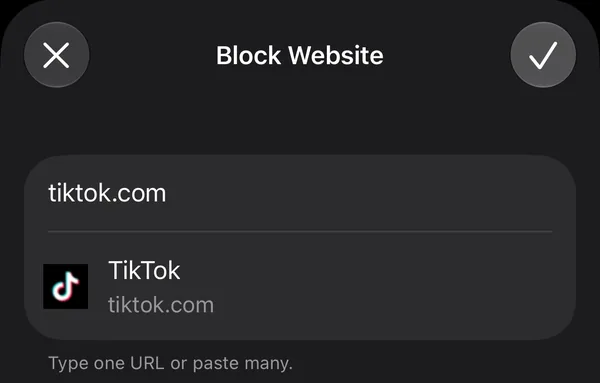
Your iPhone recognizes the site and shows TikTok under the field, so you know you typed it right. Our guide How to Block Websites on iPhone has every step and the other ways to close a site.
Make it stick with a Screen Time passcode
Everything above can be undone in a few taps, by you, at the exact moment you want TikTok most. A Screen Time passcode stops that: Settings › Screen Time › Manage Screen Time › Lock Screen Time Settings, then four digits. It is separate from your iPhone's own passcode. It works best when someone you trust chooses it and keeps it.
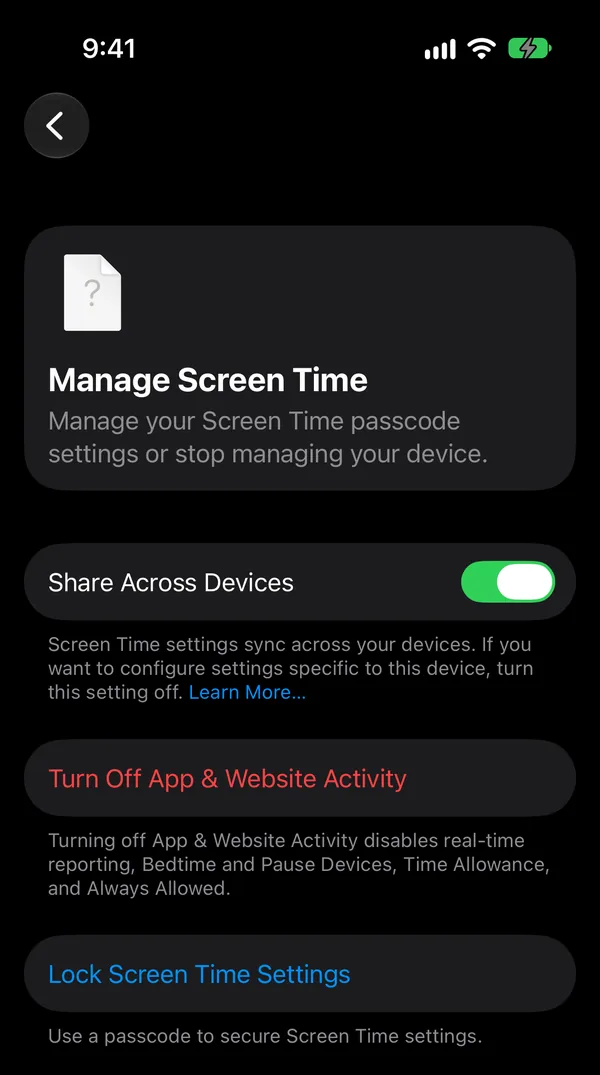
Our guide Screen Time Passcode on iPhone explains setting, changing and resetting it.
TikTok's own screen time limit
TikTok has a limit of its own. According to TikTok's help center, you find it in the app under Settings and privacy › Screen time, where you can set a daily screen time limit. When you reach it, TikTok asks for a passcode to keep watching.
It is better than nothing, and it works on every device you use TikTok on. But it is a passcode you chose yourself, inside the app that wants you to keep watching. Screen Time's limit sits outside TikTok, and with someone else's passcode it is much harder to wave away. Use TikTok's limit as a reminder, and Screen Time as the actual limit.
Why TikTok keeps coming back
Most people who close TikTok find the same thing: the minutes don't disappear, they move. To Instagram Reels, to YouTube Shorts, to the browser. That is because the reason you opened TikTok is usually still there: a task you didn't want to start, a moment of boredom, the end of a long day. If that is you, put the other short-video apps in the same category as TikTok, or close them too. And give the moment something else to do, which is where the next part comes in.
How to block TikTok with NoCrast, and get something done instead
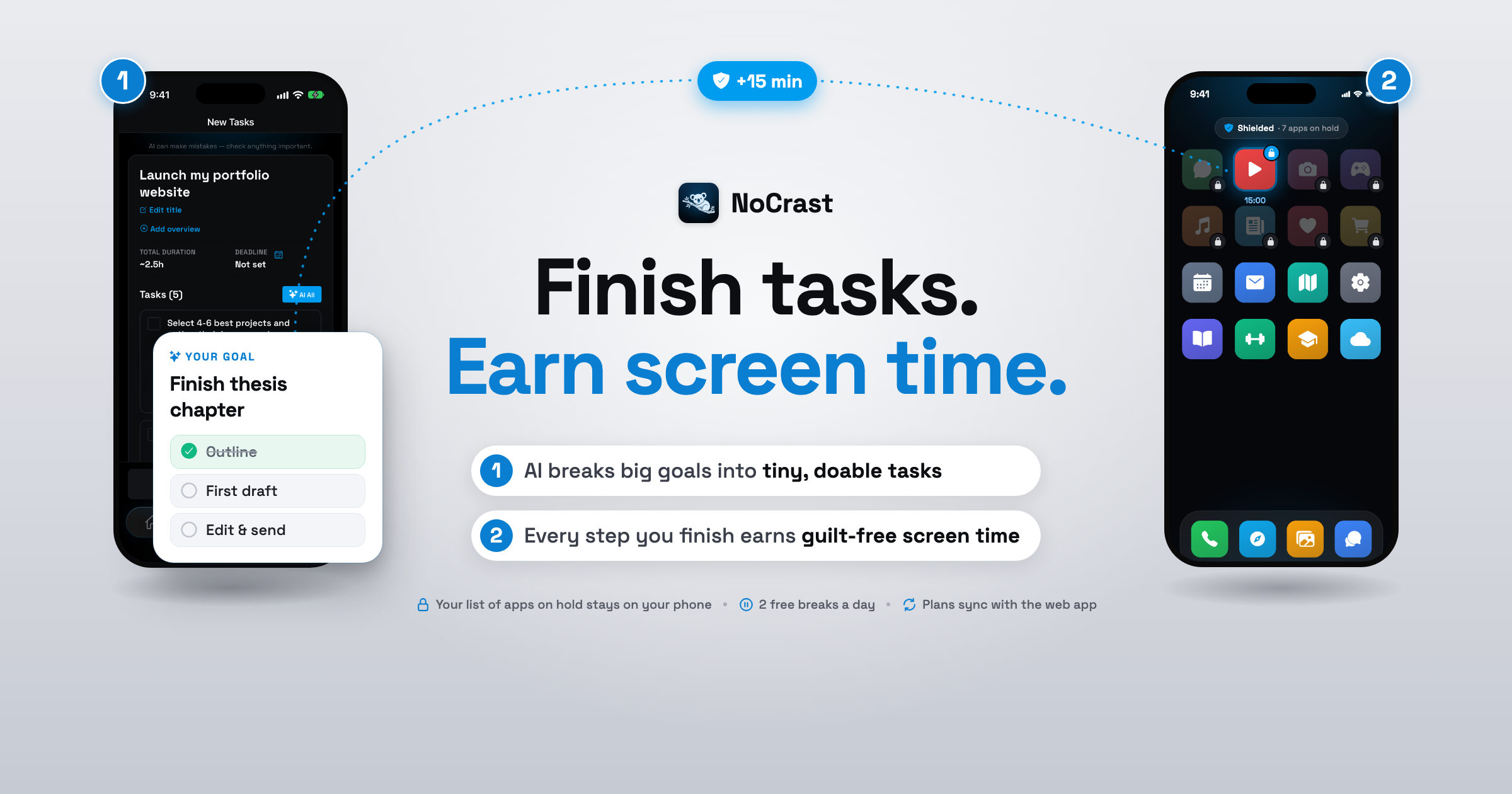
NoCrast holds TikTok, and any other app you choose, until your tasks for the day are done. When you reach for it, you don't get a dead end. You get the next small step of whatever you are putting off, and the minutes that step earns you on TikTok.
Step 1: Put TikTok on hold
Pick TikTok, and anything else that pulls you away, plus the days you want help. On iPhone NoCrast holds them with Apple's Screen Time, and the list of apps you choose never leaves your phone.
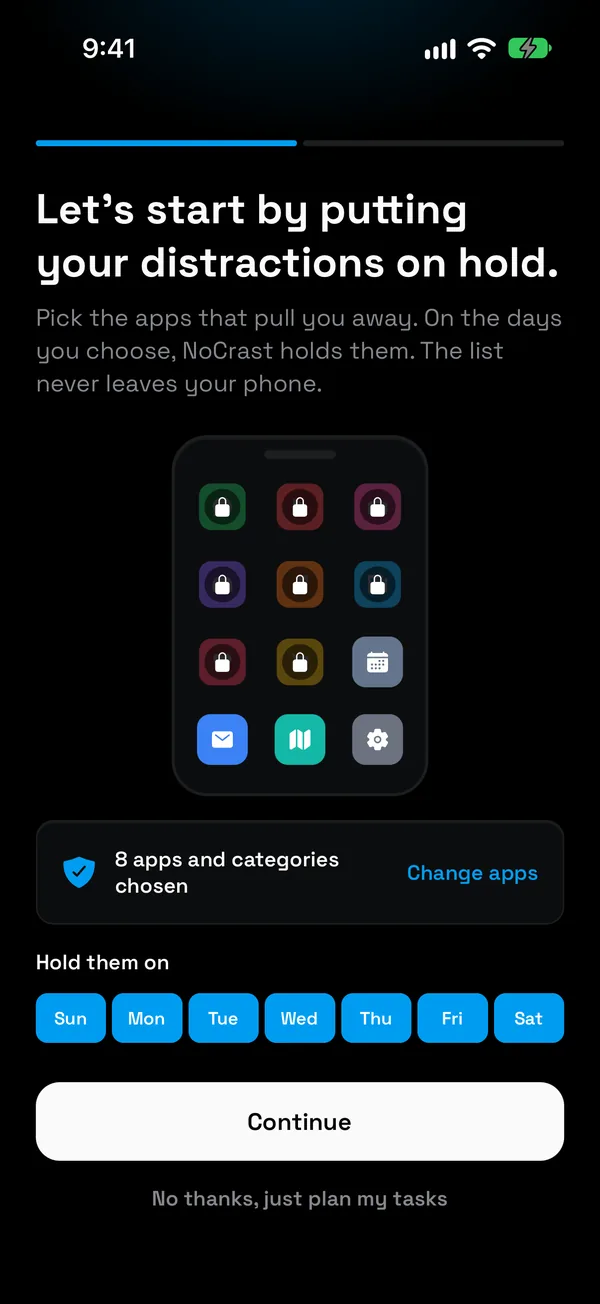
Step 2: Tell it what TikTok is keeping you from
Describe the goal in a sentence. NoCrast's AI turns it into a short list of tasks, each with its time, effort and focus, the first one ready for today.
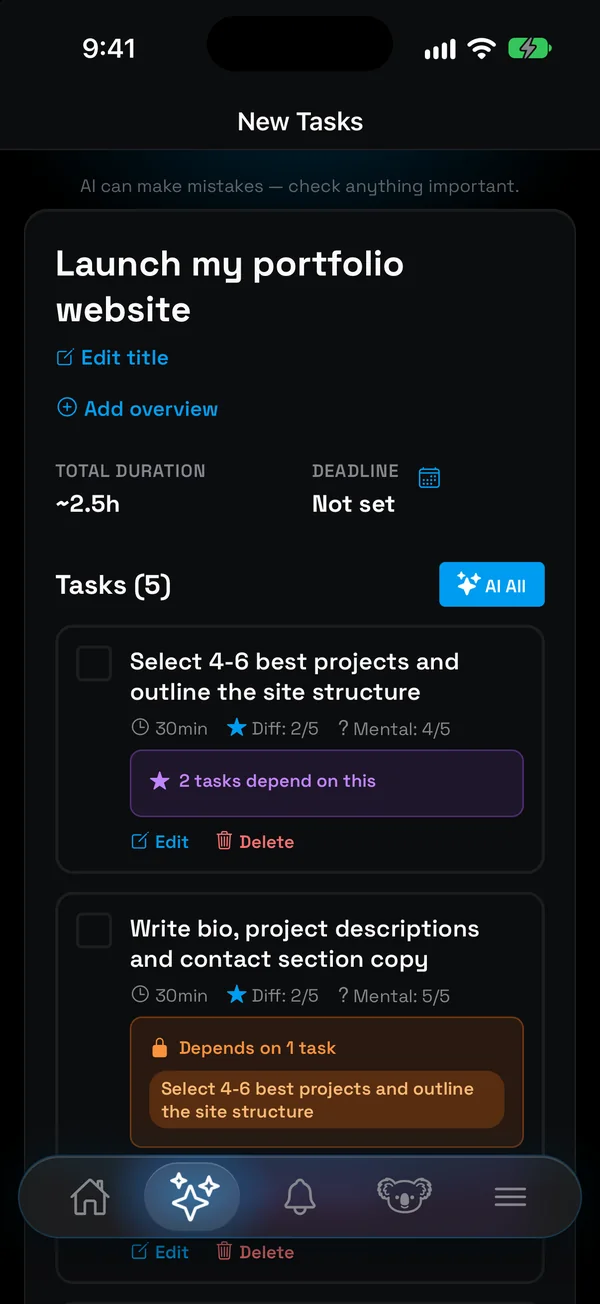
Step 3: Choose today's tasks
Swipe right on what you will do today, left on what can wait. The rings show when the day is full.
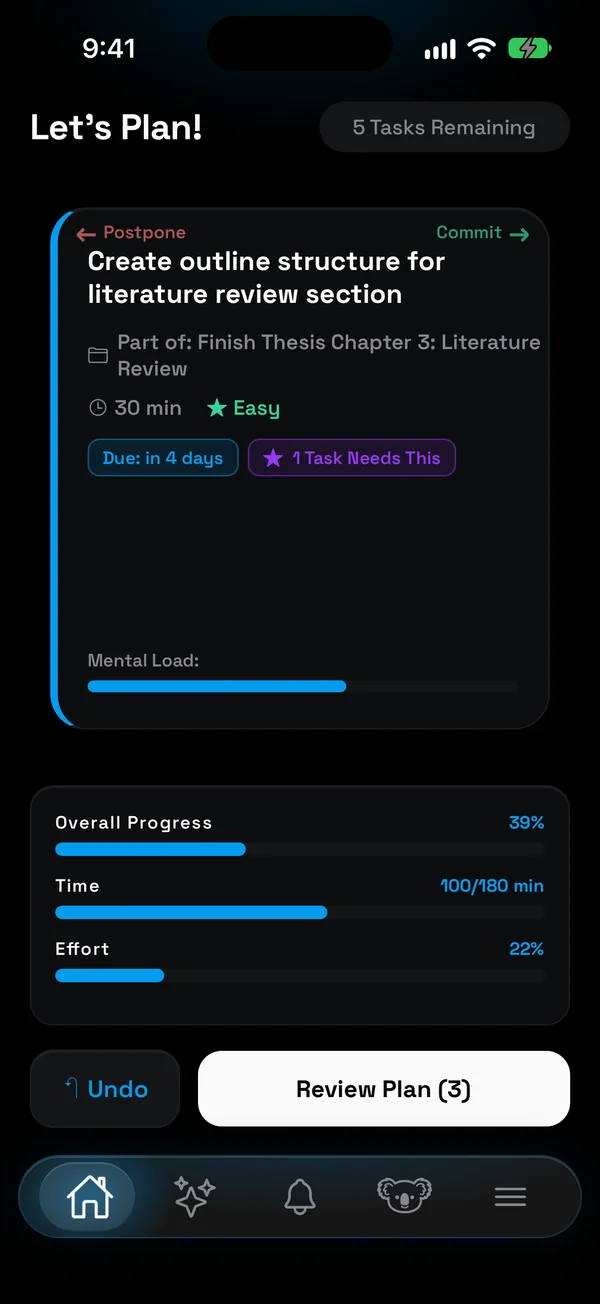
Step 4: Open TikTok, see your next step
This is what you see when you open TikTok out of habit: the step you are on, and the minutes finishing it earns.
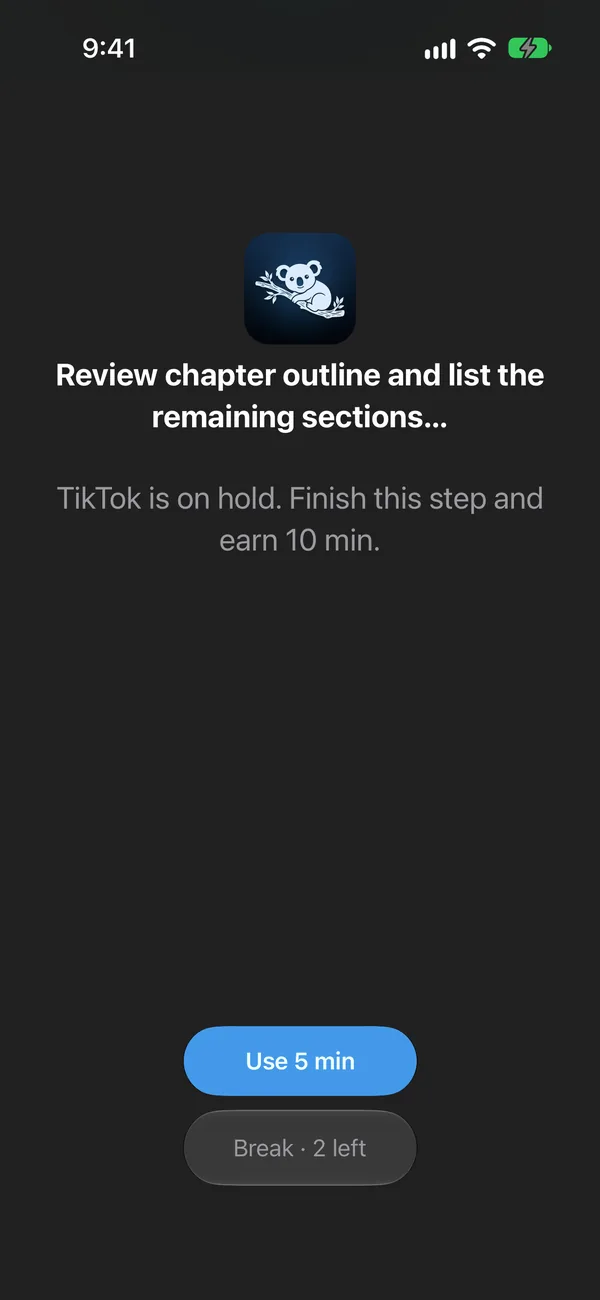
Step 5: Watch TikTok on minutes you earned
Each finished task earns about a third of its time, a little more for hard or boring ones. Spend it on TikTok in breaks of 5, 10, 15 or 30 minutes; when the break ends, TikTok goes back on hold. Two free 10-minute breaks a day are there for when you really need the app.
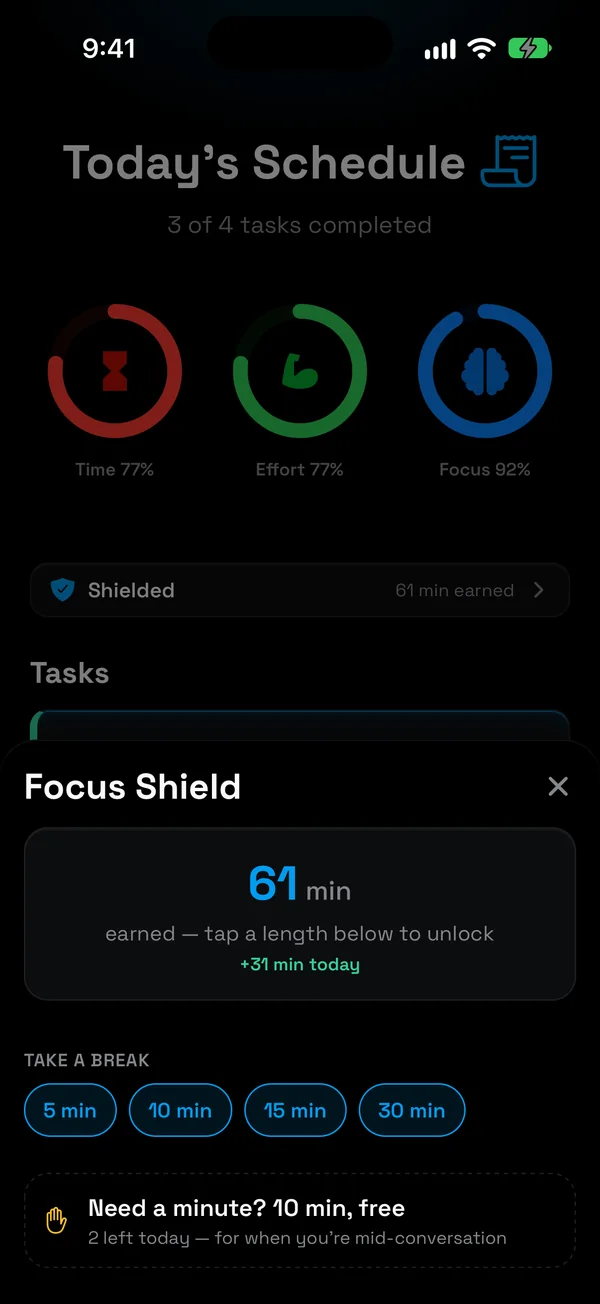
Step 6: Done for the day, TikTok is yours
Once everything you planned is ticked off, the hold lifts until tomorrow.
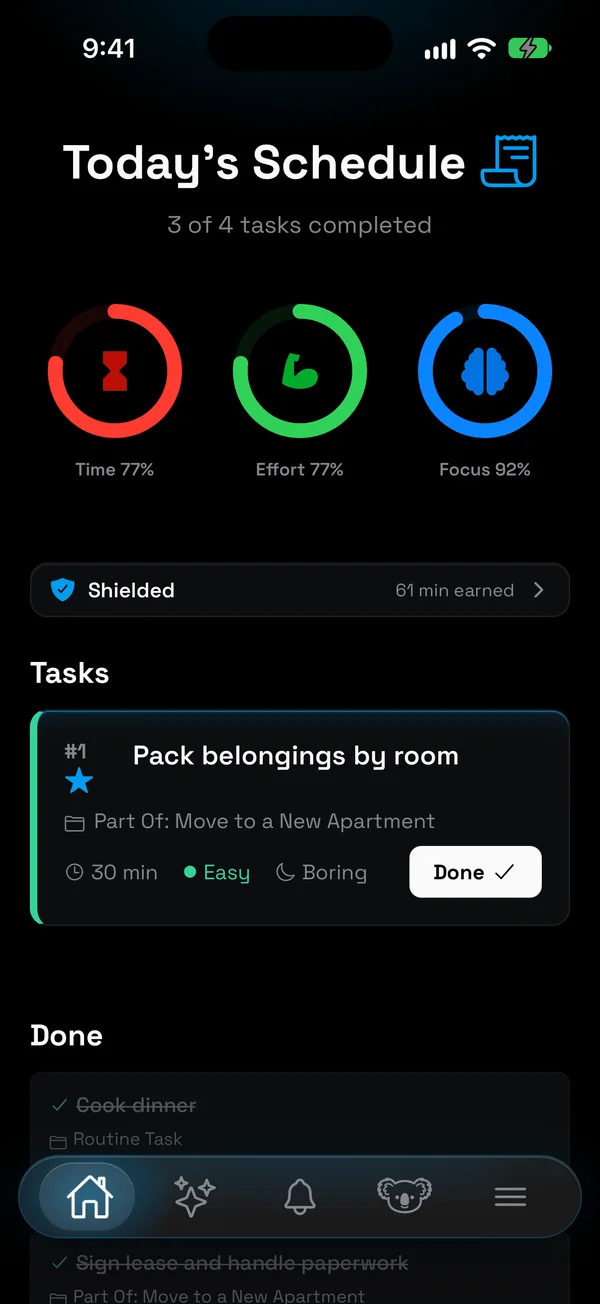
Every way compared
| Block App | Time Allowance | TikTok's own limit | NoCrast | |
|---|---|---|---|---|
| TikTok opens | Never | Until the daily time is used | Yes, with a reminder | After your tasks, or on earned minutes |
| Getting past it | Screen Time passcode | Screen Time passcode | Your own TikTok passcode | Finish a task; two free breaks a day |
| The time you get back | Up to you | Up to you | Up to you | A plan: small steps, today's few tasks |
Get NoCrast on the App Store or Google Play.

Found this helpful? Share it with others!