How to Block Websites on iPhone (iOS 27)
Updated 15 November 2026 · for iOS 27, with the steps for iOS 26 and earlier at the end.
Your iPhone can stop websites from opening without any extra app: it is part of Screen Time. In iOS 27 there are three ways, depending on what you want: keep one site from opening at all, filter the web as a whole, or give a site a daily time limit. This guide shows all three with screenshots from iOS 27, then how to keep the settings from being changed in a weak moment.
In this guide
- Before you start: check your iOS version
- Stop one website from opening
- Filter the whole web
- Give a website a daily time limit
- Keep the settings from being changed
- On iOS 26 or earlier
- Why the websites keep coming back
- How to block distractions with NoCrast, and know what to do instead
Before you start: check your iOS version
Open Settings › General › About and look at iOS Version. The steps below are for iOS 27. On iOS 26 or earlier the website settings live elsewhere; they are at the end of this guide.
Stop one website from opening
Step 1: Open Apps & Websites
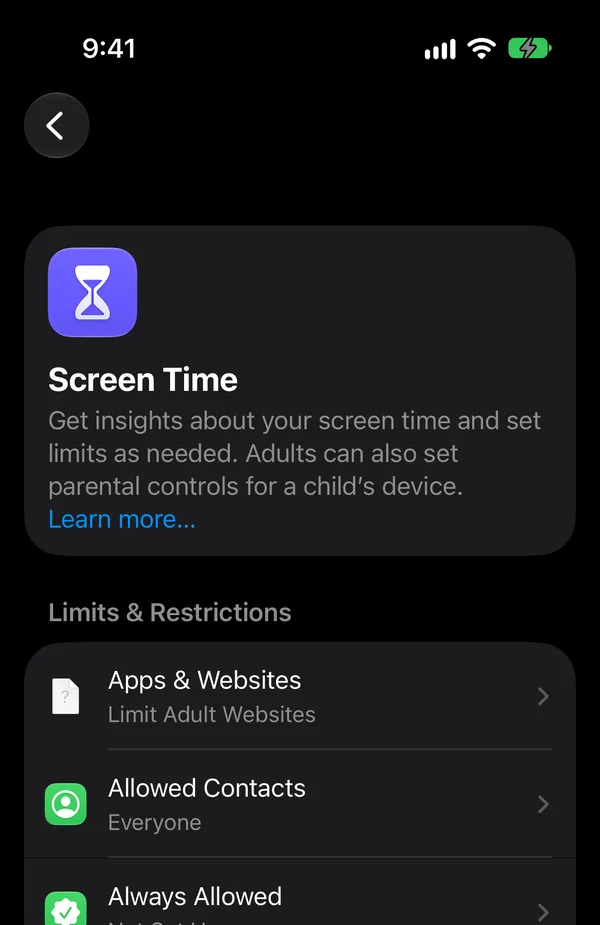
Open Settings, tap Screen Time, and under Limits & Restrictions tap Apps & Websites. Apple describes it as the place to "limit access to certain apps and websites".
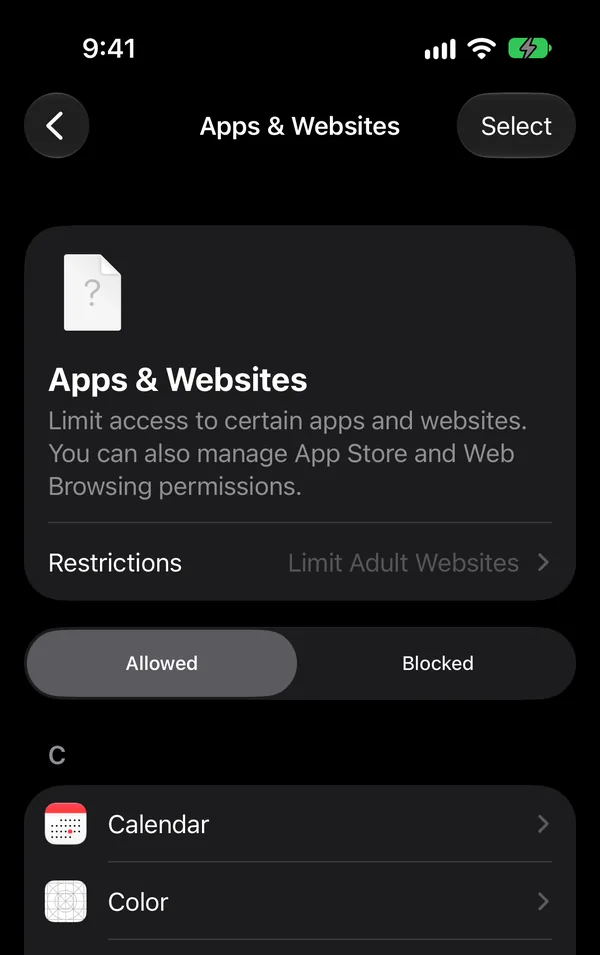
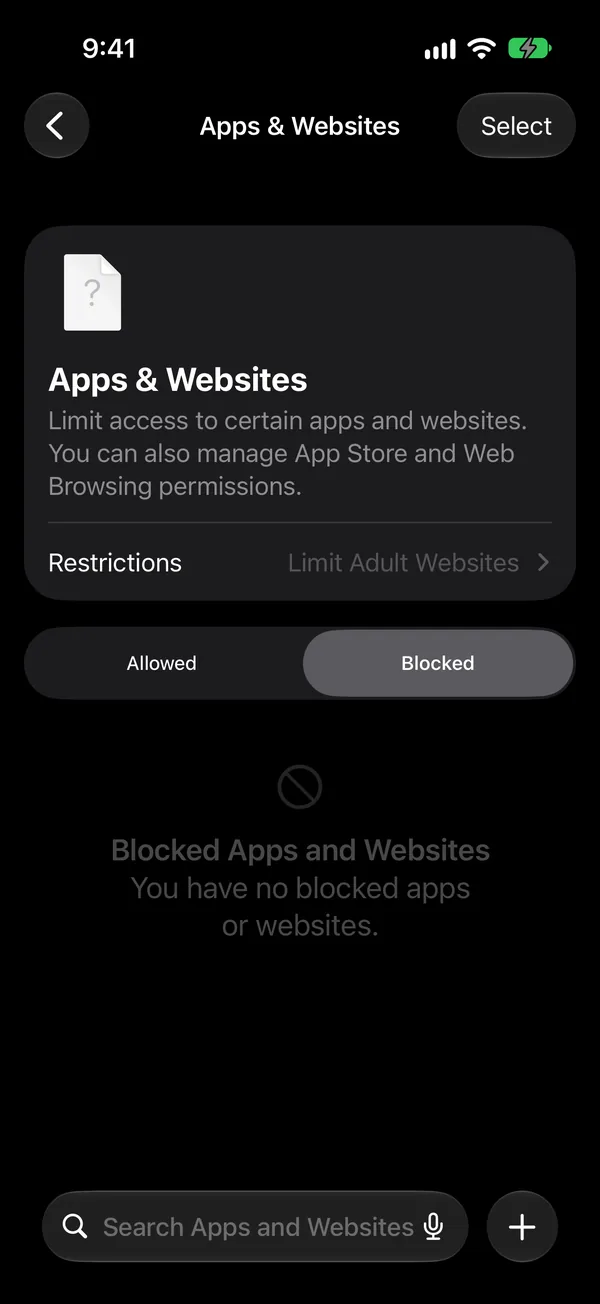
The page has two lists, Allowed and Blocked. Everything starts in Allowed.
Step 2: Add the website to the Blocked list
Tap Blocked. While it is empty it says "You have no blocked apps or websites." Tap + at the bottom right.
A sheet called Block Website opens. Type the address, for example youtube.com, or paste several at once: it says "Type one URL or paste many." Your iPhone recognizes well-known sites and shows them under the field. Tap ✓ to save.
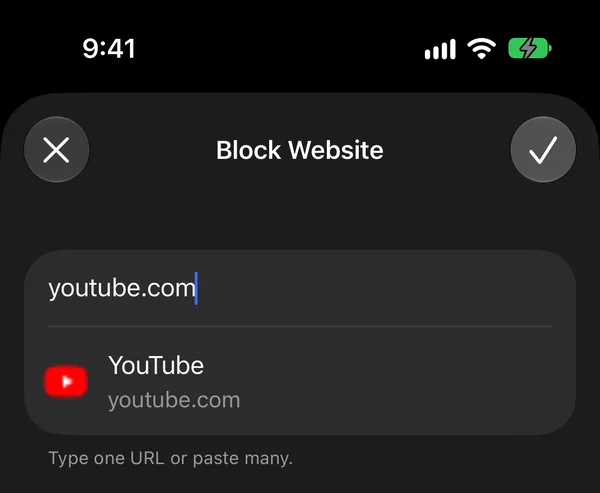
Type the main address, like instagram.com, rather than one page of it. Then open the site in your browser once to check that it no longer loads.
Filter the whole web
To keep adult content out, or to allow only a short list of sites, go to Settings › Screen Time › Apps & Websites › Restrictions and scroll to Websites. Tap Filtering.
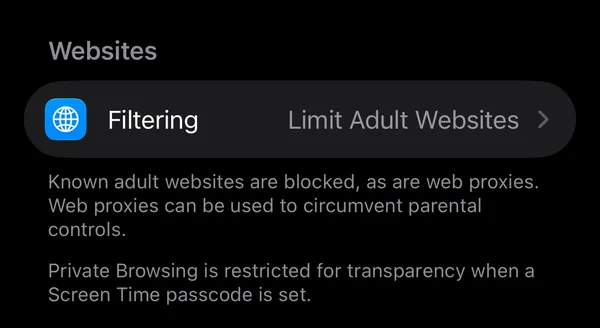
There are three levels:
- Unrestricted: no filter.
- Limit Adult Websites: known adult websites are filtered out, and so are web proxies, which could be used to get around the filter.
- Approved Websites Only: only the sites you approve open. Strict, but useful on a phone that should only be used for a few things.
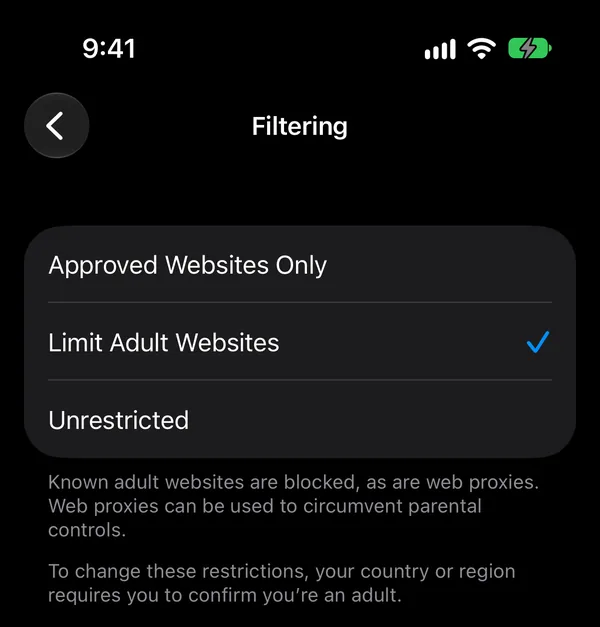
In some countries and regions your iPhone first asks you to confirm you are an adult before you can change this setting.
Give a website a daily time limit
Sometimes you don't want a site gone, just limited: twenty minutes of news a day, not two hours. Websites can go into Screen Time's categories just like apps. Open Settings › Screen Time › Time Allowances › Manage Categories, open a category (or add one with +), and tap Add. The list shows websites next to your apps. Tick the site, then set the category's daily time.
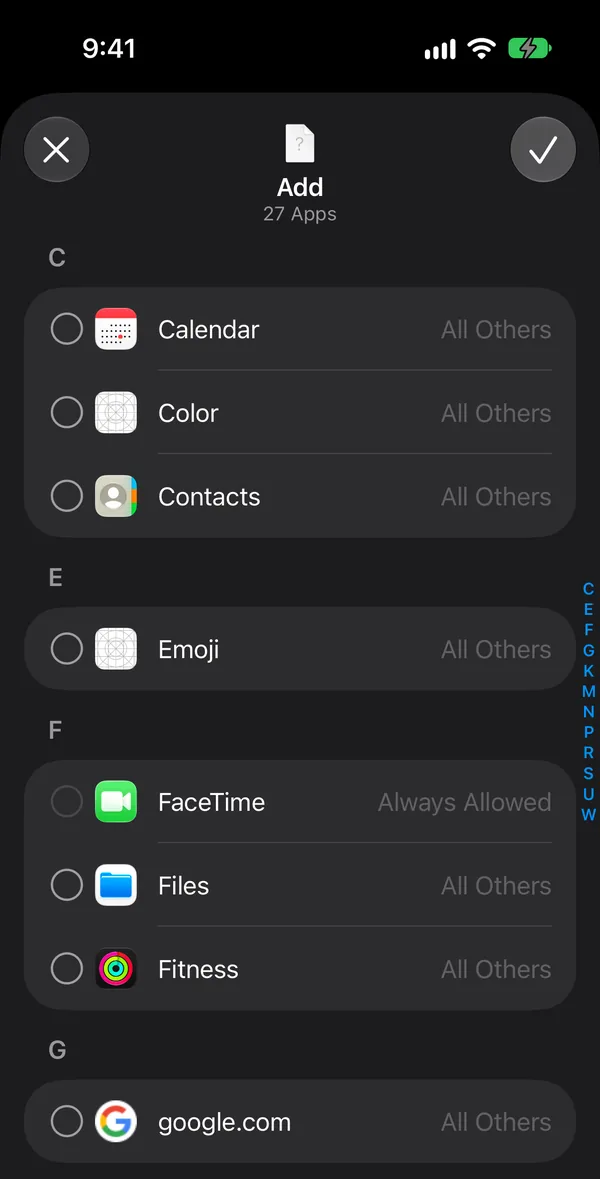
Our guide How to Block Apps on iPhone goes through Time Allowances step by step.
Keep the settings from being changed
Everything above can be undone in a few taps, by you, on a tired evening. A Screen Time passcode stops that: Settings › Screen Time › Manage Screen Time › Lock Screen Time Settings. Once it is set, Screen Time settings can only be changed with the passcode, and Apple notes that Private Browsing is restricted for transparency while it is set.
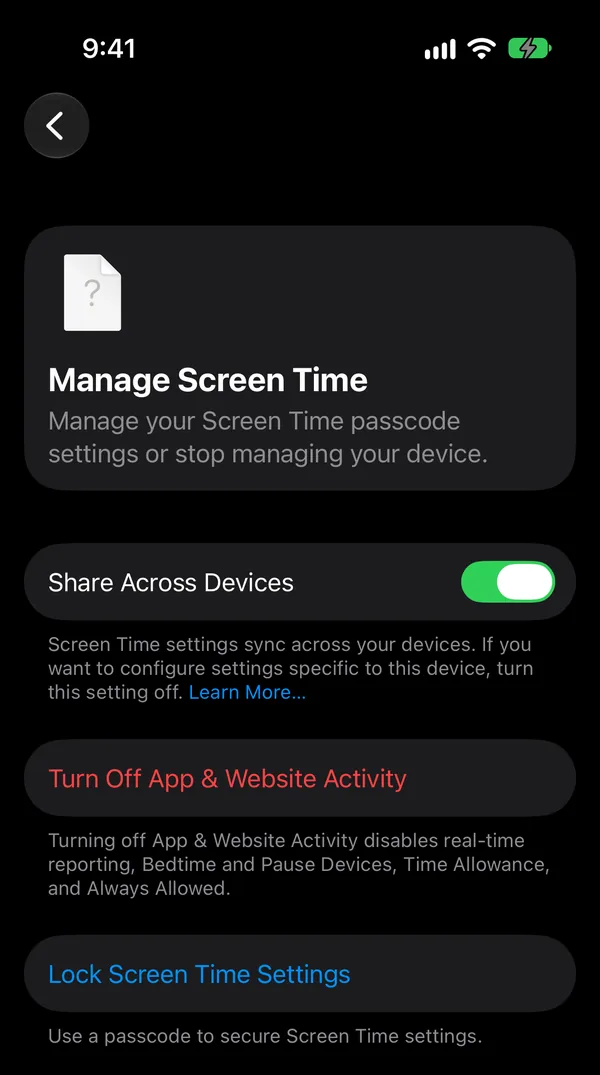
If you set the passcode yourself, you know it. It works better if someone you trust chooses it. Apple also recommends adding Screen Time Passcode Recovery with your Apple Account, so the passcode can still be reset if it is forgotten.
On iOS 26 or earlier
The website settings are under Content & Privacy Restrictions (from Apple's support guide for iOS 18):
- Open Settings › Screen Time and turn on Content & Privacy Restrictions.
- Tap App Store, Media, Web, & Games, then Web Content.
- Choose Limit Adult Websites. Under Never Allow, tap Add Website and enter the address of each site you want to keep from opening.
Why the websites keep coming back
A site on the Blocked list rarely goes away on its own. The habit simply moves: the app version, another browser, a different site that scratches the same itch. Settings can stop a door from opening. They can't tell you what you were trying to do instead, so the urge is still there, looking for the next door.
How to block distractions with NoCrast, and know what to do instead
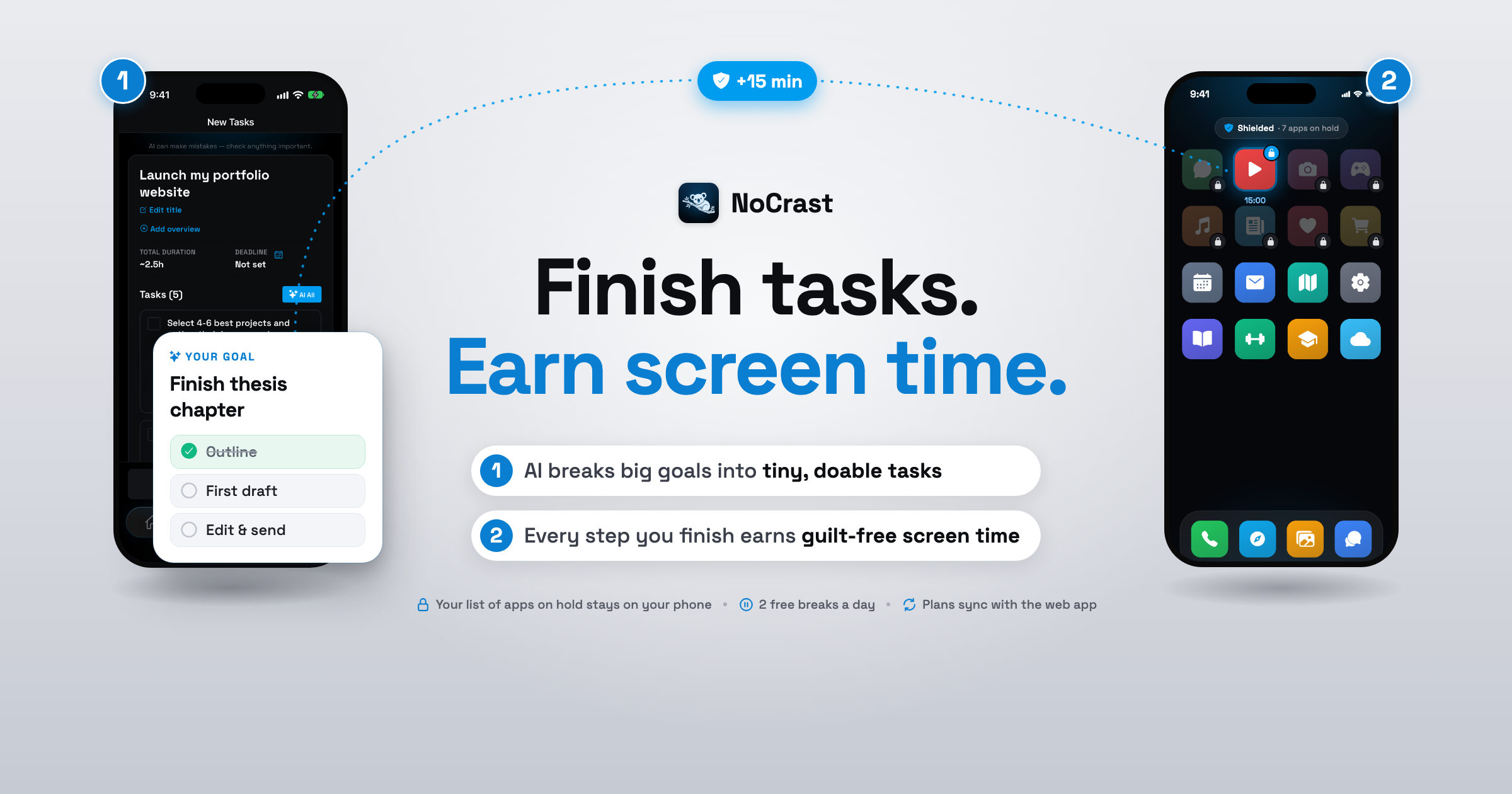
NoCrast works on the habit, not just the door. You choose the apps that pull you away, and on the days you pick they stay on hold until your tasks are done. And when you reach for your phone, NoCrast shows you what to do next instead of the feed: one small, concrete step. Use the Blocked list above for the website versions, and NoCrast for the apps you open without thinking.
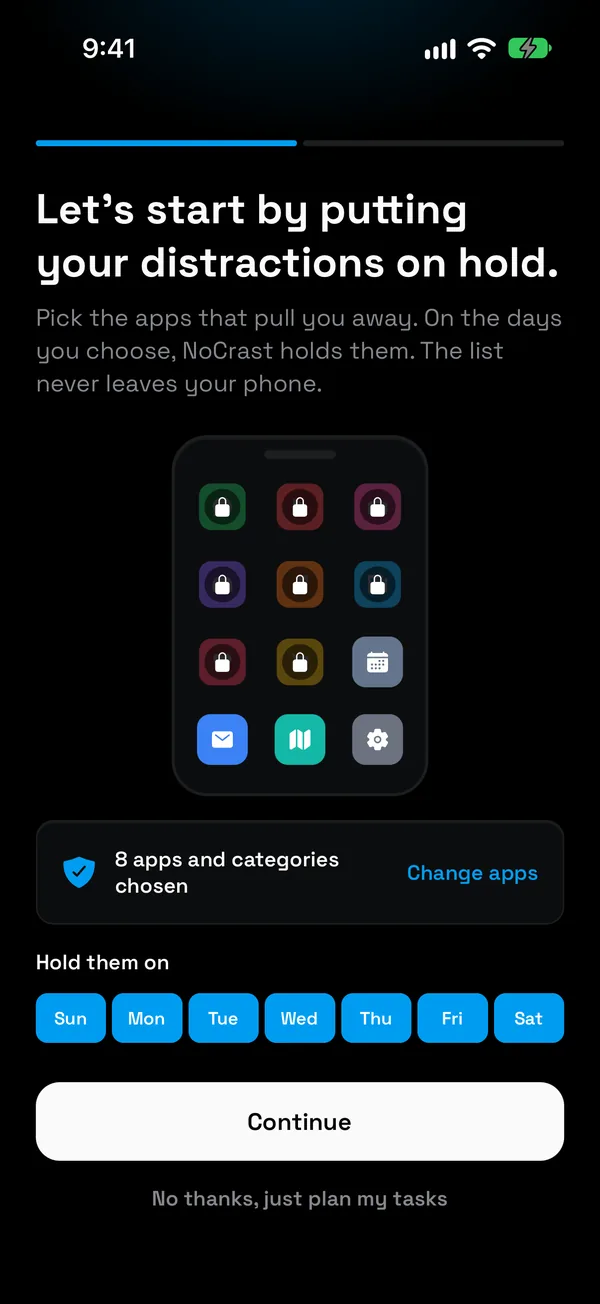
Step 1: Choose the apps that pull you away
Pick the apps and categories you want held, and the days you need help most. On iPhone, NoCrast uses Apple's Screen Time for this, so the list of apps you choose never leaves your phone.
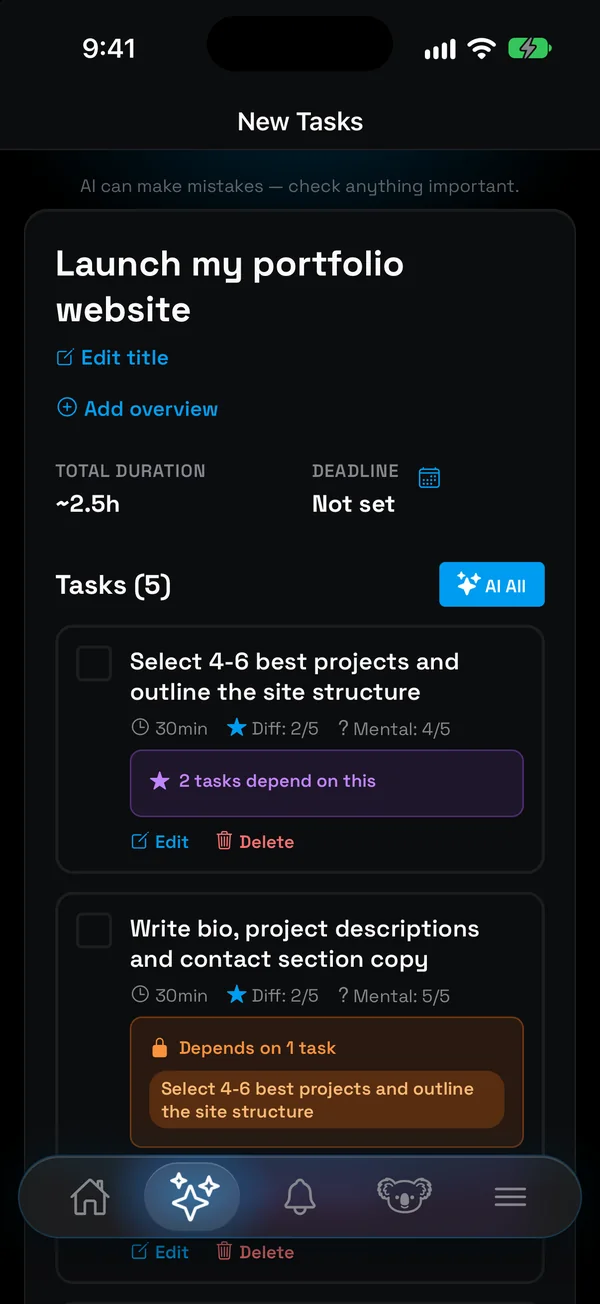
Step 2: Give the saved time a job
Describe what you keep putting off, in your own words. NoCrast's AI breaks it into small, doable tasks, each with its time, effort and focus, and the first one is small enough to start today. Already have a list? Paste it, or take a photo of it.
Step 3: Plan today in a minute
Swipe through your tasks: right to commit, left to postpone. Rings for time, effort and focus show when you are about to take on too much, and what you don't finish comes back tomorrow.
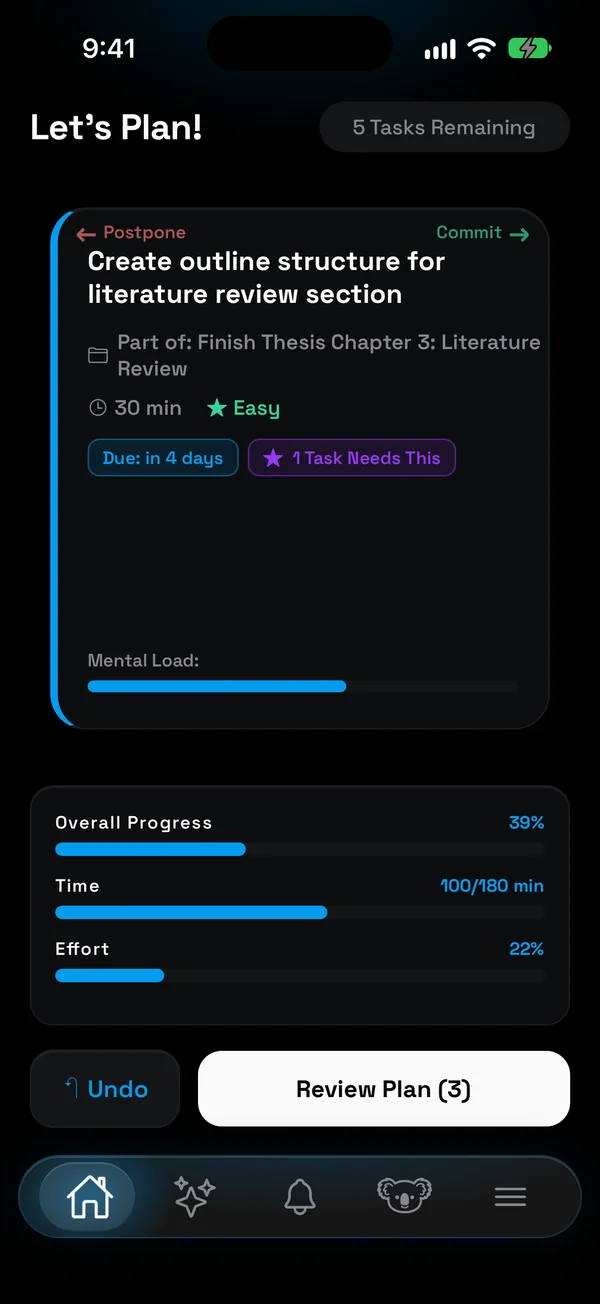
Step 4: Reach for a held app, get your next step
Open a held app out of habit, and instead of the feed you see the step you are on and the minutes it earns. The moment you would have lost becomes a nudge back to what you meant to do.
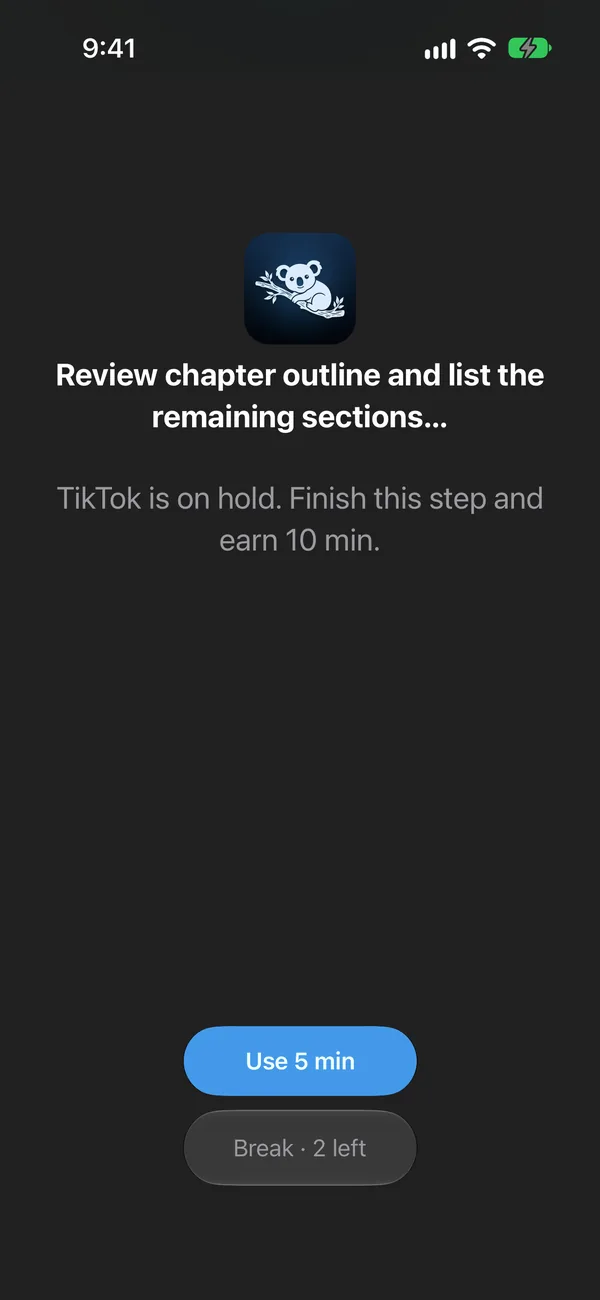
Step 5: Finish the step, earn the minutes
Tick the task off and the minutes are yours, to spend in 5, 10, 15 or 30 minute breaks. Hard or boring tasks earn a little more. Two short free breaks a day are there for when you really need one.
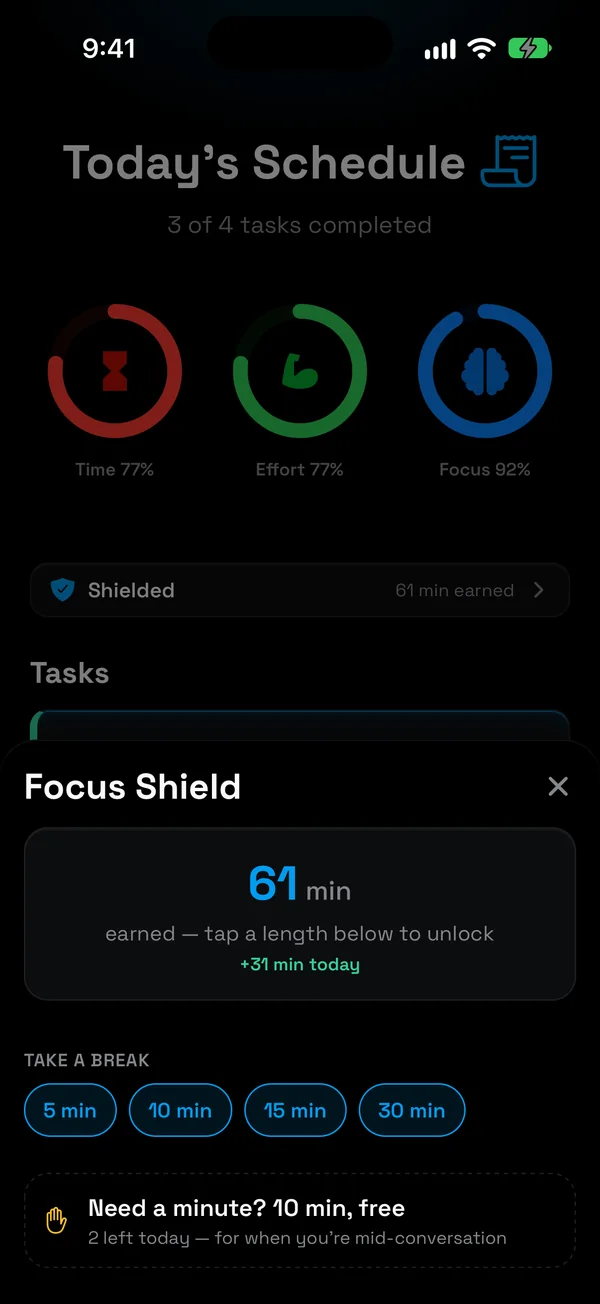
Step 6: Get through the plan, and the day is yours
Finish everything you planned for the day, and your apps are free for the rest of it. Your progress, the minutes you earned and what is left are all on one screen.
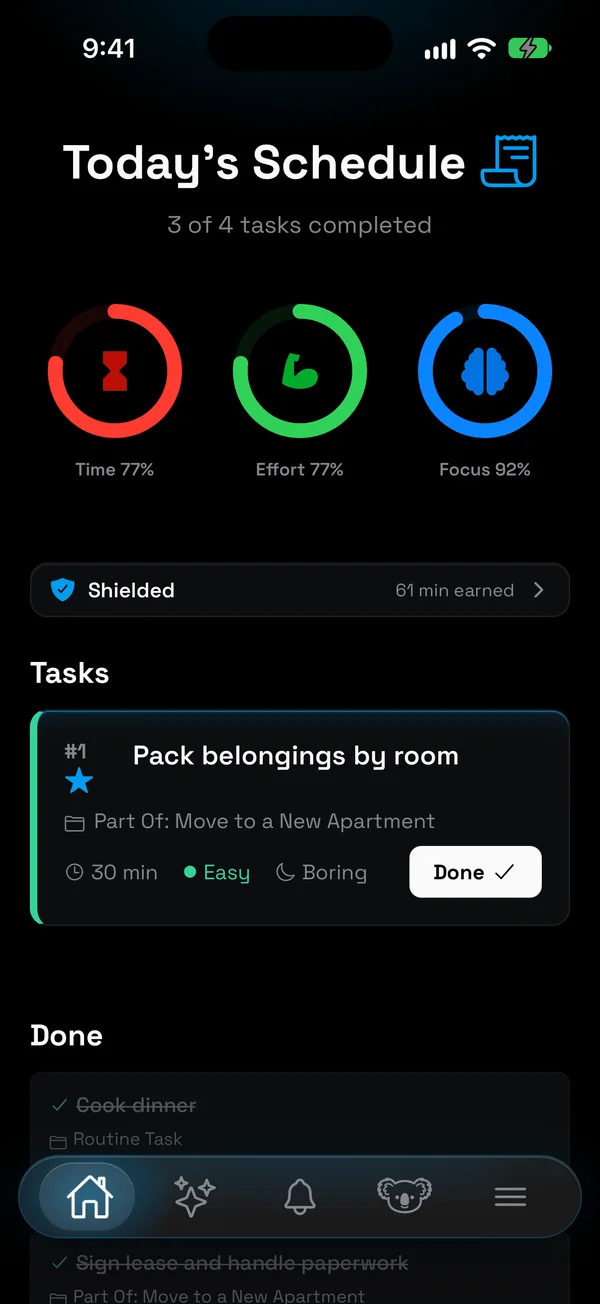
Screen Time's website settings or NoCrast?
| Screen Time (websites) | NoCrast | |
|---|---|---|
| What it holds back | The websites you list, or the web by filter | The apps you choose, until your tasks are done |
| When you reach for it | The site doesn't load | Your next step and the minutes it earns |
| The time you get back | Up to you | A plan: small steps, and today's few tasks |
| Getting back in | Change the setting (or the passcode) | Finish a task and earn it, plus two short free breaks a day |
| Where | iPhone, iPad and Mac | Apps on hold on iPhone and Android; your plan on both and on the web |
They work best together: the Blocked list for the websites you never want to see, NoCrast for the apps that get between you and your work.
Get NoCrast on the App Store or Google Play.

Found this helpful? Share it with others!