How to Lock Apps on iPhone (iOS 27)
Updated 15 November 2026 · for iOS 27.
"Lock an app" can mean two different things. Either you want an app that only you can open, so nobody who picks up your phone can look inside. Or you want to keep yourself out of an app that eats your day. Your iPhone can do both, in different places. This guide shows each, step by step, with screenshots from iOS 27.
In this guide
- Lock an app with Face ID, so only you can open it
- Lock yourself out of an app with Screen Time
- Why a Face ID lock won't help you focus
- How to lock distracting apps with NoCrast, and know what to do instead
Lock an app with Face ID, so only you can open it
Since iOS 18, most apps can ask for Face ID before they open. It is the right tool for privacy: your photos, notes, banking or chats, when someone borrows your phone. It needs a passcode on your iPhone.
Step 1: Press and hold the app
Find the app on your Home Screen and press and hold its icon until a menu appears. Tap Require Face ID.
Step 2: Confirm
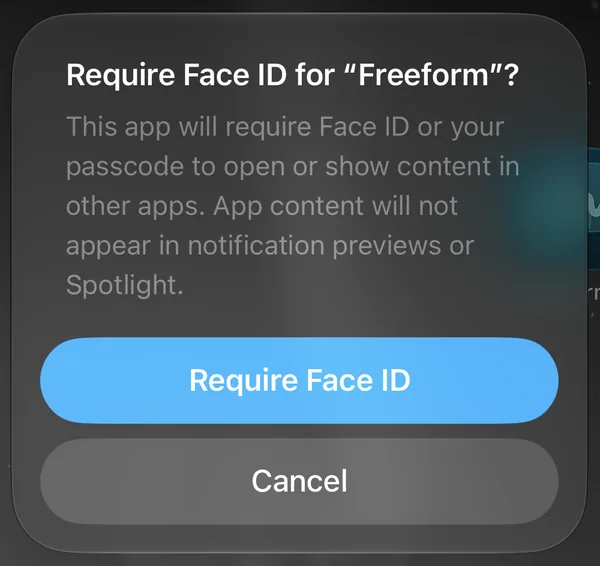
Your iPhone explains what will change and asks you to confirm. Tap Require Face ID again. That's it: there is no further screen.
What changes
In Apple's words: "This app will require Face ID or your passcode to open or show content in other apps. App content will not appear in notification previews or Spotlight." So a message from that app still arrives, but its text stays hidden on the Lock Screen, and searching your phone won't show what is inside.
To undo it
Press and hold the app again and tap Don't Require Face ID.
Lock yourself out of an app with Screen Time
If the problem is that you open an app too often, Face ID is the wrong lock: it opens the moment you look at your phone. What you want is an app that won't open at all, or only for so long each day. That lives in Screen Time.
Keep one app closed
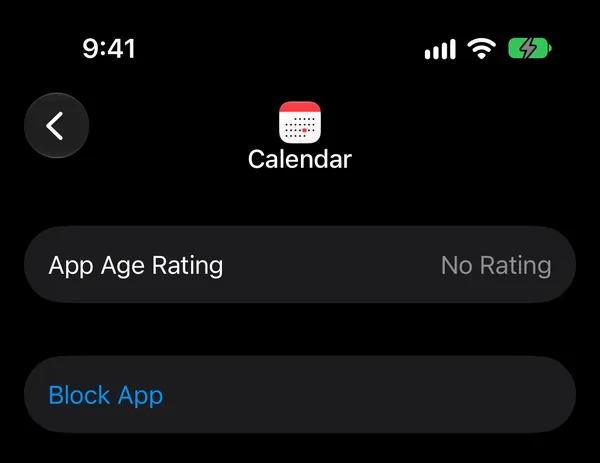
Go to Settings › Screen Time › Apps & Websites and tap the app in the Allowed list. On its page, tap Block App and confirm. It moves to the Blocked list and won't open until you allow it again there.
Or give it a daily allowance
To keep an app but cap it, say 30 minutes a day, put it in a Screen Time category with a daily allowance. Our guide How to Block Apps on iPhone walks through it step by step.
Lock the settings too
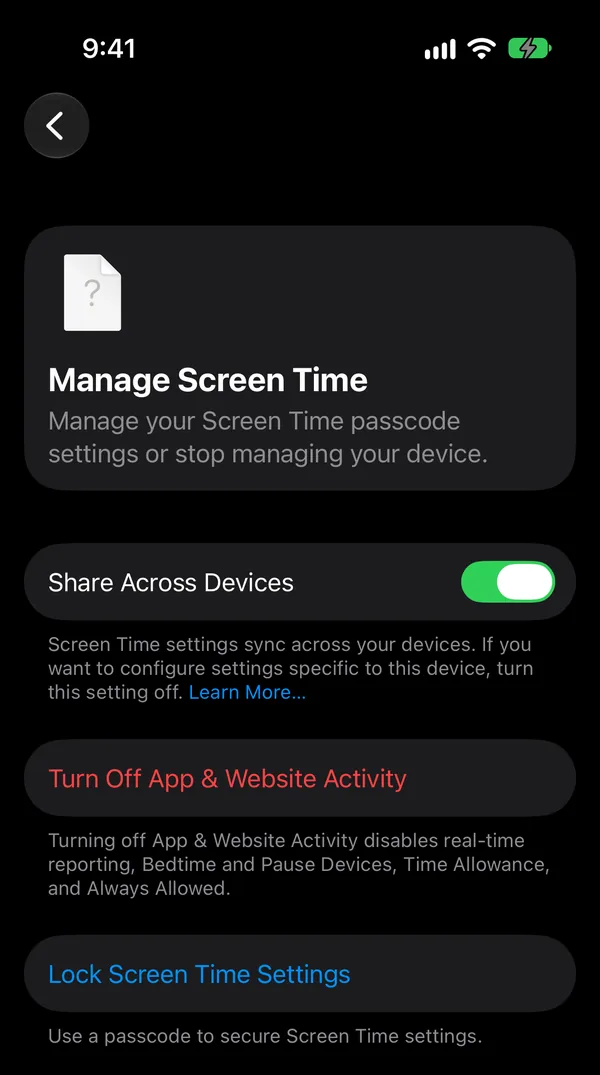
Screen Time settings can be changed back in a few taps, by you, in a weak moment. Set a Screen Time passcode under Settings › Screen Time › Manage Screen Time › Lock Screen Time Settings, ideally one that someone you trust chooses. It is a separate code from your phone's own passcode.
Why a Face ID lock won't help you focus
A Face ID lock keeps other people out. It doesn't keep you out: the app opens before you have finished deciding to open it. Screen Time keeps you out, but it only says no. It doesn't say what to do instead, so the urge goes looking for the next app.
How to lock distracting apps with NoCrast, and know what to do instead
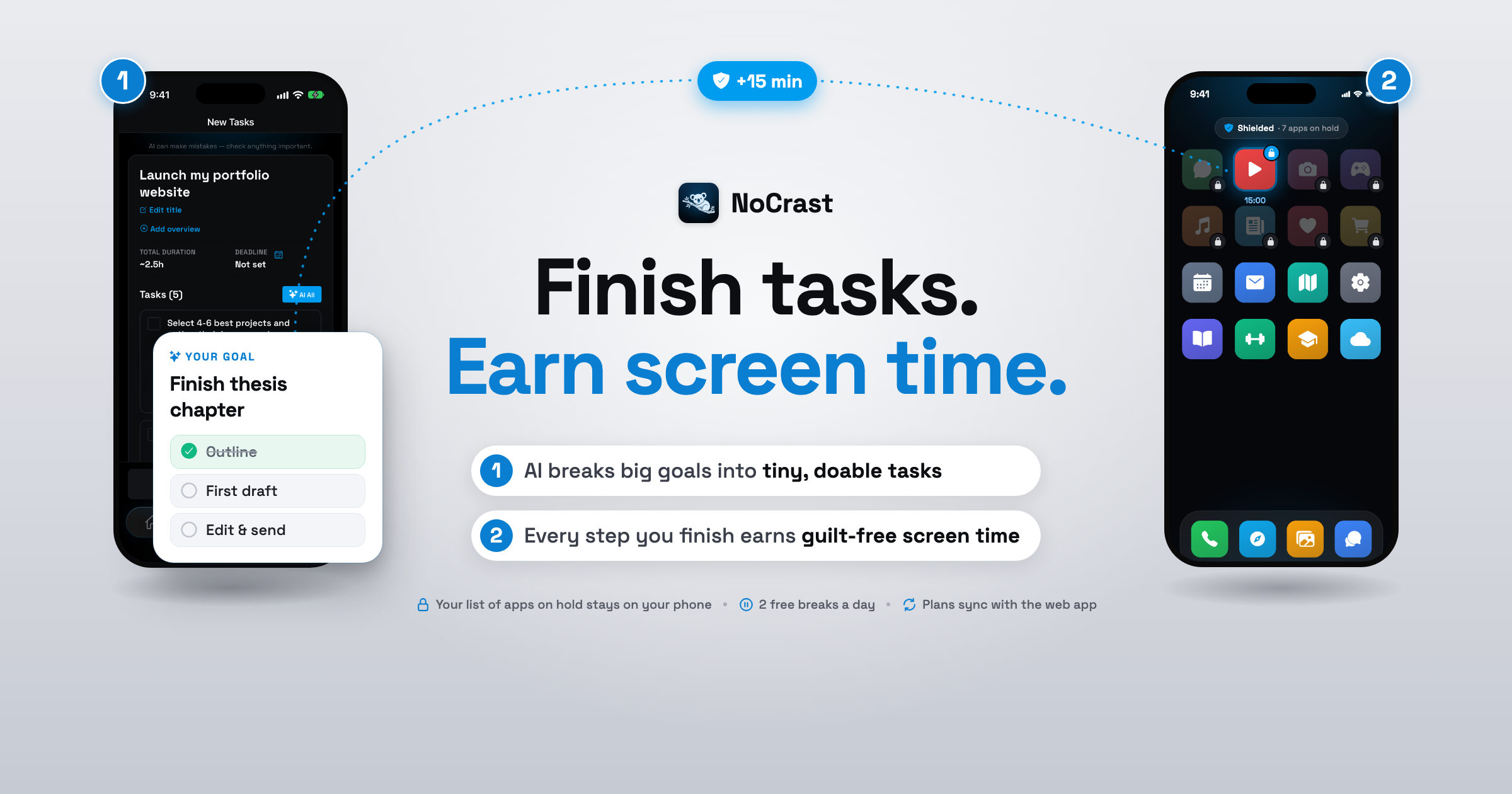
NoCrast sits between the two. You choose the apps that pull you away, and on the days you pick they stay on hold until your tasks are done. And when you reach for one, NoCrast shows you what to do next instead of the feed: one small, concrete step, and the minutes it earns you.
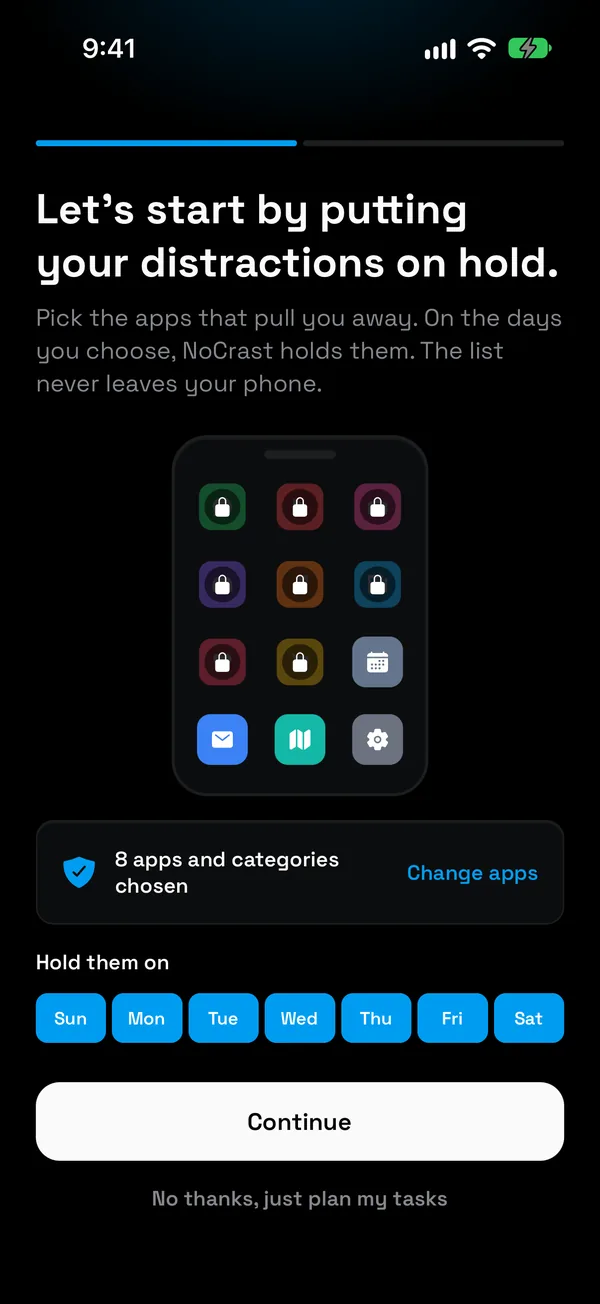
Step 1: Choose the apps that pull you away
Pick the apps and categories you want held, and the days you need help most. On iPhone, NoCrast uses Apple's Screen Time for this, so the list of apps you choose never leaves your phone.
Step 2: Tell NoCrast what you keep putting off
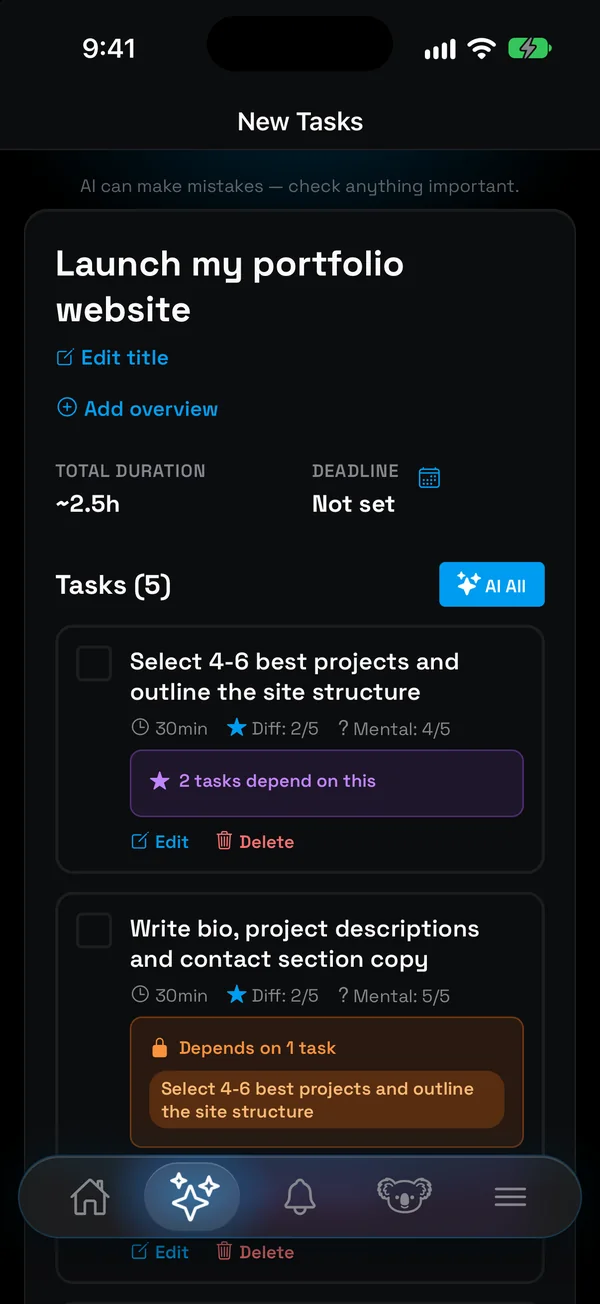
Describe it in your own words. NoCrast's AI breaks it into small, doable tasks, each with its time, effort and focus, and the first one is small enough to start today. Already have a list? Paste it, or take a photo of it.
Step 3: Plan today in a minute
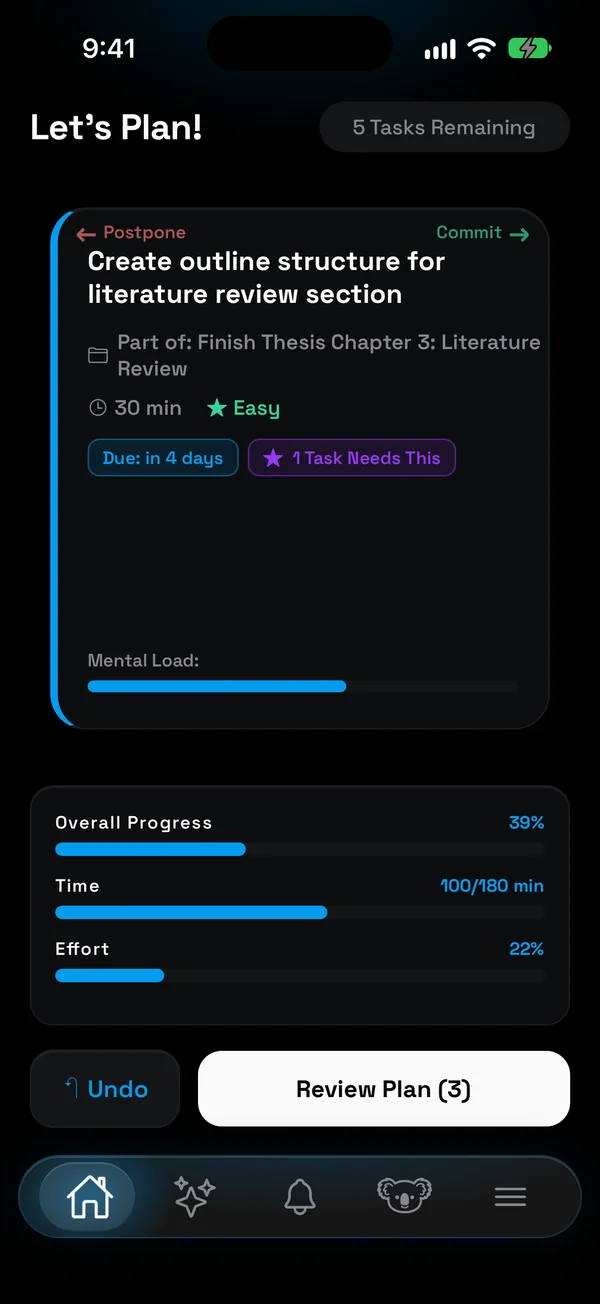
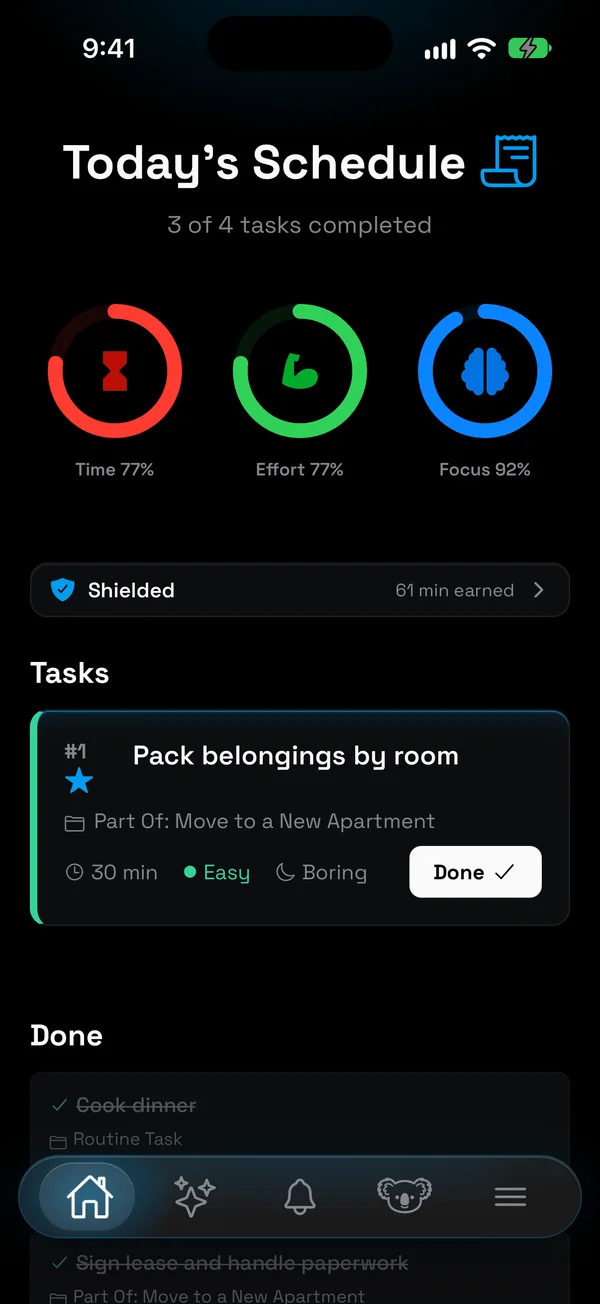
Swipe through your tasks: right to commit, left to postpone. Rings for time, effort and focus show when you are about to take on too much, and what you don't finish comes back tomorrow.
Step 4: Reach for a held app, get your next step
Open a held app out of habit, and instead of the feed you see the step you are on and the minutes it earns. The reflex that used to cost you an hour now points you back at your work.
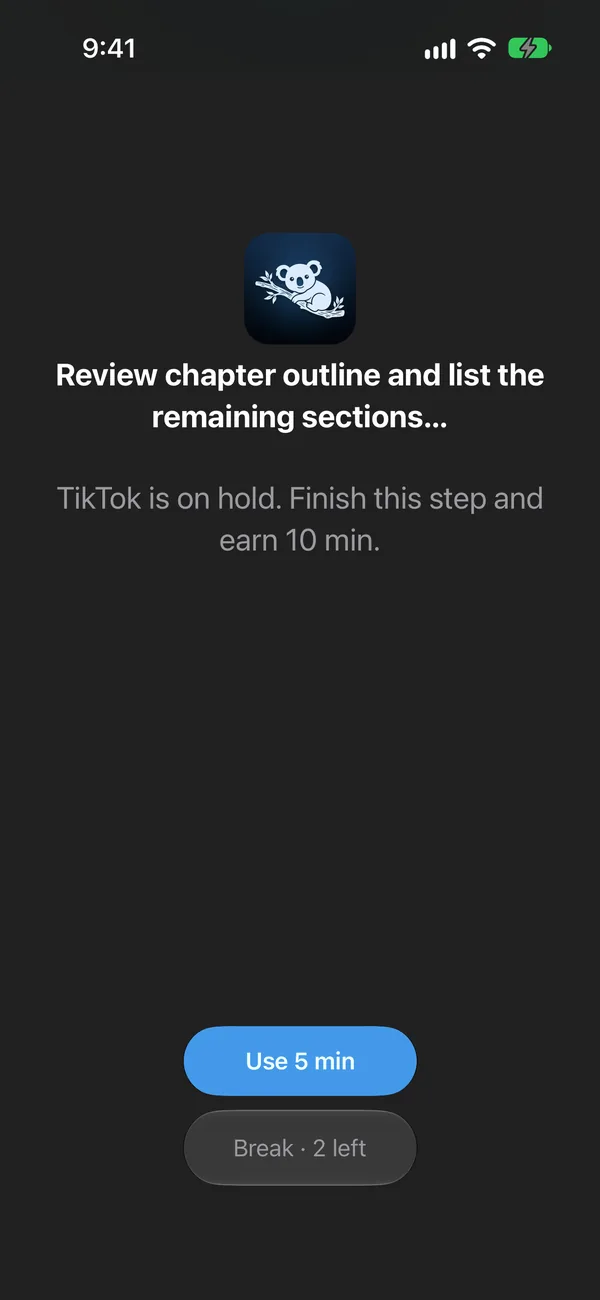
Step 5: Finish the step, earn the minutes
Tick the task off and the minutes are yours, to spend in 5, 10, 15 or 30 minute breaks. Hard or boring tasks earn a little more. Two short free breaks a day are there for when you really need one.
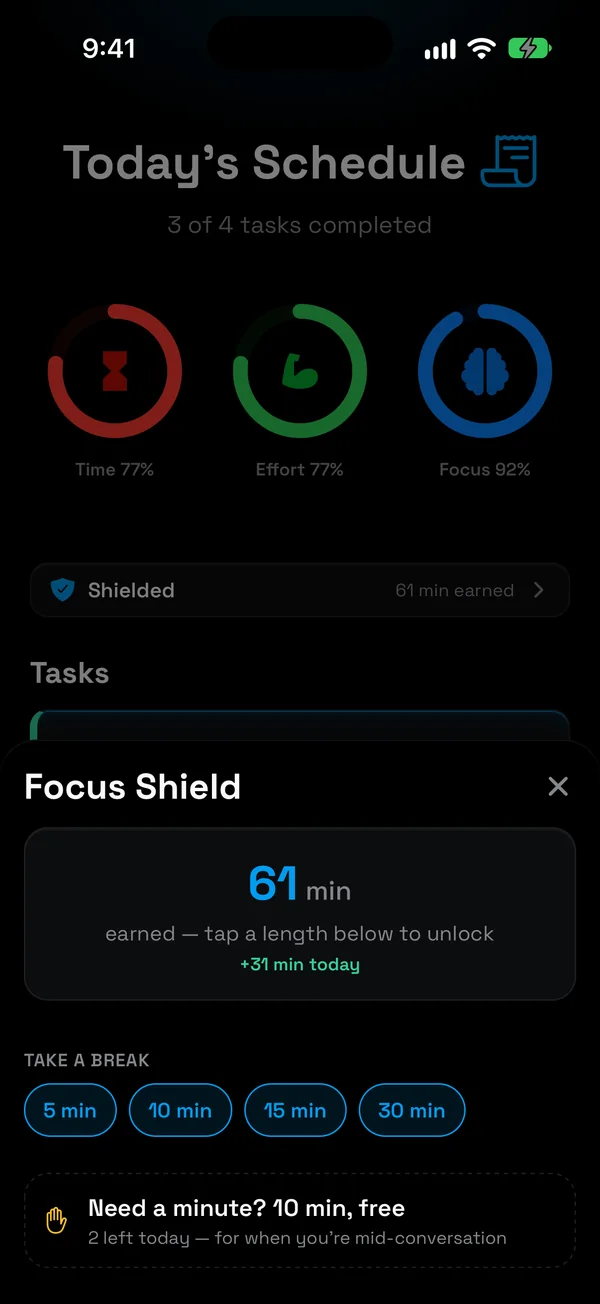
Step 6: Get through the plan, and the day is yours
Finish everything you planned for the day, and your apps are free for the rest of it. Your progress, the minutes you earned and what is left are all on one screen.
Face ID, Screen Time or NoCrast?
| Face ID lock | Screen Time | NoCrast | |
|---|---|---|---|
| Made for | Privacy: others can't look inside | Limits: an app closed, or capped per day | Focus: your tasks before your apps |
| Who gets in | You, at a glance | Whoever knows the Screen Time passcode | You, after a task, with the minutes you earned |
| When you open the app | A Face ID check | The app won't open, or the limit | Your next step and the minutes it earns |
| The time you get back | Not its job | Up to you | A plan: small steps, and today's few tasks |
They work well together: Face ID for the apps that are private, Screen Time for the ones you never want to open, NoCrast for the ones that get between you and your work.
Get NoCrast on the App Store or Google Play.

Found this helpful? Share it with others!