How to Block YouTube on iPhone (iOS 27)
Updated 16 November 2026 · for iOS 27.
YouTube is different from most apps you might want to cut back on, in two ways. A lot of it is useful: lectures, tutorials, the video that explains the thing you are stuck on. And a lot of people don't watch it in the app at all, but in Safari. So the usual advice, "close the app", often changes nothing. This guide starts with the website, then the app, then how to keep YouTube for the hours it is useful, all with Screen Time in iOS 27.
In this guide
- Start with the website: youtube.com in Safari
- Then the app: a limit or a full stop
- Keep YouTube for study or work hours
- YouTube's own reminders and Autoplay
- Make the settings stick
- Shorts, and the video after the video
- YouTube after the work, with NoCrast
Start with the website: youtube.com in Safari
If you close the YouTube app, the next tap is youtube.com, and it works almost the same in the browser. Plenty of people watch YouTube in the browser rather than the app in the first place. So close the website first.
Step 1: Open the Blocked list
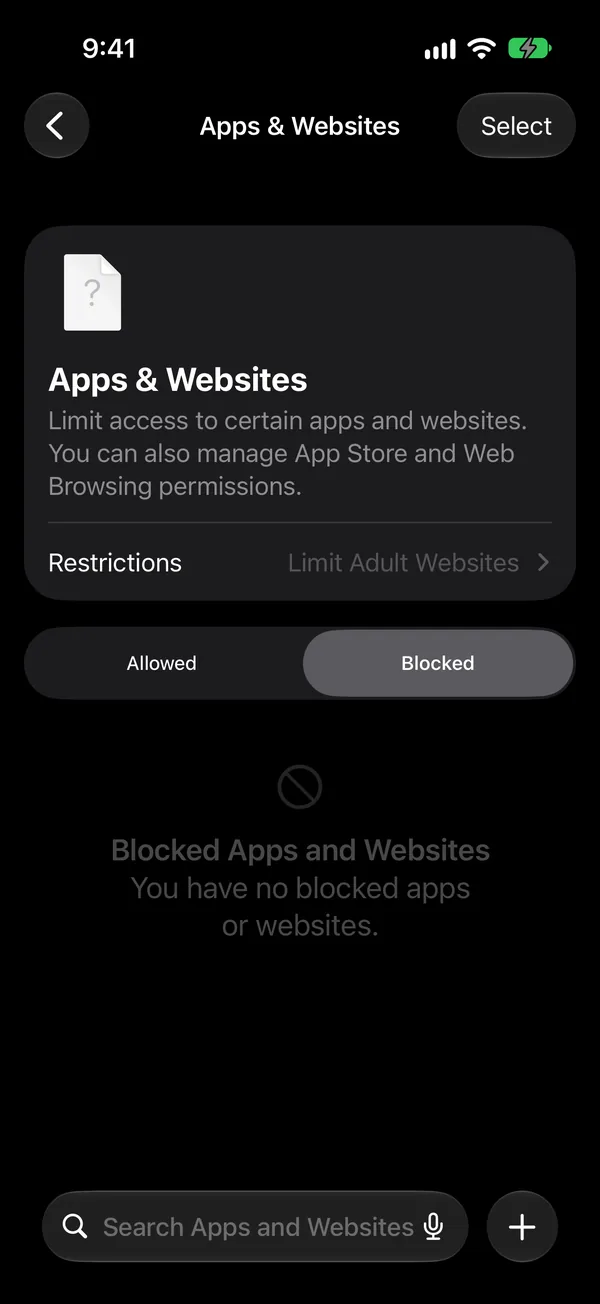
Go to Settings › Screen Time › Apps & Websites and tap Blocked. While nothing is in it, it says "You have no blocked apps or websites." Tap + at the bottom right.
Step 2: Add youtube.com, and the mobile address too
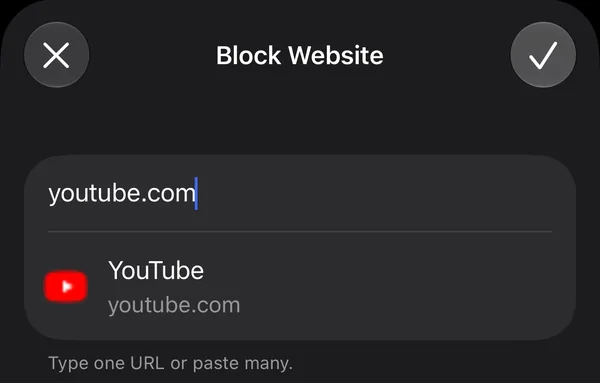
The Block Website sheet opens. Type youtube.com; your iPhone recognizes it and shows YouTube under the field. The sheet takes several addresses at once ("Type one URL or paste many"), so add m.youtube.com, the address phones often land on, in the same go. Tap ✓.
For other ways to close a site, including a list of only the sites you allow, see How to Block Websites on iPhone.
Then the app: a limit or a full stop
A daily limit
Go to Settings › Screen Time › Time Allowances, tap Manage Categories and +. Choose Entertainment, where video apps tend to land, or Custom to give YouTube its own time. Open the category, tap Add, tick YouTube (and youtube.com, if you would rather limit the website than close it), and set the daily time.
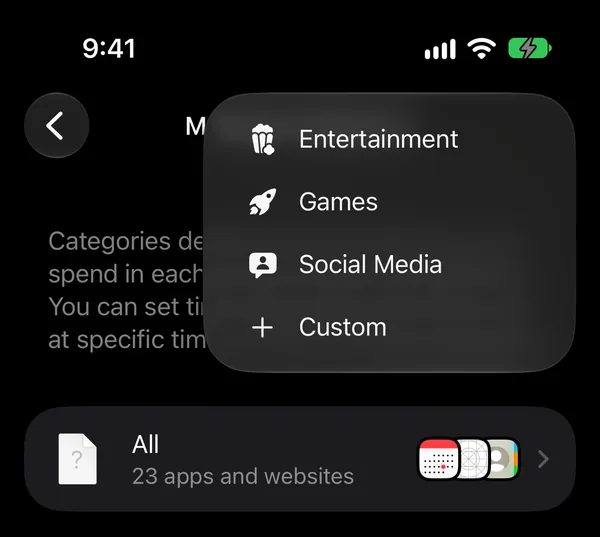
Be generous at first if you use YouTube for learning. A limit that cuts off a lecture halfway gets switched off; one that leaves room for the lecture and not for the hour after it gets kept.
A full stop
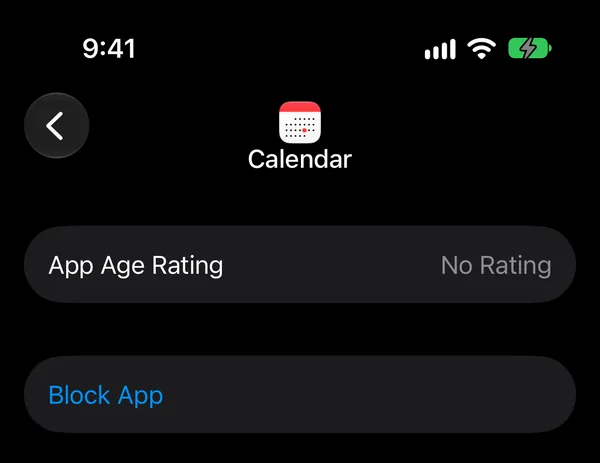
For a clean break, go to Settings › Screen Time › Apps & Websites, tap YouTube under Allowed, then Block App, and confirm. The app moves to Blocked, next to youtube.com, and stays closed until you take it out again. Your subscriptions and playlists are untouched.
Keep YouTube for study or work hours
If YouTube is part of how you learn or work, closing it for good is the wrong tool. Give it opening hours instead. In Settings › Screen Time › Screen Time Schedule, turn on Schedule and set when YouTube's category is available, say 9 AM to 6 PM on weekdays, when you watch for a reason, and not after 10 PM, when "one more video" turns into midnight.
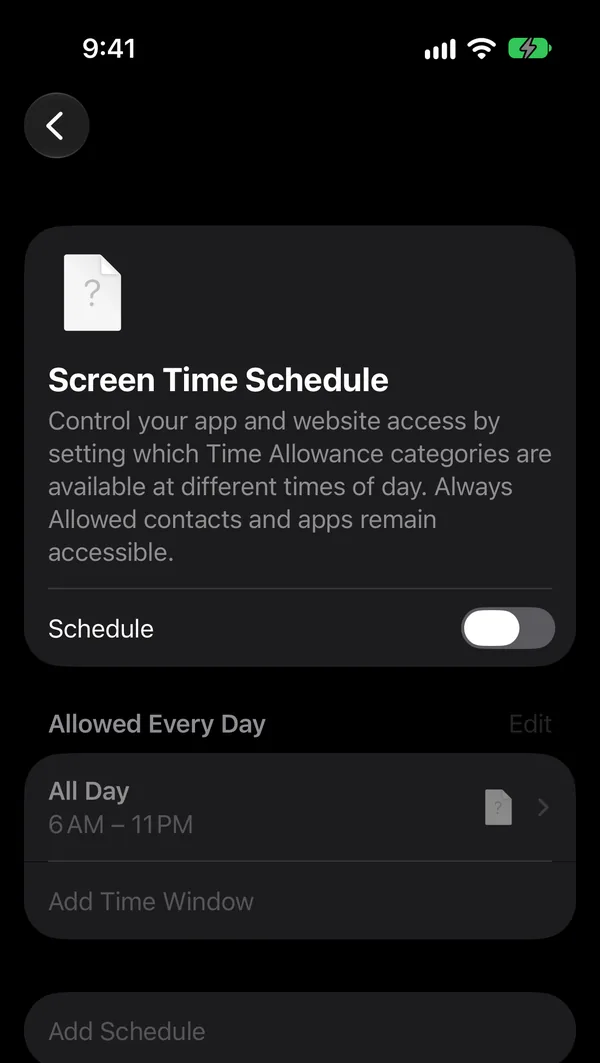
A useful trick for students: put YouTube in a Custom category of its own, so its hours don't depend on your other apps. The full walkthrough of categories and schedules is in How to Block Apps on iPhone.
YouTube's own reminders and Autoplay
YouTube has a few settings of its own that help, even if they don't stop you. According to YouTube's help center, you find them in the app's settings, under your profile:
- Remind me to take a break: YouTube pauses the video after the time you choose and suggests a break.
- Remind me when it's bedtime: a reminder at the hour you set, so late-night watching has an end.
- Autoplay off: the next video no longer starts by itself. Of everything here, this does the most against "just one more", because you have to choose every video yourself.
The reminders are easy to dismiss; they are prompts, not limits. Autoplay off is worth doing whatever else you choose.
Make the settings stick
Website, app, schedule: all of it can be reversed in a few taps unless Screen Time has a passcode. Set one under Settings › Screen Time › Manage Screen Time › Lock Screen Time Settings, ideally chosen by someone else. What to do if you forget it is in Screen Time Passcode on iPhone.
Shorts, and the video after the video
Two things make YouTube hard to put down. One is Shorts, an endless vertical feed like TikTok inside the app; YouTube has no simple switch to hide them for good. The other is the sidebar of recommendations, which always has a next video ready. Autoplay off helps with the second; with Shorts, the daily limit or opening hours above are the reliable answer.
And if the minutes just move to TikTok or Instagram Reels once YouTube is limited, give them the same treatment: see How to Block TikTok on iPhone and How to Block Instagram on iPhone.
YouTube after the work, with NoCrast
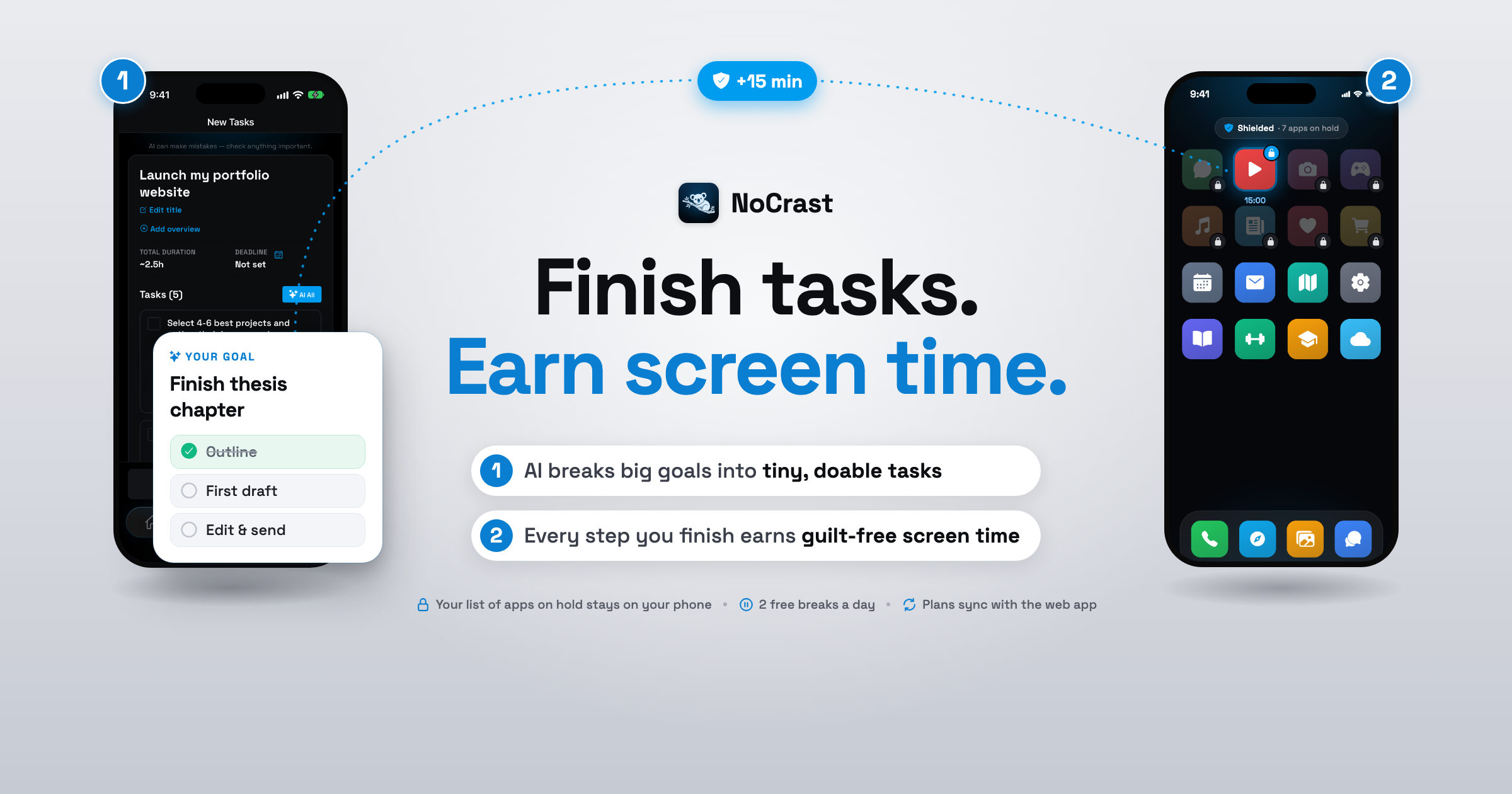
Screen Time decides when YouTube is open. NoCrast decides what comes before it. YouTube waits on hold while today's plan is still open, and reaching for it shows you your next small step instead of a video. Every finished task earns minutes for YouTube, so the evening episode becomes the reward, not the way out.
Set YouTube aside for the day
Choose YouTube and any other app that tends to start the evening early, and the days you want it held. NoCrast does this through Apple's Screen Time on iPhone; it doesn't send your app list anywhere.
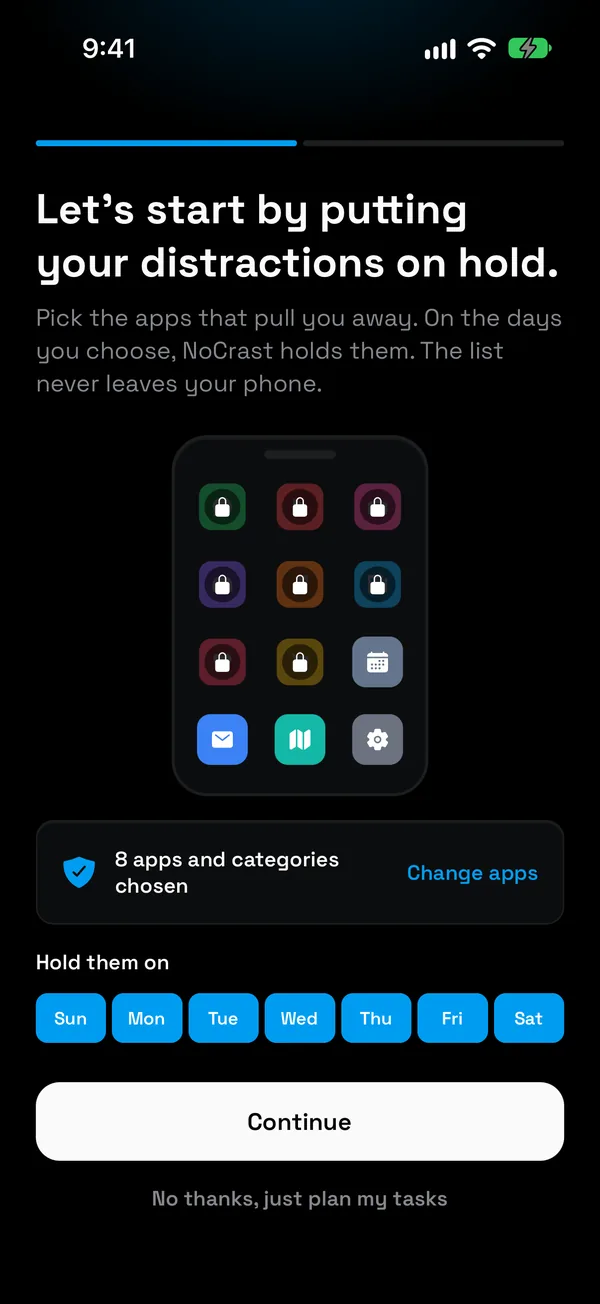
Reach for it, get the next step
Open YouTube out of habit and NoCrast shows the step you are on and how many minutes finishing it is worth. Often that step is short enough that doing it beats arguing with it.
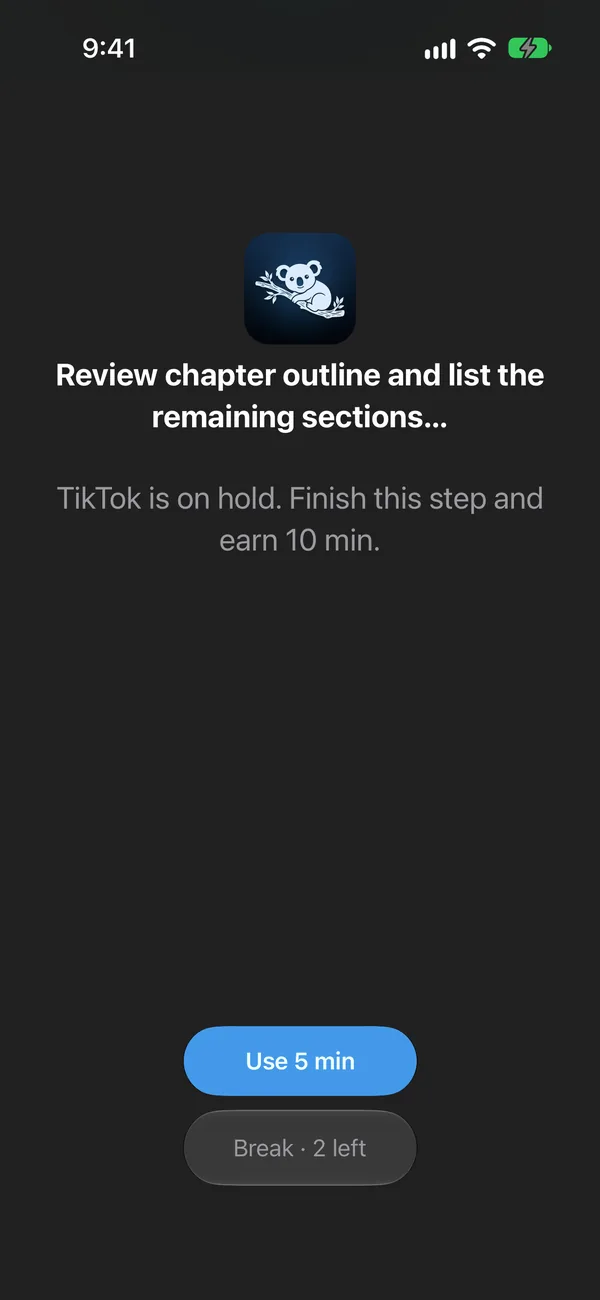
Watch on what you earned
Finished tasks fill your balance, about a third of their time and more for the hard or boring ones. Spend it on YouTube in 5, 10, 15 or 30 minute breaks. Plan done for the day? Then YouTube is open until tomorrow, no balance needed.
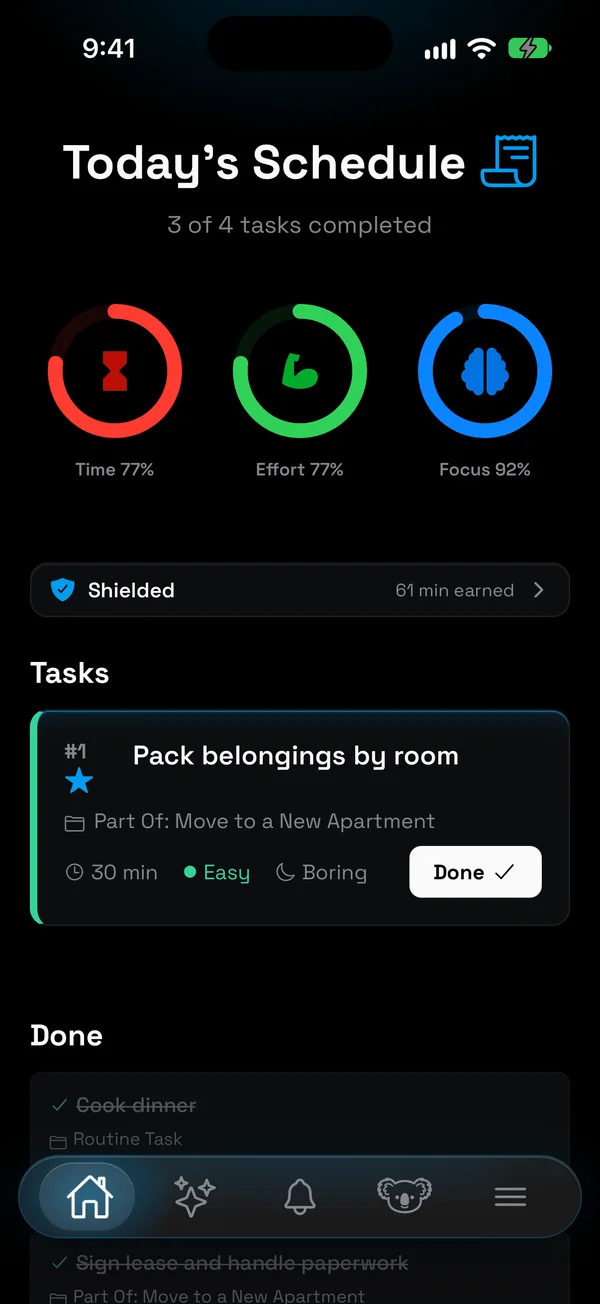
Which way for which kind of watching?
| You watch | Start with |
|---|---|
| Mostly in Safari | youtube.com and m.youtube.com in Block Website |
| For study or work, but too long | Opening hours with Screen Time Schedule, Autoplay off |
| Late into the night | The bedtime reminder, and a schedule that ends at 10 PM |
| Instead of what you should be doing | NoCrast: YouTube after today's tasks |
Get NoCrast on the App Store or Google Play.

Found this helpful? Share it with others!