How to Stop Doomscrolling: 8 Steps for Your iPhone
Updated 16 November 2026 · for iOS 27.
You pick up your phone to check one thing. Forty minutes later you are still scrolling, through news that makes you feel worse or posts you won't remember, and the thing you meant to do is still waiting. That is doomscrolling, and nearly everyone with a smartphone knows it. The good news: you don't need more willpower to stop. You need a few changes that make the feed harder to fall into and give the urge somewhere better to go. Here are eight, with the iPhone settings for each.
In this guide
- Why it is so hard to stop
- Step 1: See when it happens
- Step 2: Silence the feeds
- Step 3: Take the feeds off your Home Screen
- Step 4: Give each feed a daily allowance
- Step 5: Close the feeds at night
- Step 6: Turn the screen grey
- Step 7: Keep a next step ready
- Step 8: Charge your phone outside the bedroom
- How to stop doomscrolling with NoCrast, and do something better instead
Why it is so hard to stop
A feed has no last page. The next post is already there before you have decided whether you want it, so stopping is always a decision you have to make, again and again, while continuing takes no decision at all. And your phone is never more than an arm's length away.
There is a second reason, and it matters more. Most scrolling starts at a particular moment: right before a task you don't want to start, on the sofa after a long day, in bed when you can't switch off. The phone is the easiest way out of that moment. So the steps below do two things: they make the way out a little harder, and they make the thing you were avoiding a little easier to start.
Step 1: See when it happens
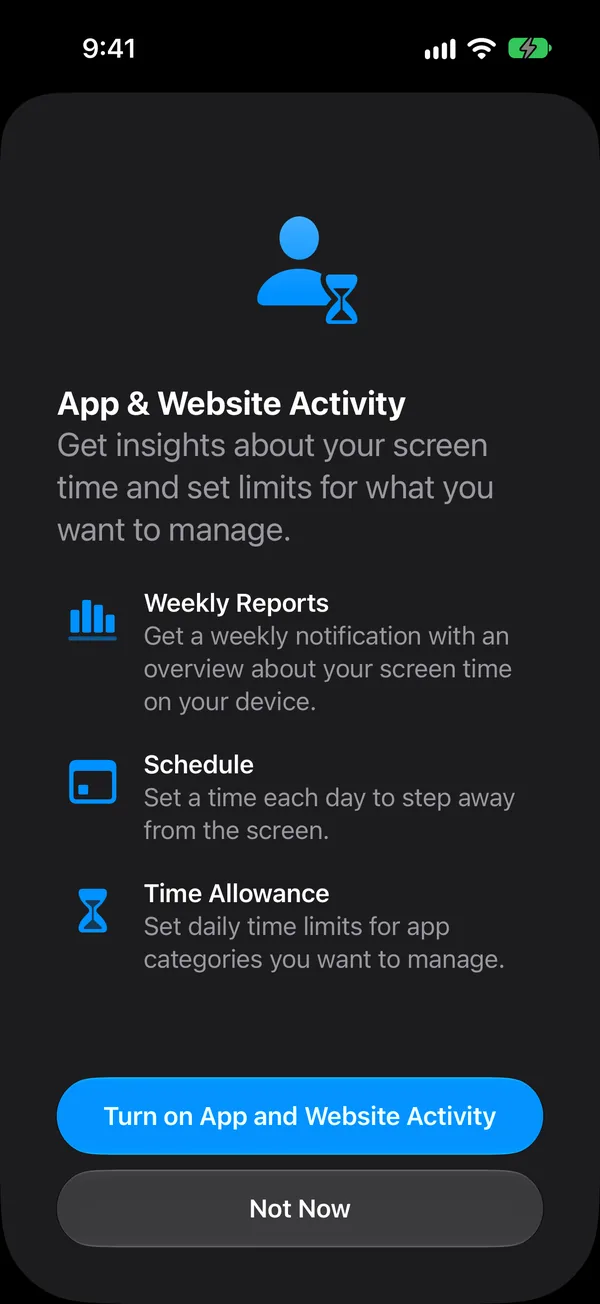
Before changing anything, look at what actually happens. Screen Time is there for exactly this; in Apple's words, it is where you "get insights about your screen time and set limits as needed". Open Settings › Screen Time. If App & Website Activity isn't on yet, tap Time Allowances and your iPhone offers to turn it on; it is needed for the limits later in this guide too. From then on, Screen Time reports how long you use your phone each day and week, and which apps take the most time.
Look for patterns rather than totals. Which two or three apps? At what time of day? Right after you wake up, in the afternoon slump, late at night? Those apps and those hours are where the next steps go. Often one or two apps account for most of it, which makes the problem smaller than it feels.
Step 2: Silence the feeds
A lot of scrolling starts with a notification: someone liked a post, a story is trending, a news alert. One tap on the banner and you are in the feed. For the apps you scroll most, turn notifications off: Settings › Notifications, tap the app, and turn off Allow Notifications.
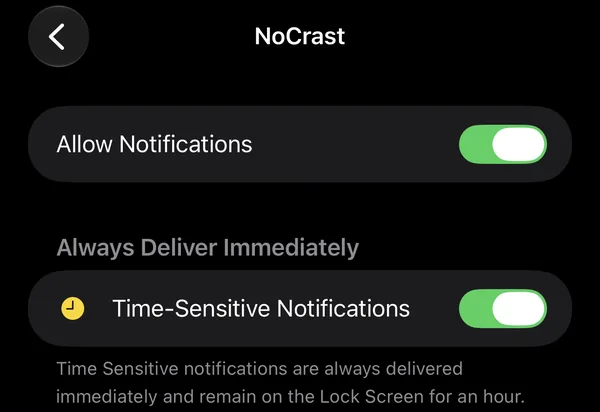
Keep notifications for messages from people and anything you really need, like your calendar. The feeds will still be there when you choose to open them; they just stop choosing for you.
Step 3: Take the feeds off your Home Screen
Much of the time you open an app without deciding to: your thumb goes to the same spot it always goes to. Move the feed apps off your Home Screen and the habit has nowhere to land. Press and hold the app's icon until a menu appears, and tap Remove App.
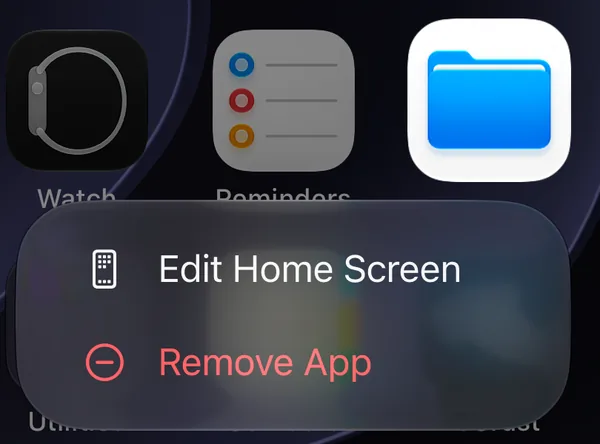
Then choose Remove from Home Screen. As your iPhone puts it, removing from the Home Screen "will keep the app in your App Library": it isn't deleted, and you still find it there, one swipe past your last Home Screen page, or with search.
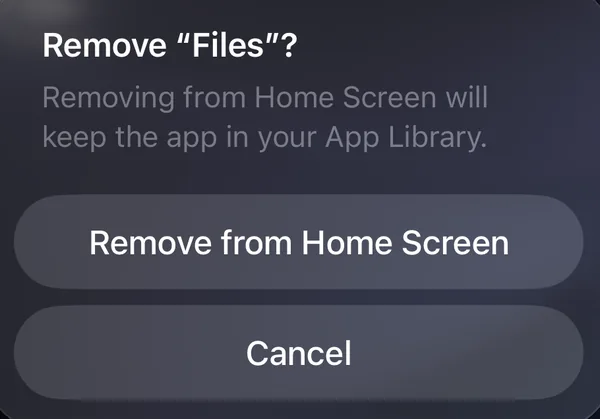
The few extra seconds it takes to find the app are often enough to notice what you are doing and decide whether you want to.
Step 4: Give each feed a daily allowance
Screen Time can cap how long you spend on an app each day. In iOS 27 that is Settings › Screen Time › Time Allowances: put the apps you scroll most into a category, like Social Media, and give it a daily time. When it is used up, your iPhone shows that the limit is reached.
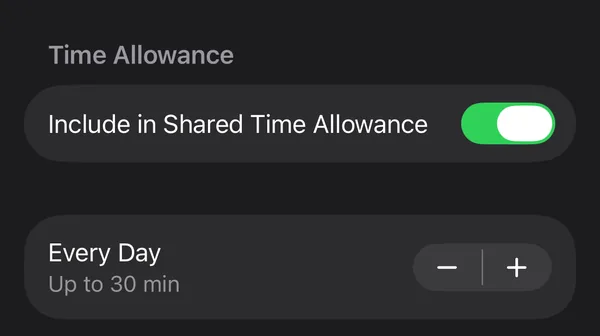
Start with an amount you can live with, not an ideal one. If you scroll three hours a day today, a 30-minute limit is easy to talk yourself past by Wednesday; an hour is more likely to hold, and you can lower it later. Our guide How to Block Apps on iPhone walks through every screen, and how to set a Screen Time passcode so the limit isn't one tap away.
Step 5: Close the feeds at night
Late evening is when scrolling runs longest: nothing else is asking for your attention, and "five more minutes" has no natural end. Give the feeds closing hours. Go to Settings › Screen Time › Screen Time Schedule, turn on Schedule, and set the hours your scrolling apps are available, for example until 10 PM.
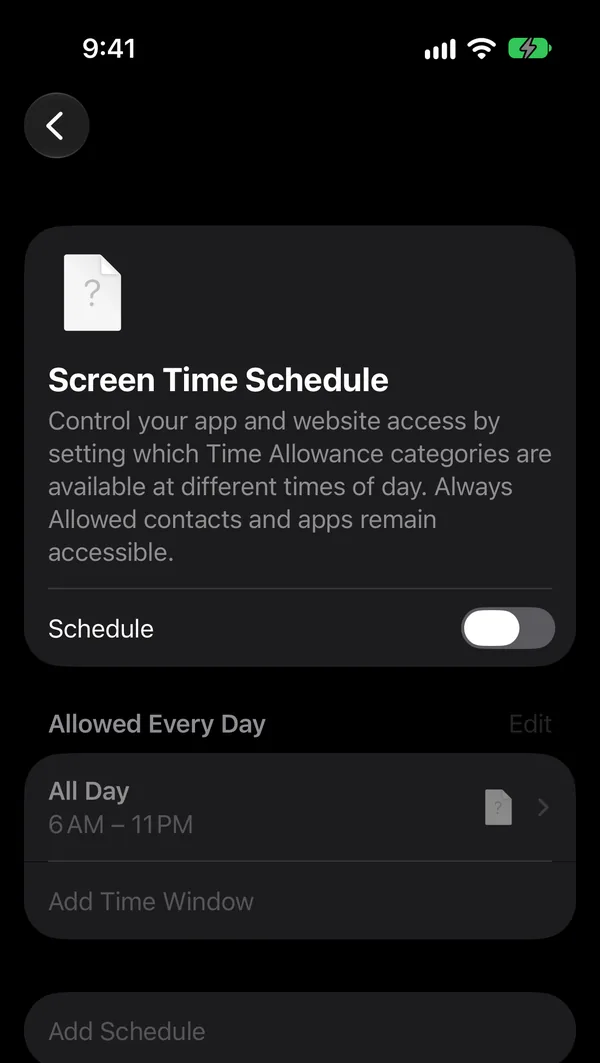
Calls, messages and the apps in Always Allowed keep working, so you are still reachable.
Step 6: Turn the screen grey
Feeds are designed in colour: red badges, bright thumbnails, autoplaying video. In black and white the same feed is noticeably less interesting. Turn it on in Settings › Accessibility › Display & Text Size › Color Filters: turn on Color Filters and choose Grayscale. It is near the bottom of Display & Text Size, below Classic Invert, and called Colour Filters if your iPhone is set to British English.
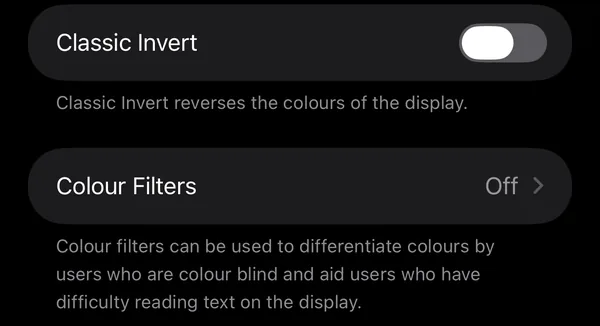
Switching it on and off through Settings every time is tedious, so add it to the Accessibility Shortcut: Settings › Accessibility › Accessibility Shortcut, then tick Color Filters. Now a triple-click of the side button switches between grey and colour, for when you need a photo or a map in colour.
Step 7: Keep a next step ready
The steps so far make scrolling harder. This one makes the alternative easier, and it is the one most guides leave out. When you put the phone down, what do you do instead? If the answer is "the report" or "the flat" or "my thesis", the phone will win again, because those are too big to start in a spare minute.
Write down one small, concrete next step for the thing you are avoiding: "open the document and write the headings", "clear the desk", "answer Anna's email". Small enough to finish in ten or twenty minutes. Then, when you catch yourself reaching for the feed, there is something specific to reach for instead. Our story How to stop scrolling and take the first tiny step on a big goal shows how that looks in practice.
Step 8: Charge your phone outside the bedroom
The simplest step on this list. If your phone charges in the kitchen or the hallway, there is no scrolling in bed and no feed as the first thing you see in the morning. Use a cheap alarm clock if your phone is your alarm. If that is too much at once, start with the first and last half hour of the day.
How to stop doomscrolling with NoCrast, and do something better instead
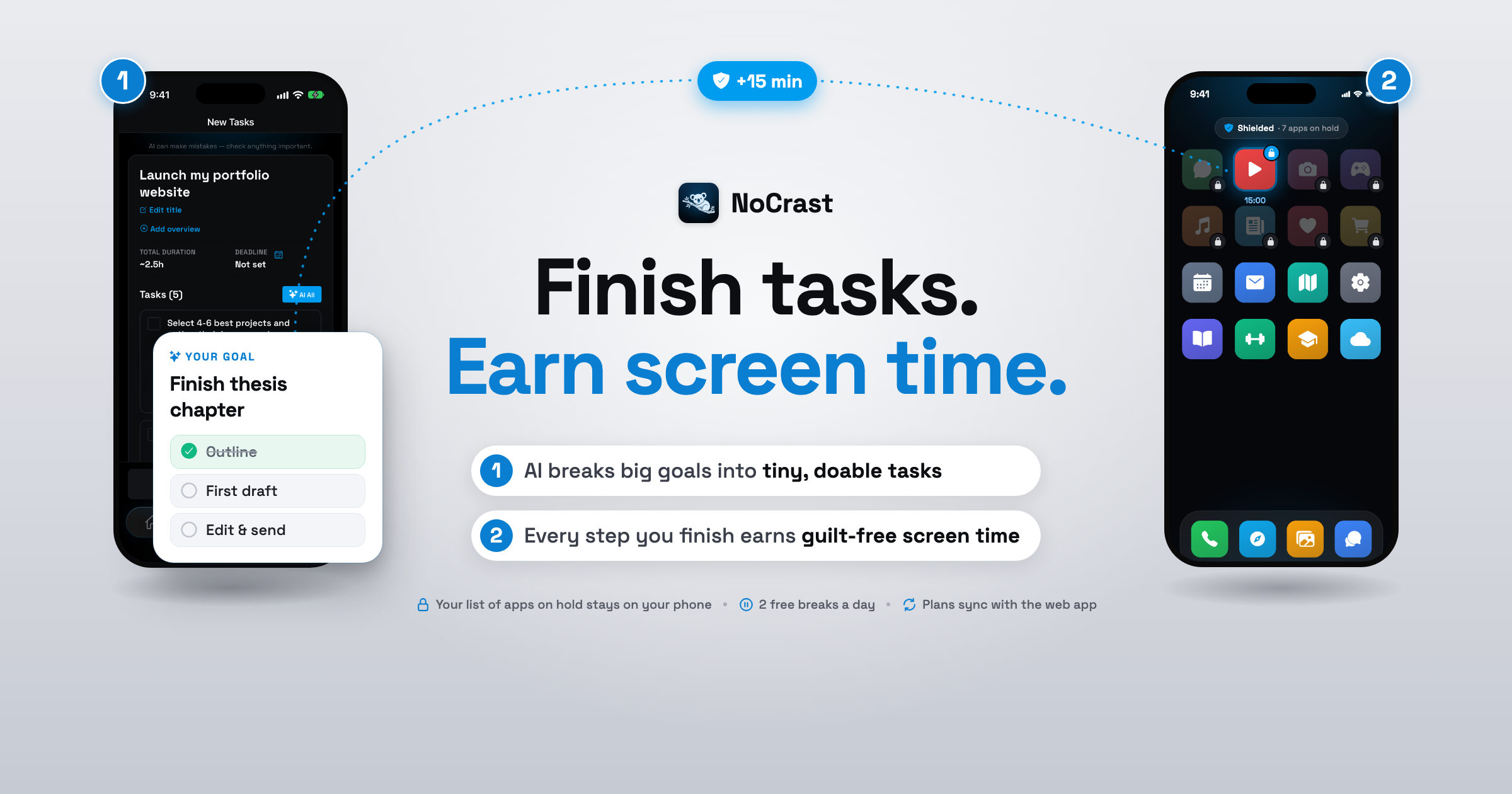
Steps 4 and 5 keep the feeds closed; step 7 gives you something to do instead. NoCrast does both in one place. The apps you pick stay on hold until your tasks are done, and when you reach for one, NoCrast shows your next small step where the feed would have been. Finish it, and you earn minutes you can spend on the feed with a clear conscience.
Step 1: Pick the apps you scroll most
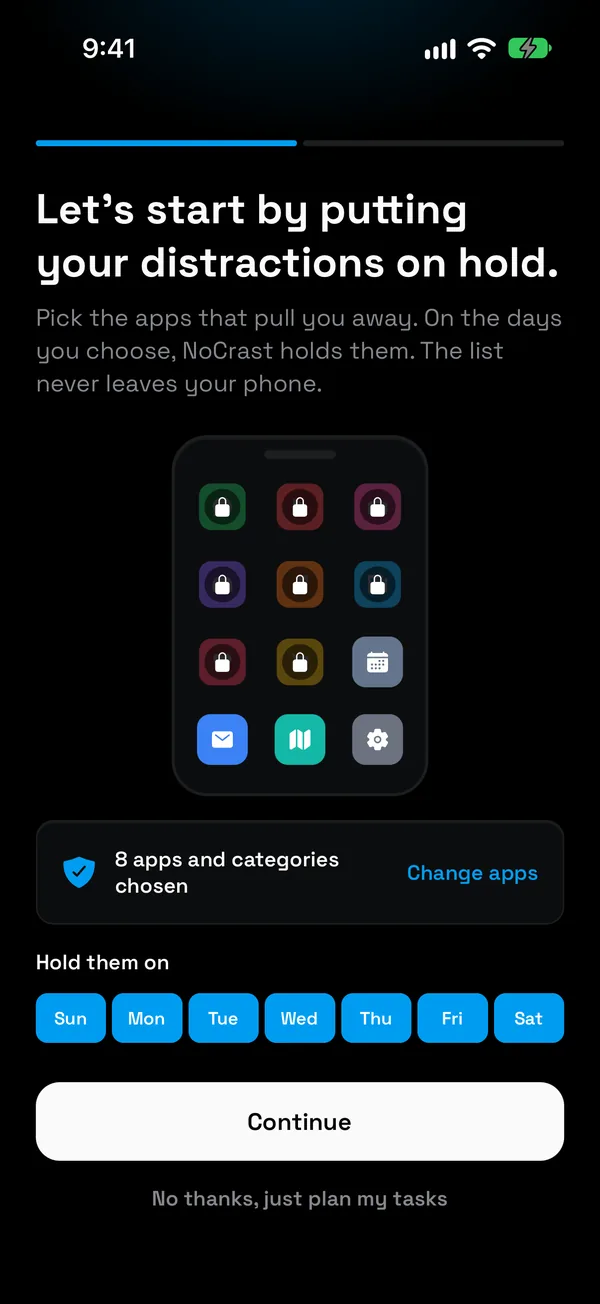
Choose the apps from Step 1 of this guide, or whole categories like Social, and the days you want help. On iPhone NoCrast uses Apple's Screen Time to hold them, and the list of apps you choose is kept on your phone only.
Step 2: Turn what you are avoiding into small steps
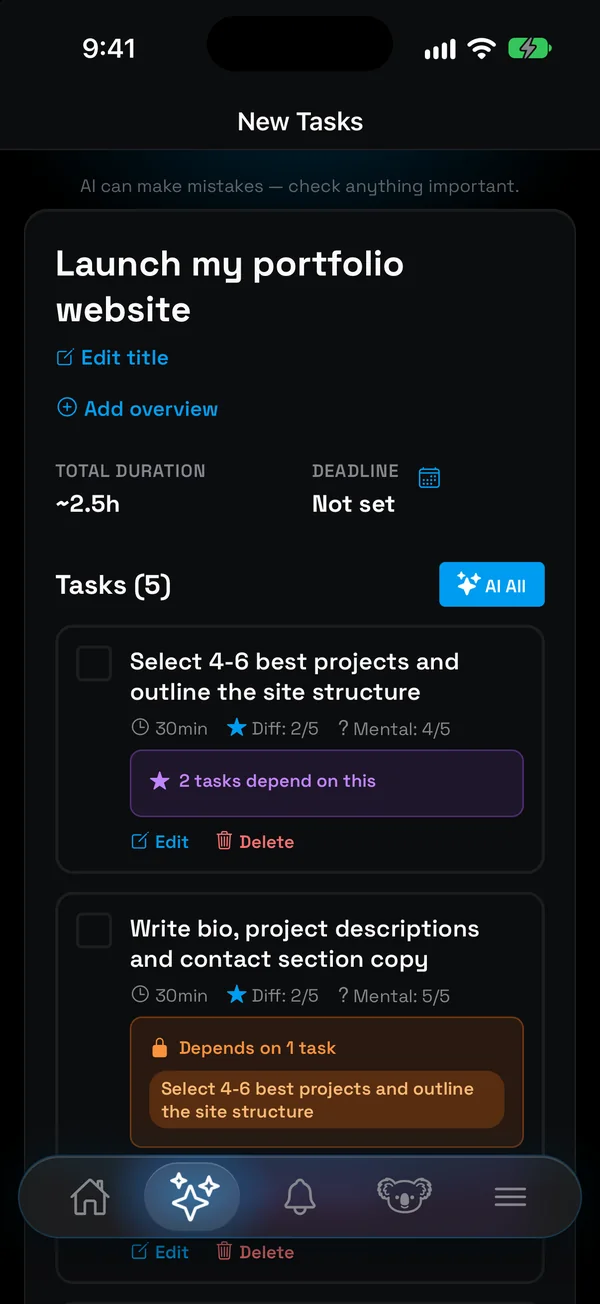
Describe it the way you would to a friend: "sort out my flat", "finish the chapter". NoCrast's AI breaks it into a few tasks, each with its time, effort and focus, ordered so the first one is ready for today. That is Step 7 of this guide, done for you.
Step 3: Choose today's few tasks
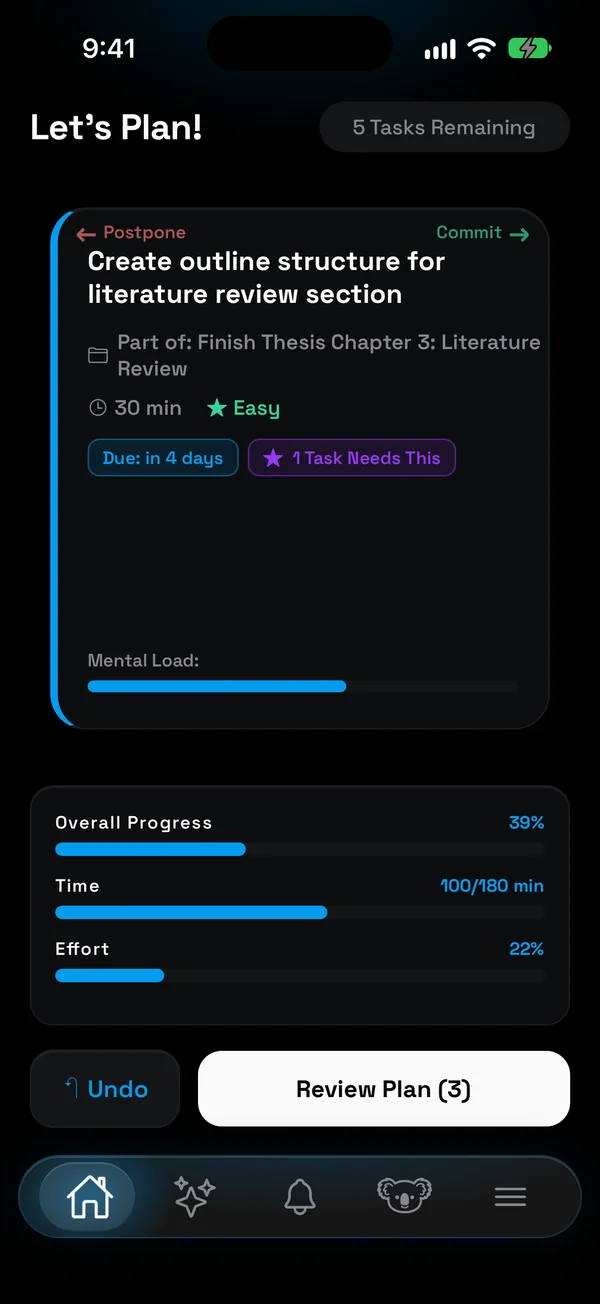
Each morning, swipe through what is ready: right for today, left for later. Rings for time, effort and focus fill as you commit, so the plan stays something you can actually finish.
Step 4: Reach for the feed, find your next step
Open a held app out of habit and you don't land in the feed. You see the step you are on and the minutes it will earn you. The moment that used to start forty minutes of scrolling now starts ten minutes of the thing you were avoiding.
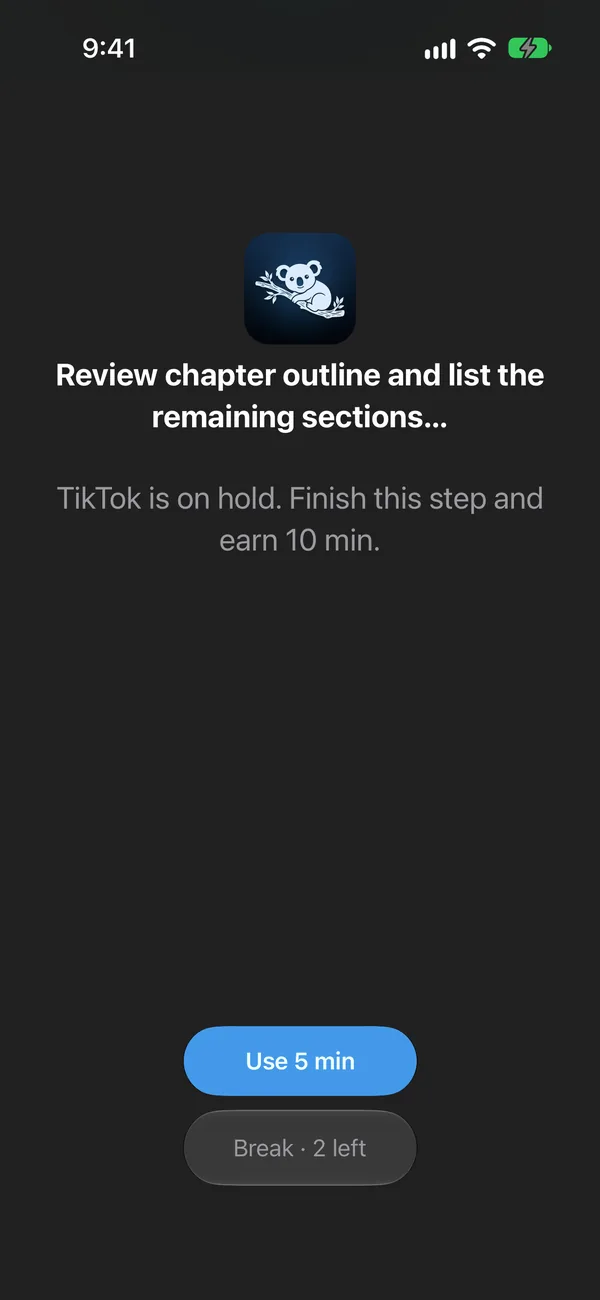
Step 5: Scroll on minutes you earned
Each finished task adds minutes to your balance, about a third of the task's time, a little more for hard or boring ones. Spend them in breaks of 5, 10, 15 or 30 minutes, and the apps go back on hold when the break is over. Two free 10-minute breaks a day are there for anything urgent.
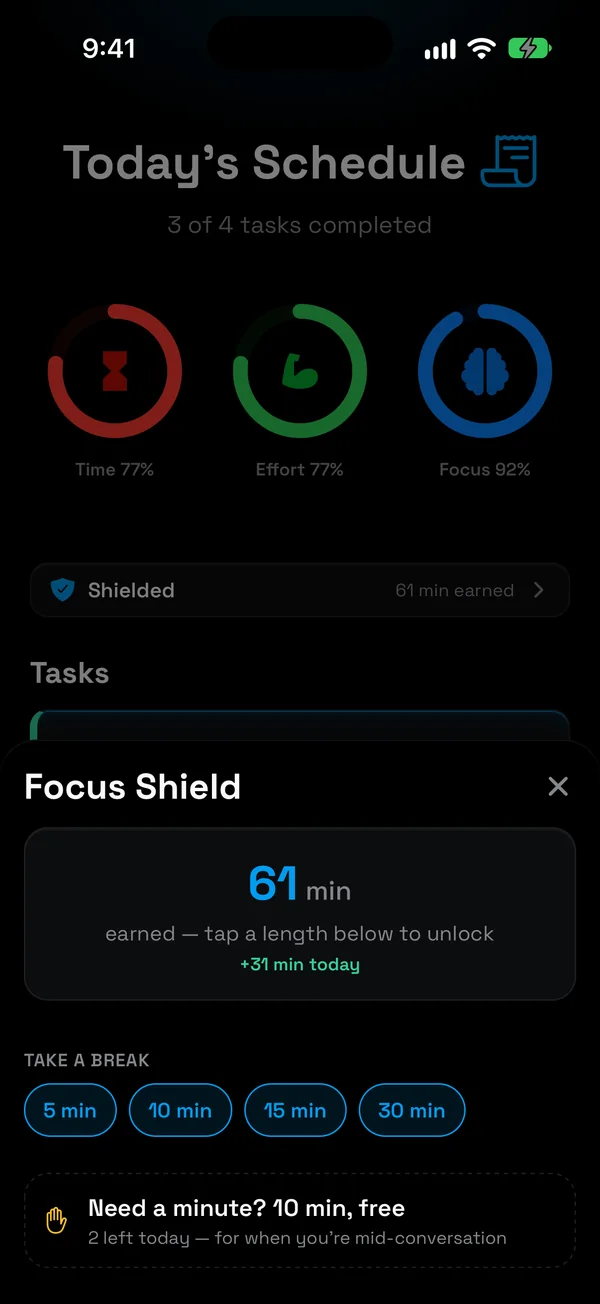
Step 6: Finish the plan, and the evening is yours
Tick off everything you planned and the hold lifts until tomorrow. Scrolling after a finished day feels very different from scrolling instead of one.
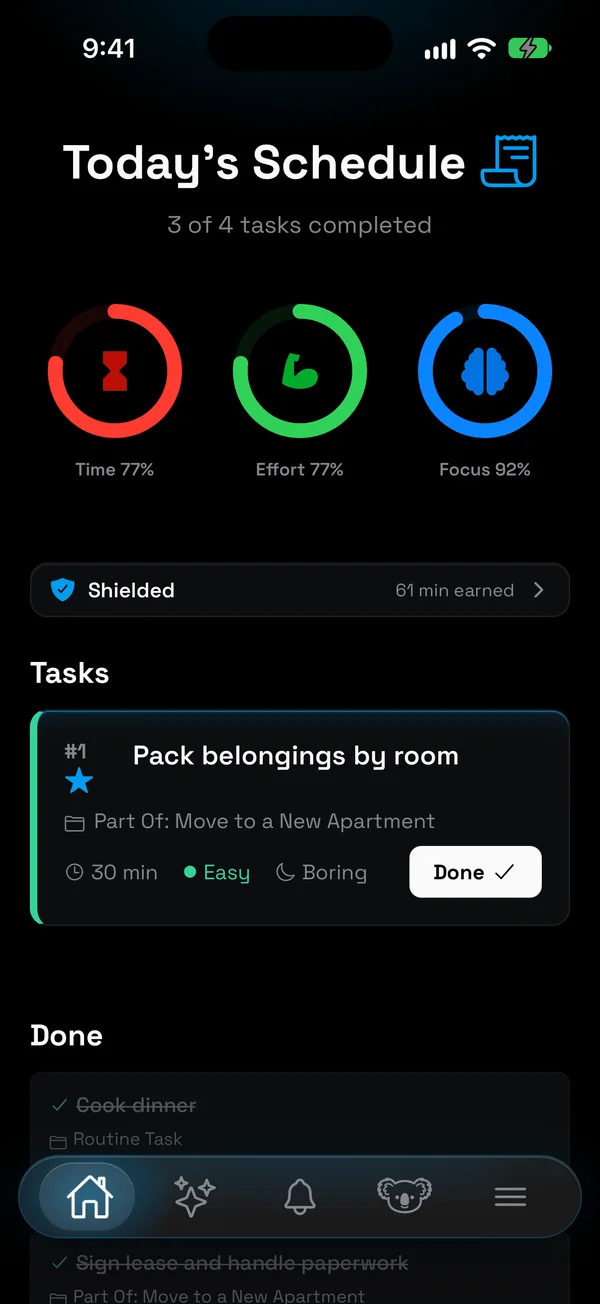
Which step for which kind of scrolling?
| When you scroll | Start with |
|---|---|
| Because a notification pulled you in | Step 2: silence the feeds |
| Without noticing you opened the app | Step 3: off the Home Screen, Step 6: grey screen |
| For hours at a time | Step 4: a daily allowance |
| Late at night | Step 5: closing hours, Step 8: charge outside the bedroom |
| Instead of something you should be doing | Step 7, or NoCrast: the next step where the feed was |
Get NoCrast on the App Store or Google Play.

Found this helpful? Share it with others!