How to Set Up Screen Time on iPhone (iOS 27)
Updated 16 November 2026 · for iOS 27.
Screen Time is the part of your iPhone that tells you where your time goes and lets you put limits on it. The page itself sums it up at the top: "Get insights about your screen time and set limits as needed." In iOS 27 the page has six sections, and it is not obvious which to set up first or which you need at all. This guide walks through each in a sensible order and ends with a simple starting setup.
In this guide
- The Screen Time page at a glance
- Step 1: Turn on App & Website Activity
- Step 2: Decide what you want Screen Time to do
- Step 3: Time Allowances, for how long
- Step 4: Screen Time Schedule, for when
- Step 5: Always Allowed, for what never stops
- Step 6: Apps & Websites, for what never opens
- Step 7: Allowed Contacts
- Step 8: One setup for all your devices
- Step 9: A passcode, so it holds
- A starting setup that works for most people
- Setting Screen Time for a child
- Beyond limits: NoCrast
The Screen Time page at a glance
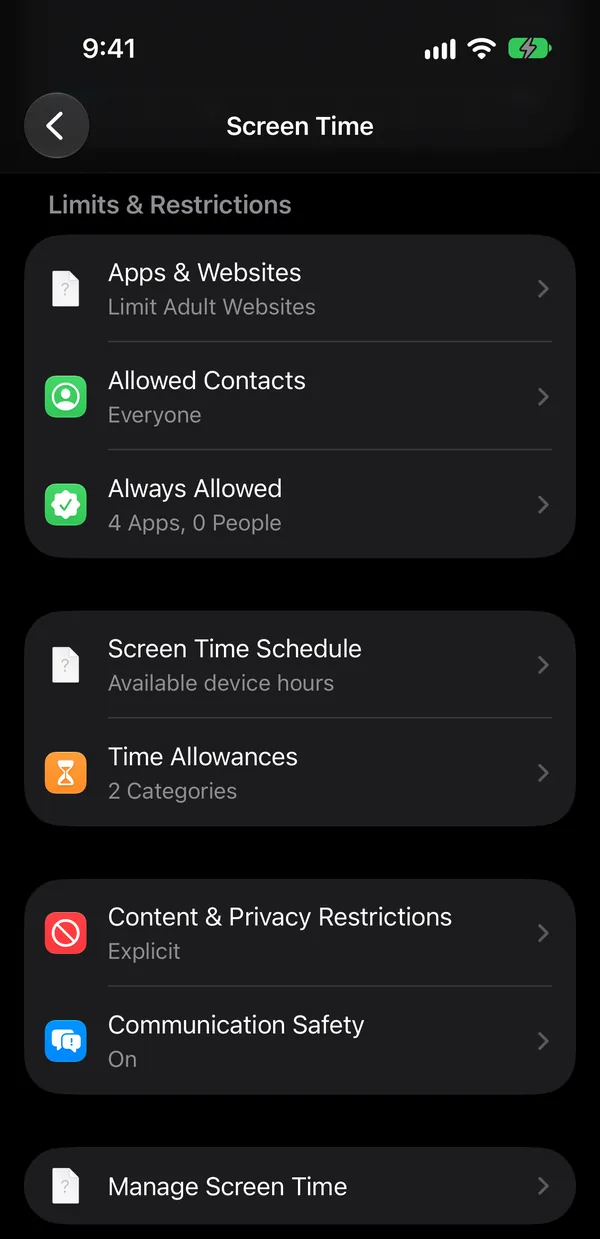
Open Settings › Screen Time. Under Limits & Restrictions you find the sections this guide sets up, each with a short line saying what it is for:
| Section | What it is for |
|---|---|
| Apps & Websites | Keeping single apps or sites closed, and content restrictions (starts at "Limit Adult Websites") |
| Allowed Contacts | Who can reach you (starts at "Everyone") |
| Always Allowed | Apps that keep working whatever else is limited |
| Screen Time Schedule | "Available device hours": when apps can be used |
| Time Allowances | "Allowed time for content categories": how long, per day |
| Manage Screen Time | The passcode, and sharing settings across your devices |
Step 1: Turn on App & Website Activity
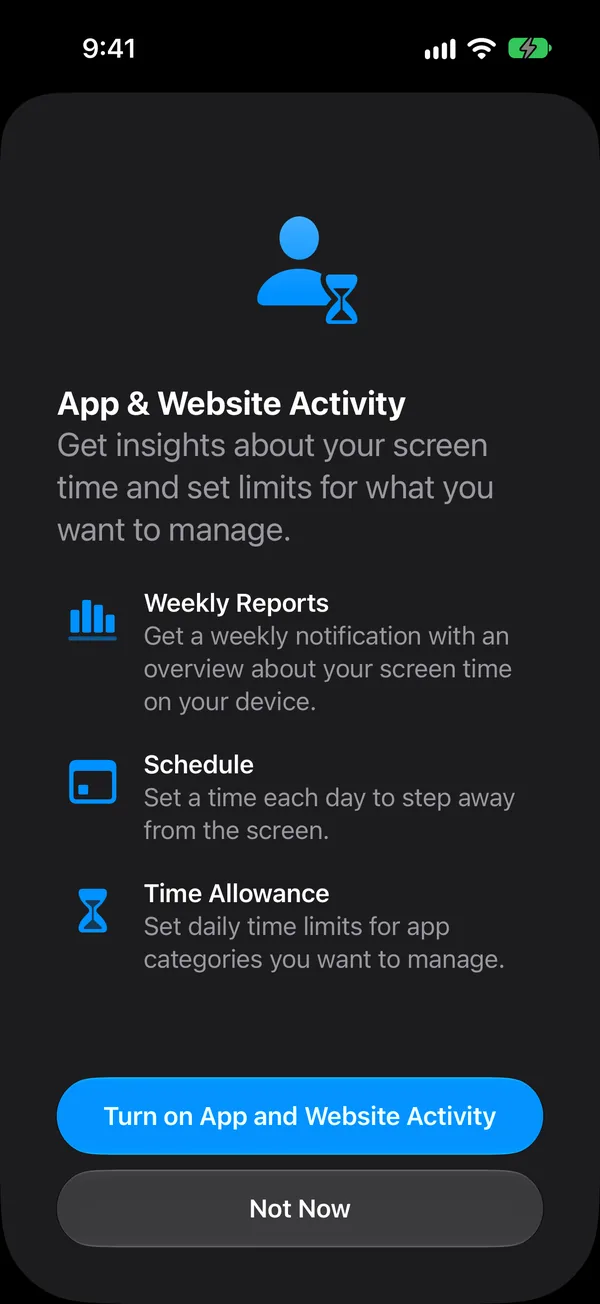
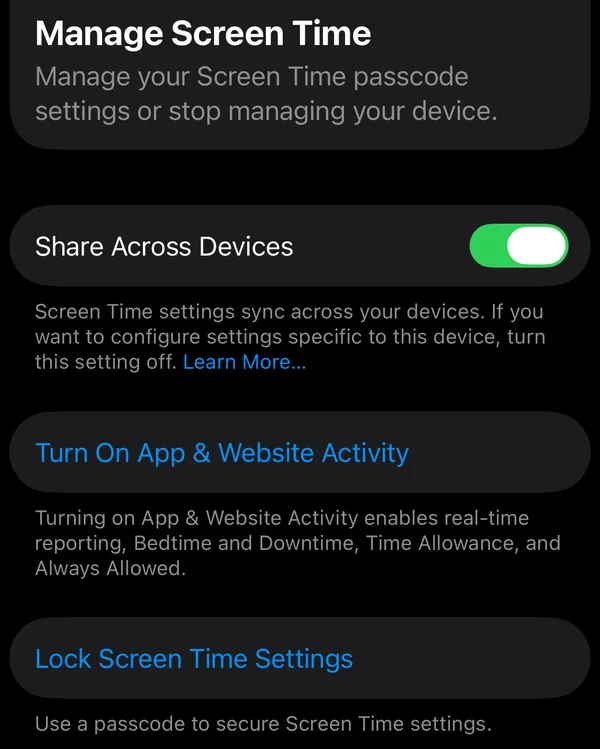
Everything else depends on this. As your iPhone puts it, turning on App & Website Activity "enables real-time reporting, Bedtime and Downtime, Time Allowance, and Always Allowed". Tap Time Allowances the first time and your iPhone offers it; or go to Manage Screen Time and tap Turn On App & Website Activity.
Then wait a few days before setting limits. With a week of activity, Screen Time shows which apps actually take your time, and you set limits for the real culprits instead of the ones you guess.
Step 2: Decide what you want Screen Time to do
Most people want one of three things. Each maps to one section, and you only need the ones that match:
- Less time on certain apps → Time Allowances (Step 3).
- Phone-free hours, like evenings or the first hour of the day → Screen Time Schedule (Step 4).
- An app or site you want gone → Apps & Websites (Step 6).
Setting up all three at once is the most common way to end up switching everything off a week later. Start with the one that matters most.
Step 3: Time Allowances, for how long
Time Allowances give a group of apps a daily amount of time. In iOS 27 they work on categories: there is one, All, set to Unlimited, until you add your own with Manage Categories.
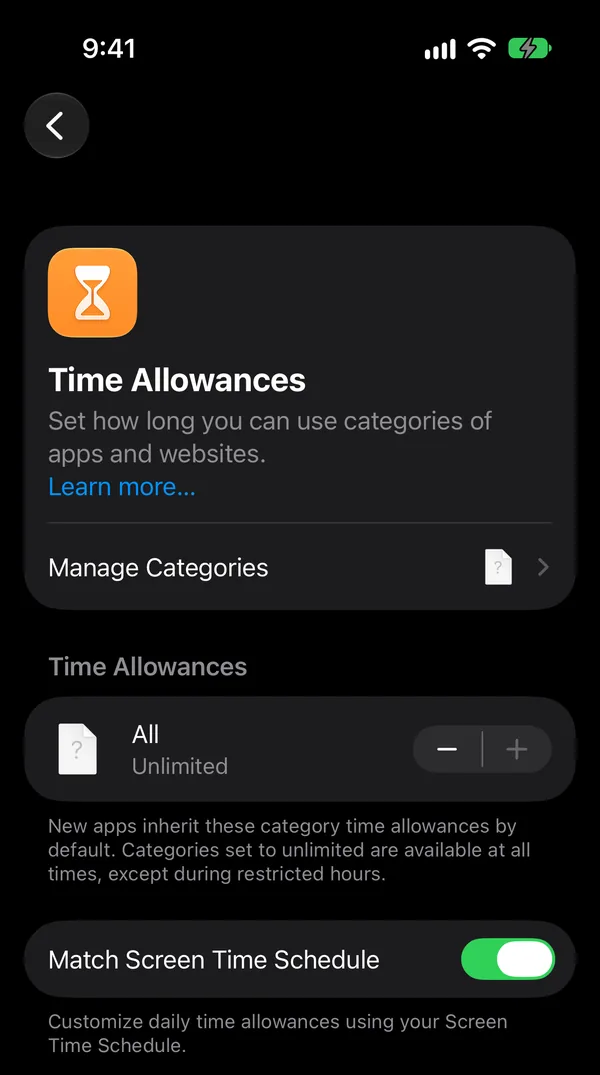
Add a category such as Social Media or Games, or a Custom one for the apps you choose, and give it a daily time. The step-by-step with every screen is in How to Block Apps on iPhone.
Step 4: Screen Time Schedule, for when
Where Time Allowances limit how long, the schedule limits when. Turn on Schedule and set the hours apps are available, for every day or different hours on different days.
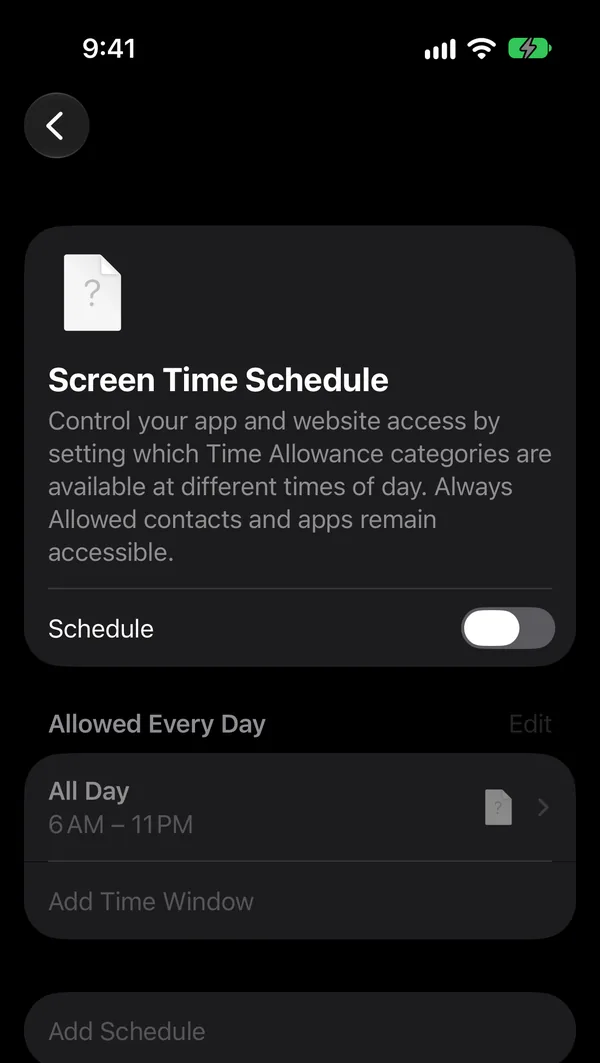
A schedule is often easier to live with than a time limit, because it is predictable: you know at ten that the apps close at eleven. Back in Time Allowances, Match Screen Time Schedule lets your categories follow the same hours.
Step 5: Always Allowed, for what never stops
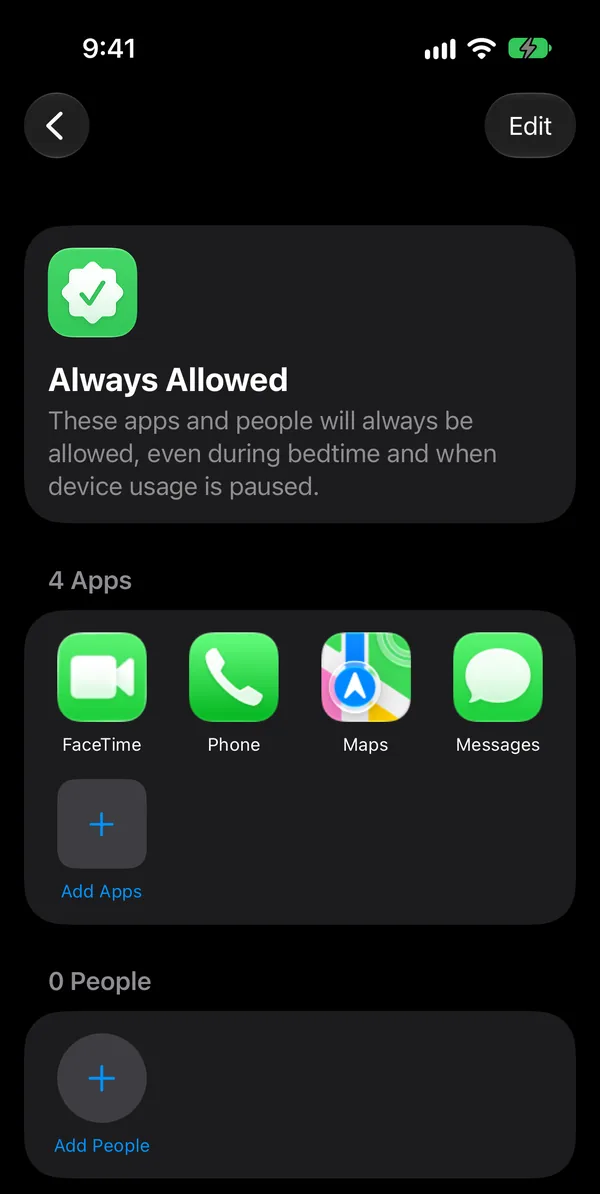
Before any limit kicks in, decide what must keep working. Whatever sits in Always Allowed keeps working through every limit and schedule. Four apps are in the list from the start (Phone, Messages, FaceTime, Maps); use Add Apps to include what you can't be without, such as your calendar, a banking app or a work tool.
Step 6: Apps & Websites, for what never opens
This section has two jobs. Its Allowed and Blocked lists keep single apps or websites closed completely, with Block App on an app's page or Block Website for a site. And Restrictions covers content: by default it is set to "Limit Adult Websites".
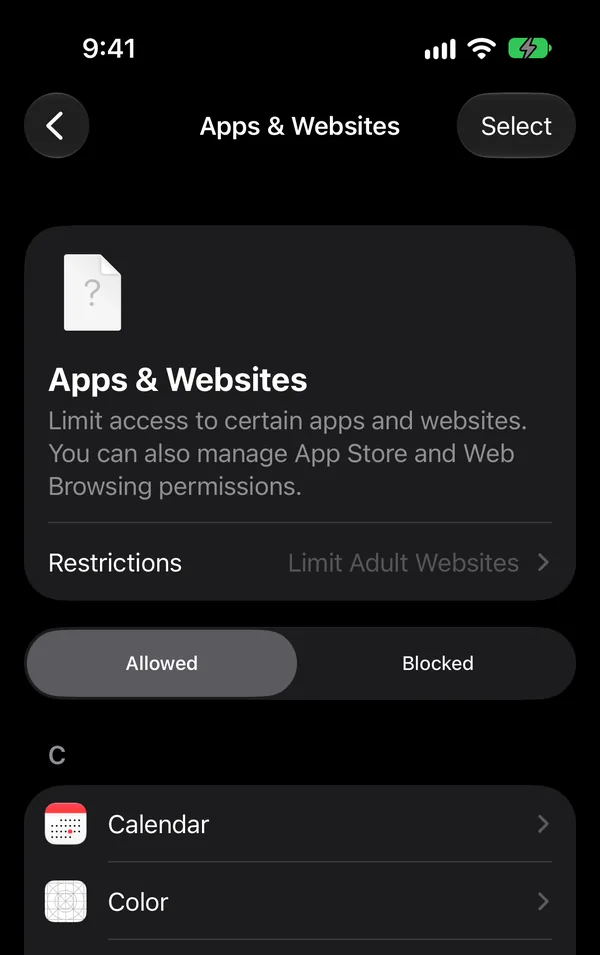
For your own phone, the lists are the useful part. Websites in detail, including allowing only the sites you choose, are in How to Block Websites on iPhone.
Step 7: Allowed Contacts
Allowed Contacts decides who can reach you by phone, FaceTime and Messages; it starts at Everyone. According to Apple, you can narrow it to your contacts, or to specific people during the Screen Time Schedule. For your own phone you will usually leave it as it is. It matters most on a child's iPhone.
Step 8: One setup for all your devices
In Manage Screen Time, Share Across Devices is on by default. The note under the switch explains it: "Screen Time settings sync across your devices. If you want to configure settings specific to this device, turn this setting off." Keep it on if you also have an iPad, so your limits travel with you and the scrolling doesn't just change screens.
Step 9: A passcode, so it holds
Without a passcode, every limit above can be ignored or switched off in a few taps. On the same page, Lock Screen Time Settings sets a four-digit Screen Time passcode, separate from your phone's own. Ask someone you trust to choose it. Setting, changing and resetting it, step by step: Screen Time Passcode on iPhone.
A starting setup that works for most people
If you don't know where to begin, this holds up well and is easy to adjust later:
- App & Website Activity on, and one week of just watching.
- One Custom Time Allowance for the two or three apps that took the most time, at about half of what you use now.
- A Screen Time Schedule that ends an hour before you usually go to sleep.
- Always Allowed checked: Phone, Messages, Maps, plus anything you need for work.
- A Screen Time passcode that a friend or partner picks and keeps.
After two weeks, lower the allowance a little if it was easy, raise it if you kept wanting to cheat. A setup you keep beats a strict one you switch off.
Setting Screen Time for a child
As the Screen Time page says, adults "can also set parental controls for a child's device". According to Apple, the best way is Family Sharing: on your own iPhone, Screen Time shows your child's name, and from there you set their limits, schedule, Allowed Contacts and content restrictions, with a passcode they don't know. You can also set it up directly on the child's iPhone. Apple's support pages walk through Family Sharing in detail.
Beyond limits: NoCrast
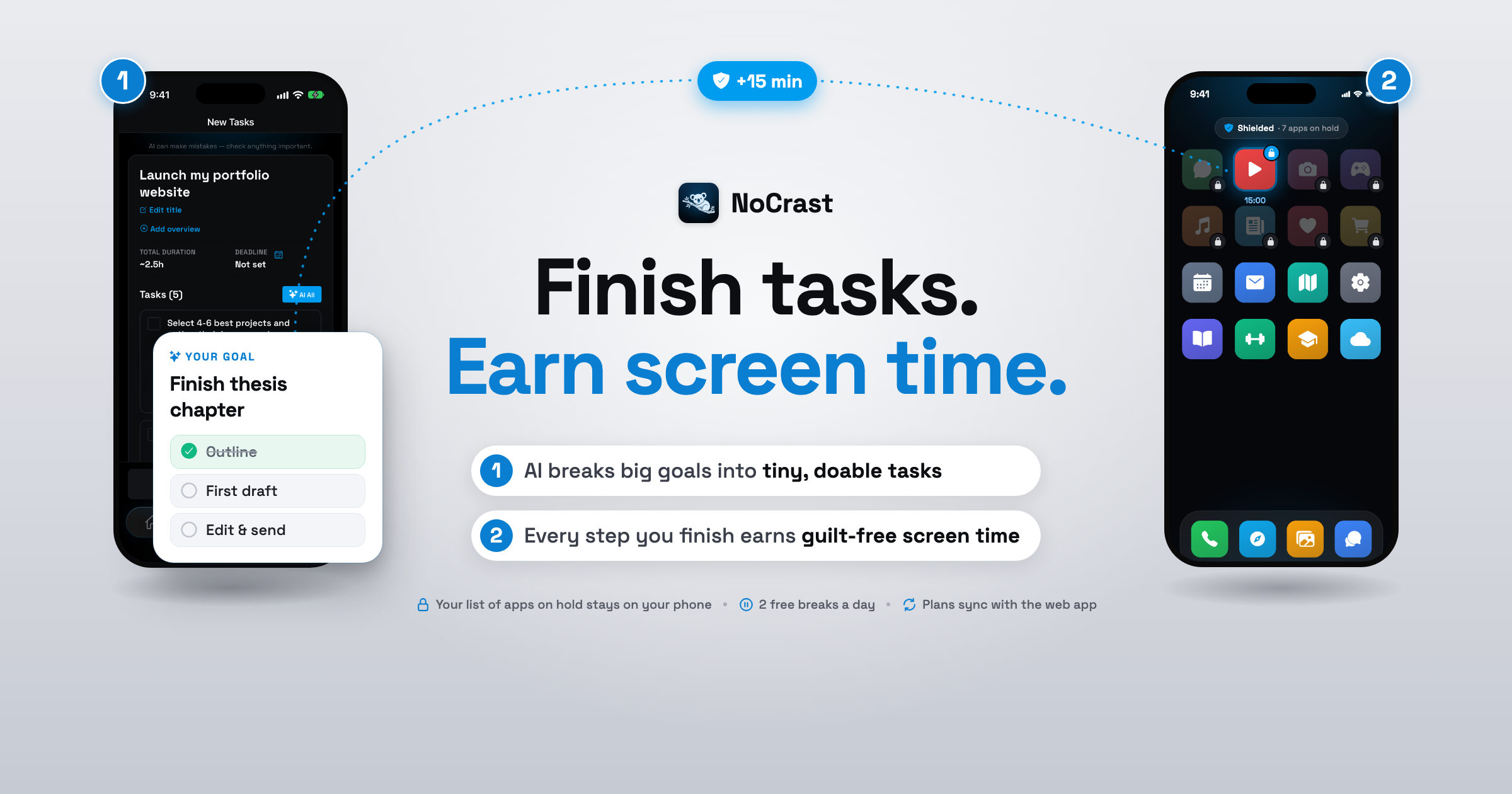
Screen Time is good at limits. It isn't built to help with what you do once the limit hits, which is often where the evening goes: the next app, the browser, the "ignore". NoCrast adds that part. The apps you name stay on hold until every task on today's plan is ticked off. Open one early and NoCrast puts the task you are on in front of you, along with the minutes completing it would add to your balance.
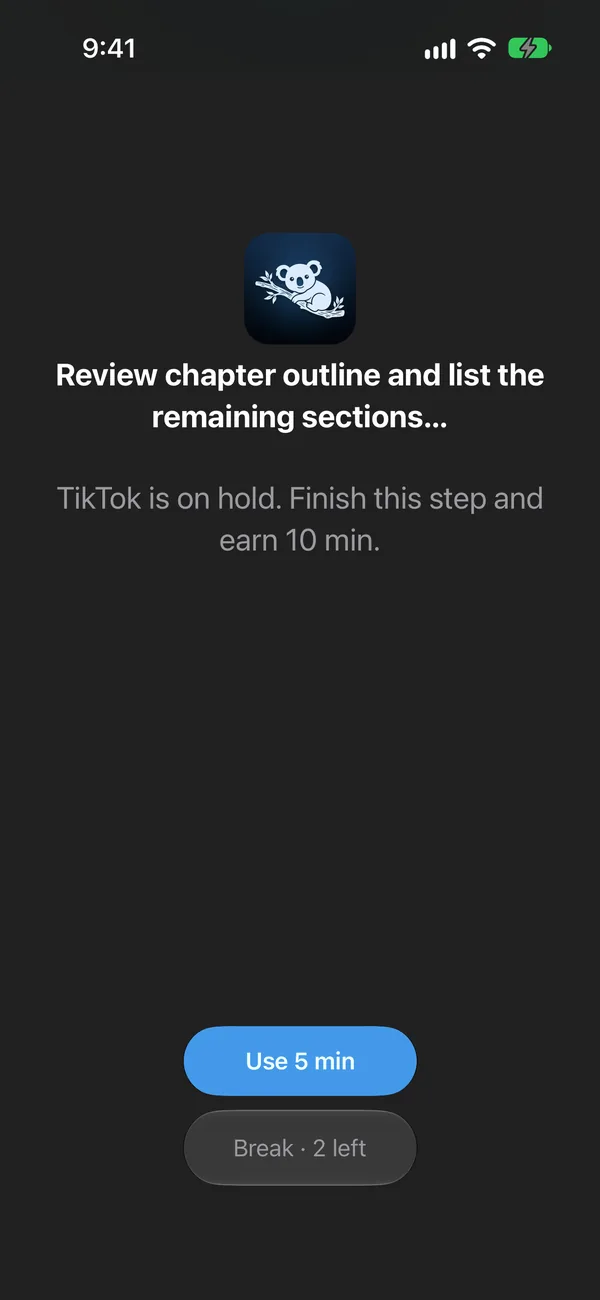
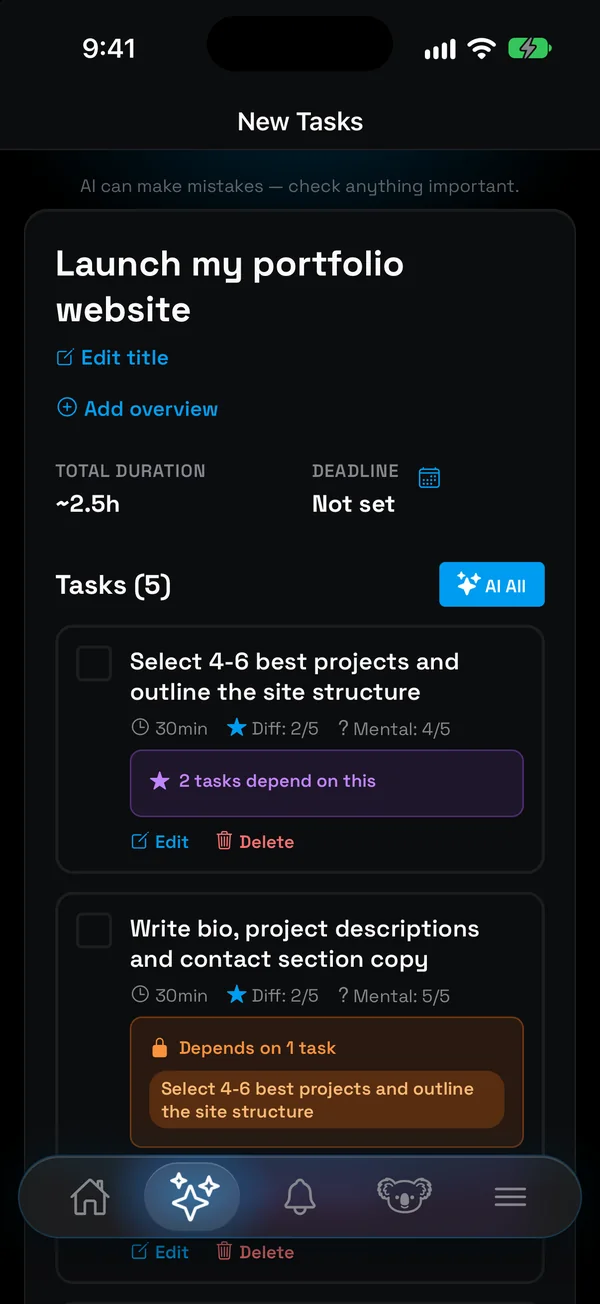
The steps come from NoCrast's AI, which breaks whatever you keep putting off into small tasks with their time and effort. Each finished one earns about a third of its time as screen time, a bit more when it was hard or boring; for real emergencies there are two free 10-minute breaks every day. On iPhone, NoCrast holds apps through Apple's Screen Time, and the apps you choose stay on your phone.
| Screen Time | NoCrast | |
|---|---|---|
| Sets | How long and when apps are available | What comes before your apps: today's tasks |
| Opening an app too early shows | The limit | The task you are on, and what it pays |
| Gets you more time | The passcode | Finishing a task |
Use them together: Screen Time for the hard limits and the schedule, NoCrast to make sure the work comes first.
Get NoCrast on the App Store or Google Play.


Found this helpful? Share it with others!